


Add-on Feature
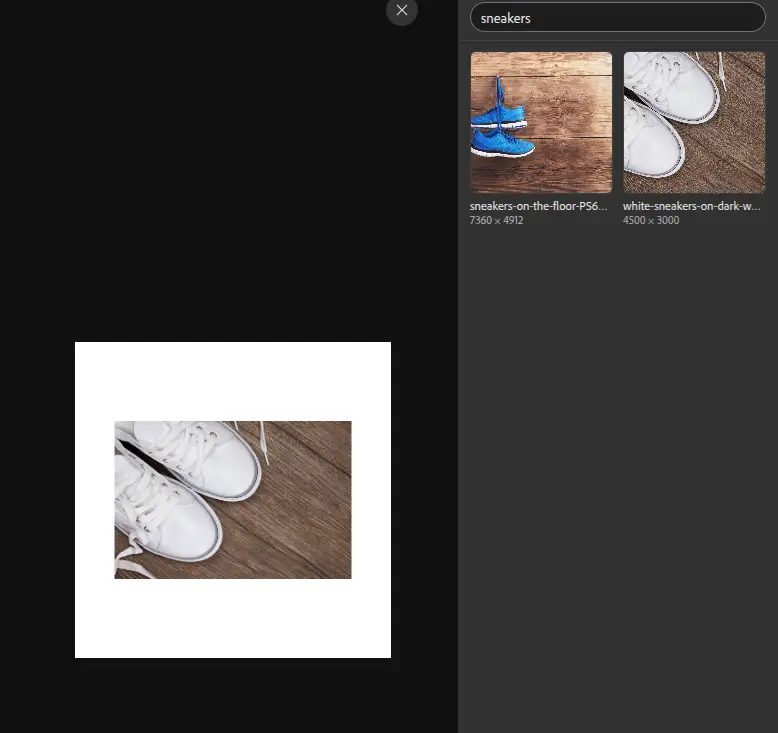
The Kontainer Asset Picker add-on brings your Kontainer DAM into Adobe Express. Search your library, browse your folders and add images, animated GIFs and videos to your design with a click or by dragging them onto the page. There is no need to download files from Kontainer and upload them to Adobe Express again.
Read more about the Kontainer add-on for Adobe Express on our website.
Before you start
You need:
- A Kontainer account on a plan that includes the Adobe Express integration. It is an add-on feature: if you do not see Adobe Express in your Kontainer profile, contact your Kontainer account manager or support@kontainer.com to have it enabled.
- Your Kontainer URL, for example
yourcompany.kontainer.com. - Your personal Kontainer key (see the next step).
- Adobe Express in a desktop browser. The add-on works with both free and paid Adobe Express plans. Adobe Express add-ons are not available in the mobile apps.
The add-on shows only the folders and files your Kontainer user has access to, so your existing user permissions apply in Adobe Express too. To add a file to a design, your user needs permission to download it.
Step 1: Find your Kontainer key
- Log in to Kontainer and open your profile from the profile icon in the bottom left corner.
- Find Adobe Express and turn on its switch. The same switch and key are used by the Kontainer plugins for Adobe Photoshop, Adobe InDesign and Office, so the switch may read Adobe, Adobe Express and Office.
- Your key appears below the switch. Copy it with the copy button next to the key.
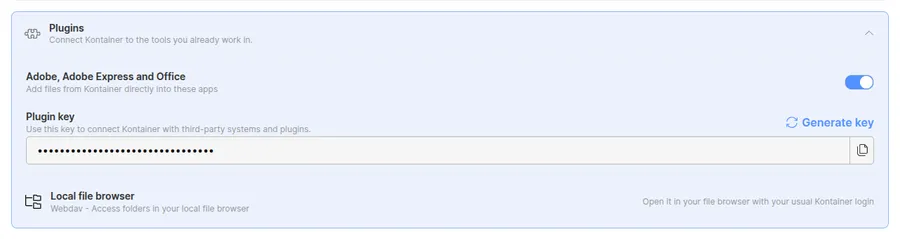
The key is personal and works like a password: do not share it. Generate key replaces your key with a new one. The old key then stops working in Adobe Express and in the Kontainer plugins for Adobe Photoshop, Adobe InDesign and Office, so you will need to enter the new key in each of them.
Step 2: Add the add-on in Adobe Express
- Open a design in Adobe Express.
- Select Add-ons in the left-hand menu.
- Search for Kontainer and select Kontainer Asset Picker.
- Click Add. The add-on opens in a panel next to your design, and from now on you find it under Your add-ons.
Step 3: Connect to Kontainer
- In the add-on, enter your Kontainer URL, for example
yourcompany.kontainer.com. You can leave outhttps://. - Paste your Kontainer key.
- Click Connect.

The add-on remembers the connection, so you only need to do this once per browser. To change the URL or key, or to disconnect, click the gear icon in the top right corner of the add-on.
Step 4: Browse, search and add files
- Browse: click a folder to open it. Use the back arrow or the path at the top to go back up.
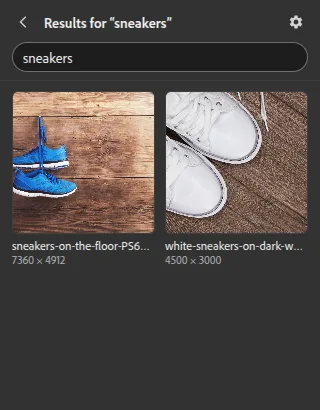
- Search: type in the search field to search your whole Kontainer library by file name and tagged data.
- Add to your design: click a file to add it to the current page, or drag it onto the page where you want it.

For videos, Adobe Express asks whether to add the video as a layer on the page or as a new scene. This dialog comes from Adobe Express itself. Adobe Photoshop and Adobe Illustrator files are added as flattened images. Adding an Illustrator file can take up to a minute while Kontainer renders it.
Supported files
- Images: AI, GIF, JPEG, PNG, PSD, SVG and WebP
- Video: MP4, MOV and M4V
Other files in a folder, such as PDF or Office documents, are not shown in the add-on. Adobe Express also sets size limits for files added by add-ons: images up to 8192 pixels on the longest side, 65 megapixels and 80 MB, and animated GIFs up to 1080 pixels and 10 MB. The add-on tells you when a file is over a limit instead of adding it.
Troubleshooting
- Could not connect to Kontainer: check the Kontainer URL and your internet connection.
- Kontainer did not accept the key: copy the key again from your Kontainer profile. If a new key has been generated since you connected, use the new one.
- Your Kontainer account does not have access to Adobe Express: the Adobe Express integration is not enabled for your account. Contact your Kontainer administrator or support@kontainer.com.
- A file is missing: the add-on only shows supported file types, and only files your user has access to.
Questions? Contact us at support@kontainer.com.
Adobe, Adobe Creative Cloud, Adobe Express, Adobe Illustrator, Adobe InDesign and Adobe Photoshop are either registered trademarks or trademarks of Adobe in the United States and/or other countries.