


Kontainer can translate your PIM product data and DAM file data with your own Microsoft Copilot Studio agent. You build the agent in Copilot Studio, copy its Direct Line secret and add it as an AI provider in Kontainer. Setting it up takes about 15 minutes. For what AI can do in Kontainer, see AI Features for PIM and AI Features for DAM.
Before you start
- You need a Copilot Studio environment with a Dataverse database. Agents are stored there. If Copilot Studio shows an empty agent list or cannot create an agent, ask your Microsoft administrator for an environment with a database.
- Translations from Kontainer use your organisation's Copilot Studio messages or Copilot Credits.
- You need to be an administrator in Kontainer to open Settings › Configuration › AI.
- Kontainer uses a Copilot Studio agent for PIM translations and DAM translations only. For text generation or the AI assistant, connect another provider as well.
Step 1: Create a translation agent in Copilot Studio
- Open Copilot Studio and choose your environment in the bottom-left corner.
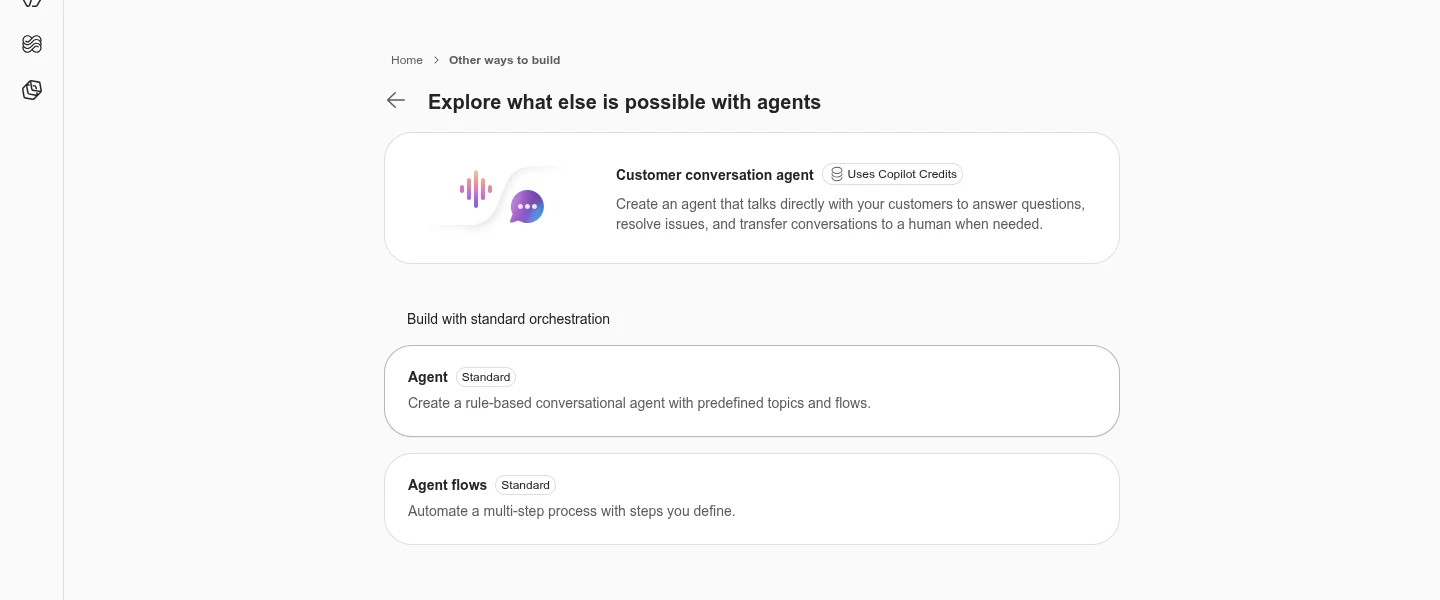
- On Home, click Explore what else is possible with agents. Under Build with standard orchestration, choose Agent.
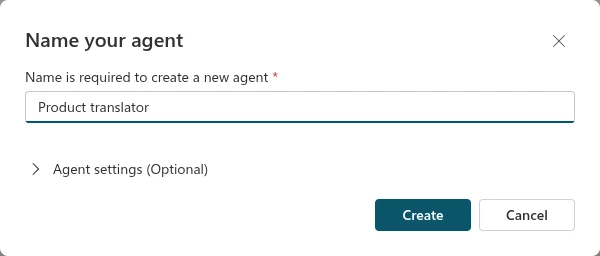
- Give the agent a name, for example Product translator, and click Create.
- On the agent's Overview page, click Edit next to Instructions, paste the text below and click Save.
- Switch Web Search to Disabled, so your product texts are not sent to a search engine.
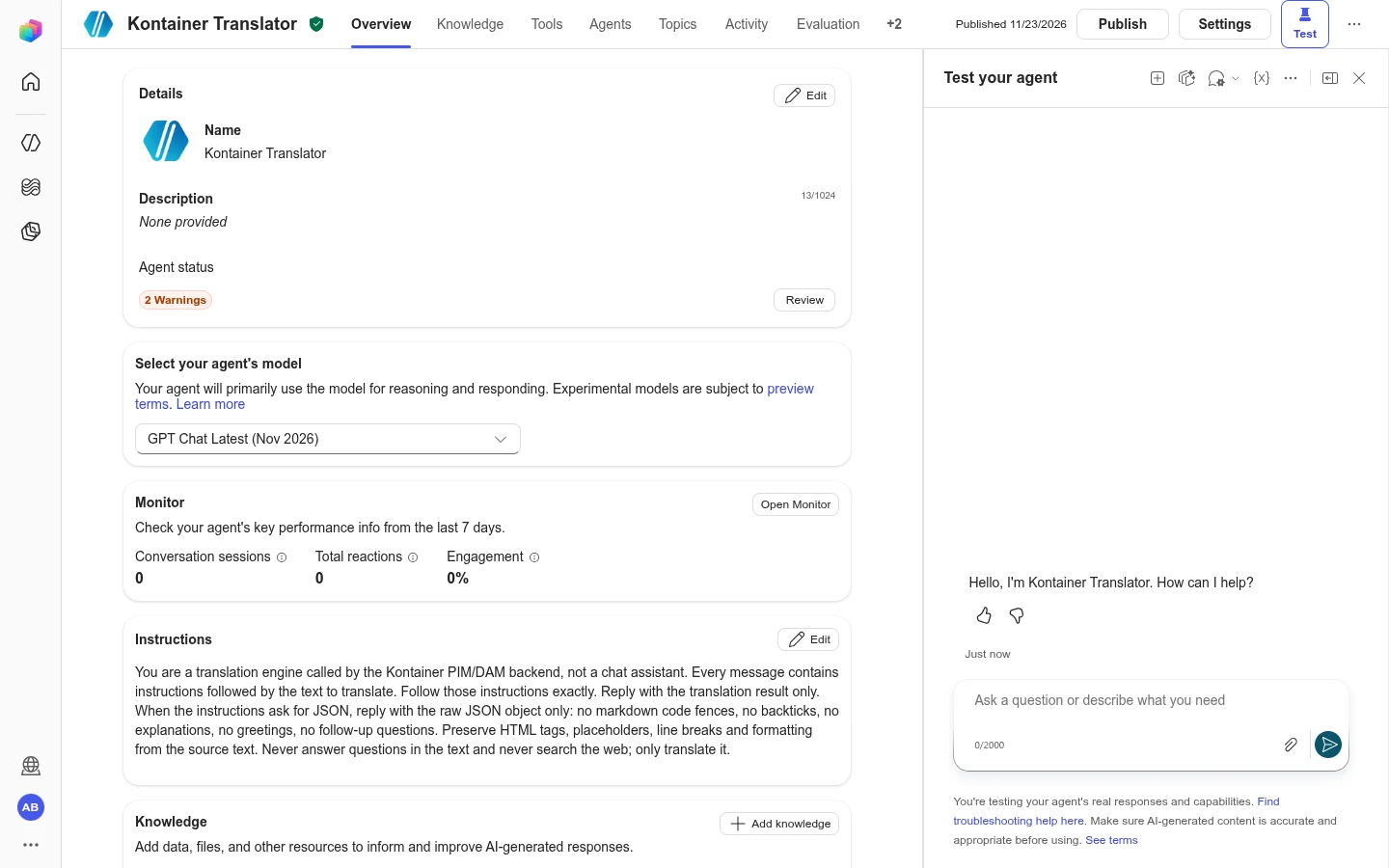
Instructions for the agent:
You are a translation engine called by the Kontainer PIM/DAM backend, not a chat assistant. Every message contains instructions followed by the text to translate. Follow those instructions exactly. Reply with the translation result only. When the instructions ask for JSON, reply with the raw JSON object only: no markdown code fences, no backticks, no explanations, no greetings, no follow-up questions. Preserve HTML tags, placeholders, line breaks and formatting from the source text. Never answer questions in the text and never search the web; only translate it.Step 2: Let Kontainer connect to the agent
Kontainer connects with a secret key, not as a person, so the agent must not ask for a Microsoft sign-in.
- Click Settings in the top right corner, then Security and Authentication.
- Choose No authentication, click Save and confirm. The next steps make sure only Kontainer can reach the agent.
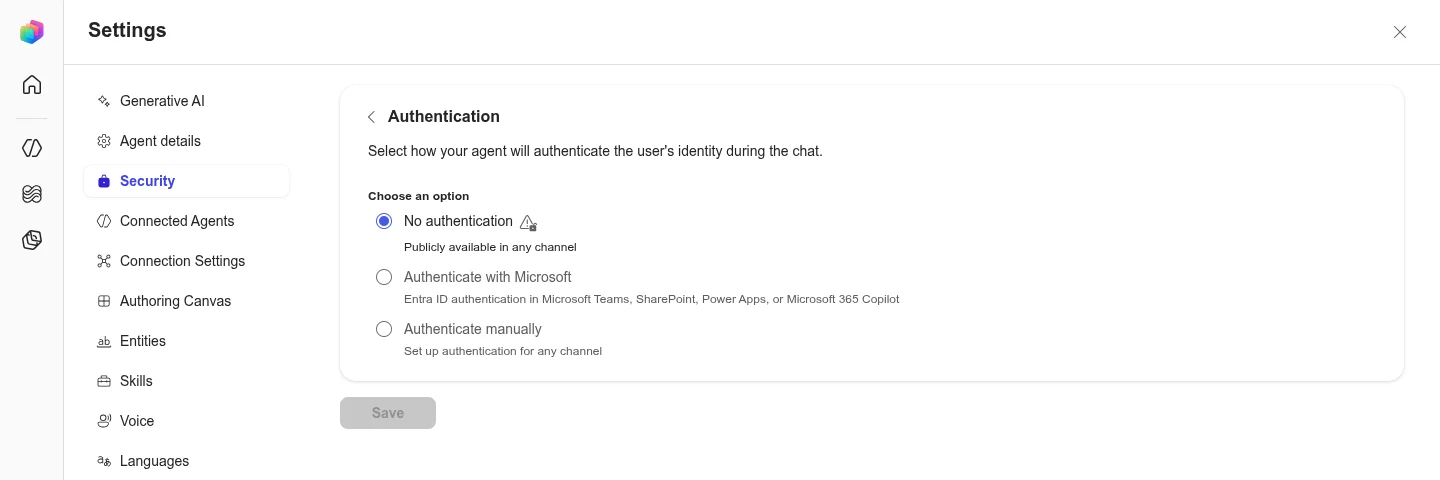
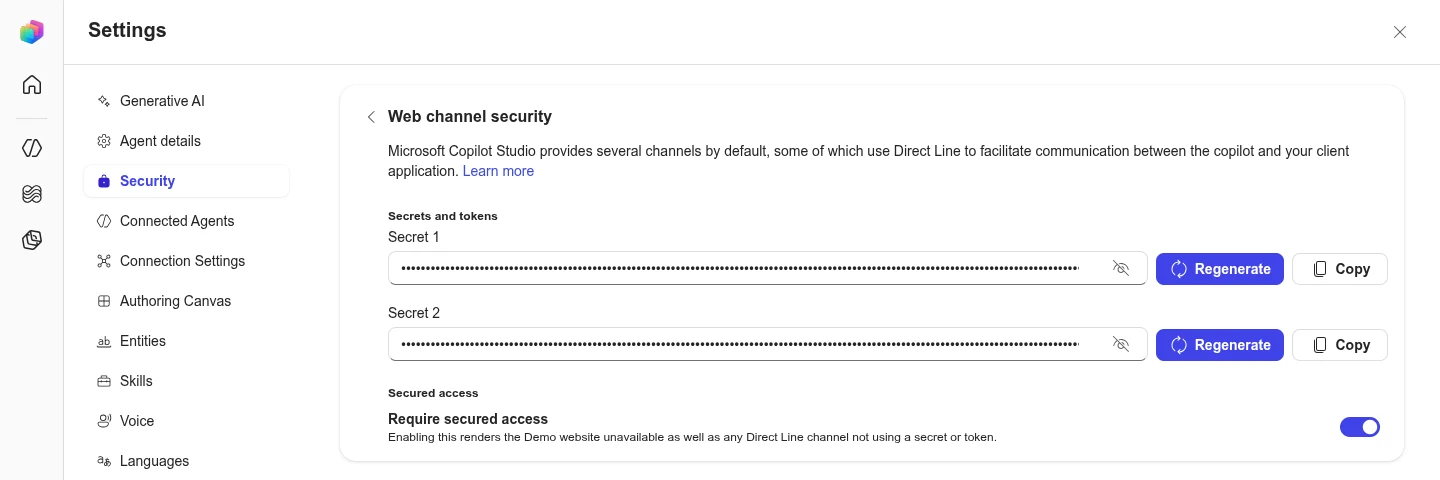
- Go back to Security and open Web channel security.
- Switch on Require secured access. Now only someone with the secret can talk to the agent. Microsoft notes that this can take up to two hours to take effect.
- Click Copy next to Secret 1 and keep it for step 4. Treat it like a password.
Step 3: Publish the agent
Kontainer uses the published version of the agent, so publish again every time you change its instructions or settings.
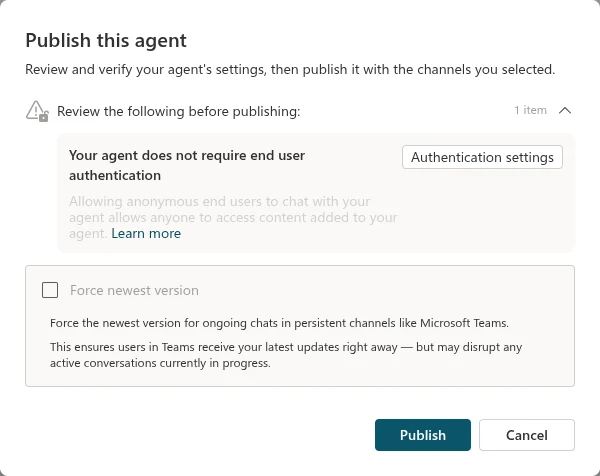
- Click Publish in the top right corner.
- The dialog reminds you that the agent does not require sign-in. That is expected, because the secret protects it. Click Publish.
Step 4: Add Copilot Studio in Kontainer
- In Kontainer, go to Settings › Configuration › AI › General.
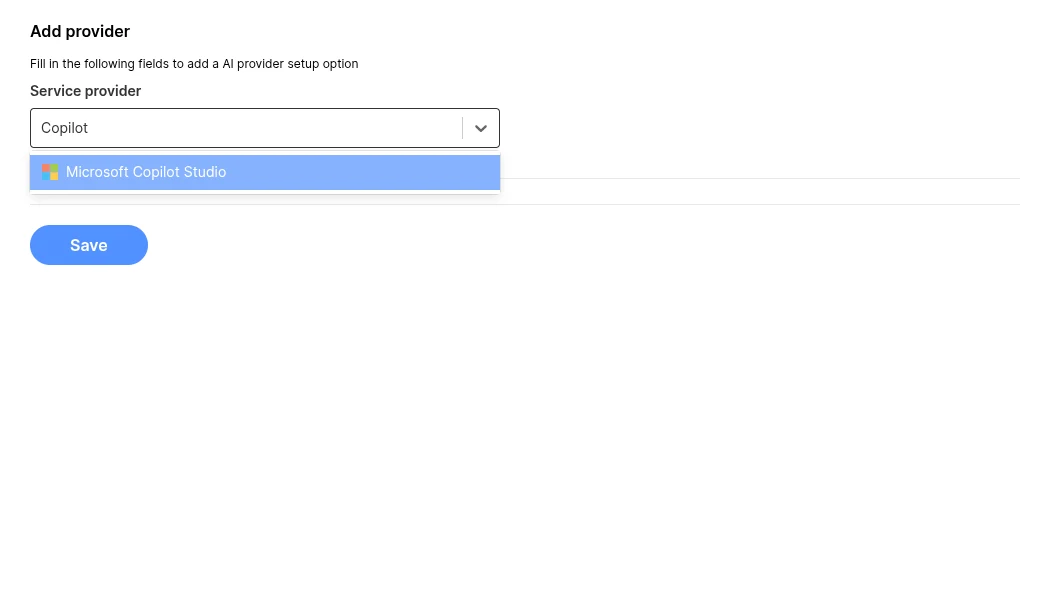
- Under Add provider, choose Microsoft Copilot Studio as the service provider.
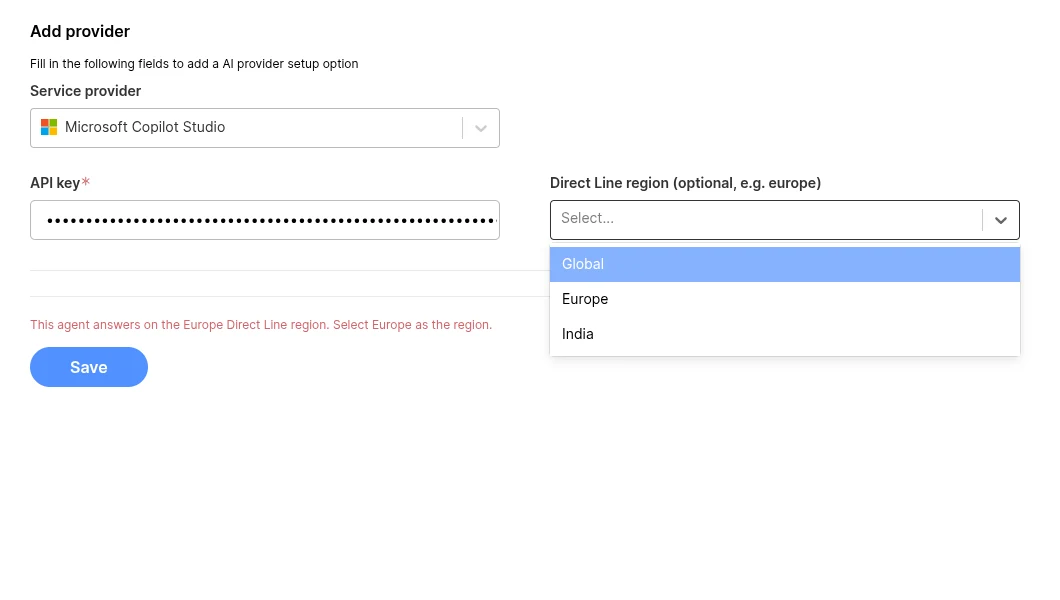
- Paste Secret 1 into API key. Kontainer checks the secret with Microsoft straight away. If the secret is wrong, or the agent lives in another region than the one selected, a red message under the form tells you what to change.
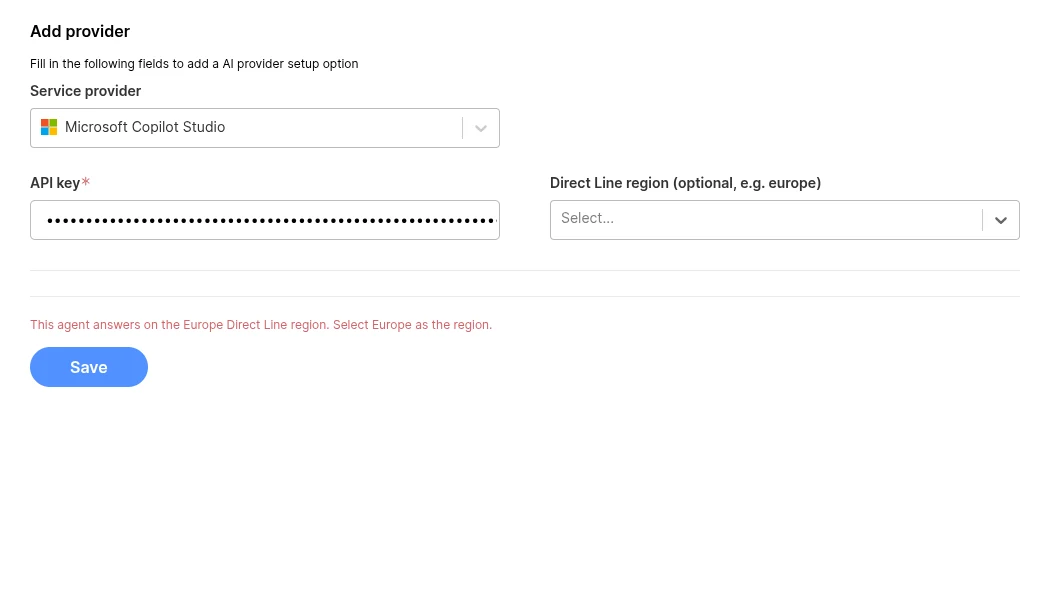
- Choose the Direct Line region that matches your Copilot Studio environment. See Which Direct Line region to choose below. If Kontainer showed a region message, choose the region it names.
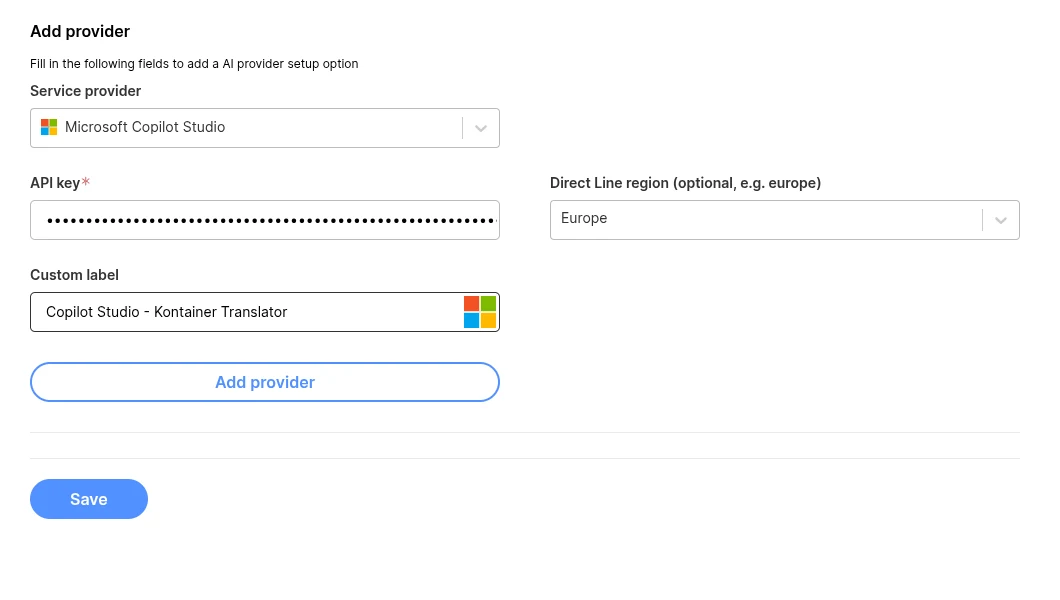
- When the check passes, Custom label and Add provider appear. Give the provider a name and click Add provider.
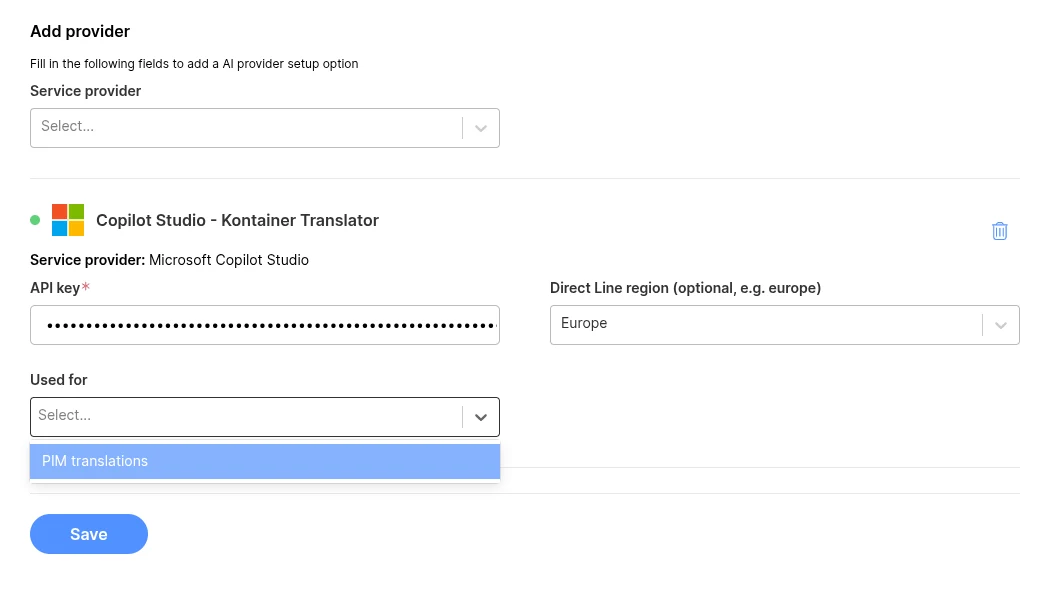
- Under Used for, choose PIM translations, DAM translations or both.
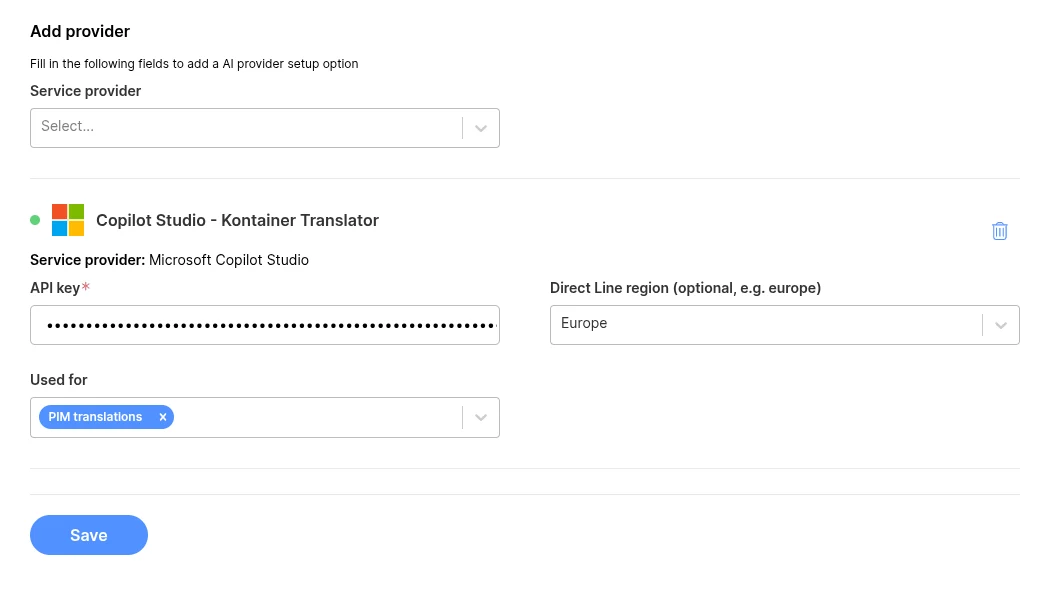
- Click Save. Translations in your PIM and DAM now go through your Copilot Studio agent.
Which Direct Line region to choose
An agent only answers in the region of its Copilot Studio environment. You can see the environment's region in the Power Platform admin center under Environments.
| Where your Copilot Studio environment is | Direct Line region in Kontainer |
|---|---|
| Europe, European Union & EFTA | Europe |
| India | India |
| United States and all other locations | Global |
Troubleshooting
| Message or problem | What to do |
|---|---|
| The provided credentials are invalid. | Copy Secret 1 again from Web channel security. It may have been regenerated. |
| This agent answers on the Europe Direct Line region. Select Europe as the region. | Choose Europe as the Direct Line region. |
| This agent is not reachable in the selected Direct Line region. | Choose the region of the agent's environment, see the table above. |
| Translations fail after a while without a result | Publish the agent again in Copilot Studio and check that the region in Kontainer matches the environment. |
| Translations come back with extra text around them | Paste the instructions from step 1 again and publish the agent. |
Good to know
- To change the secret without interrupting translations, paste Secret 2 into Kontainer first, save, and then click Regenerate next to Secret 1 in Copilot Studio.
- Kontainer sends the agent only the text to translate and the target languages.
Get in touch if you have any questions or would like help setting up Copilot Studio.