


Create designs, guides and landing pages inside your folders to better introduce colleagues, partners, and customers to your content.
Present an elegant and user-friendly platform customized to fit the needs of everyone you invite inside. Only users with access to the folders will see the designs you make.
In our Page editor, you can mix and match:
- Images
- Text
- GIF animations
- Video
- Spacers
- Embed code
👉 INSPIRATION: Click here
👉 MORE STYLING OPTIONS: Click here
👉 NEW: PAGE DESIGNS IN MULTIPLE LANGUAGES: Click here
If you have any questions or would like a presentation, get in touch support@kontainer.com.
Create beautiful designs inside your folders
When your users open your Kontainer, what do you want them to see? Custom landing pages allow you to show off your identity and give access to assets. Our clients use custom landing pages for different purposes, like:
- Brand and style guides
- Product launches
- Press kits and releases
- How-to guides
- Training guides
Those are just a few examples. You will know how landing pages can present a more seamless experience for your users. If you have any questions, let us know.
Step-by-Step Guide
1. Access Page editor
Navigate to the folder/page you want to edit.
Note, you need delete-rights to a folder if you want to edit its page editor design elements.
Click More in the top-right menu of your folder view, and then click Page Editor.

2. Add sections
Once the Page editor is open, you can add sections of content boxes.
Each section contains a number of content boxes that can contain:
- Images
- Text
- GIF animations
- Spacers
- Videos
- Embedded elements

👉 NEW: Expanded selection of section types available

3. Content types
The six content types feature various options for formatting, highlighted below.
Images
Images can be added externally from your computer drives or internally from your Kontainer.
- If you add internally, you can import via a Download template (find out more about Download templates).
- Images will auto-scale unless you deactivate
- You can add internal or external links under the images

GIF animations
Add GIF animations to your design.
Formatting options:
- GIF animations will auto-scale unless you deactivate
- You can add internal or external links
- Option for links to open in a new browser tab

Text
Add text to your page.
Options available:
- Custom format your text
- Use formatting presets (from Settings/Appearance/Text editor).
- Add links in your text
- Add buttons (calls to action) in your text
- Insert folder data as placeholders in your text
- Add padding
- Add background color or image
- Select position of text

👉 NEW: Buttons (calls to action) in text
Add buttons to a text element to guide users onward, for example to another folder, an external website or a file they can download.
To add a button:
- Open the text element in the Page editor.
- Click the Add button icon in the text toolbar, next to the link icons.
- Enter the Button text.
- Choose a Button destination:
- External: enter a URL. You can also enter an email address, which opens a new email.
- Internal: select a folder in your Kontainer.
- Download: select a file or a folder that users can download directly from the button.
- Tick Open in new tab if needed (not available for Download buttons).
- Click Add button.
Note: With a Download button, anyone who can see the page can download the selected file or folder, even if they don't have download rights themselves. The download uses the permissions of the person who added the button.
If you don't see the Add button icon, save the text element first and open it again.
Style your buttons
All buttons added in the Page editor share one style per brand. You set it under Settings/Appearance/Design in the Page editor buttons section. Buttons elsewhere in Kontainer are not affected, and any field you leave empty keeps the standard styling. A preview shows the result as you edit.
Choose between two tabs:
- Settings: set background colour, text colour, border colour, font, font size, border width, corner radius and vertical and horizontal padding.
- Custom CSS: write your own CSS for the button. The first time you open this tab, it is filled in with the current button styling so you can adjust it. Nested rules work, for example
&:hover { opacity: 0.7; }for a hover effect.

Remember to save your changes.
👉 NEW: Folder data in text
If your folders are tagged with folder data, you can insert folder data fields as placeholders in a text element. When the page is shown, each placeholder is replaced with the value tagged on that folder.
This means you can build one page template and use it across many folders. Each folder then shows its own data automatically, for example its customer, segment, industry and year, without you typing it into every page.
Read more about tagging folders in Folder tagging.
Video
When you add video, please be aware that it can take a little while before it’s available for preview online.
Formatting options:
- Play video in design (rather than pop-up)
- Mute sound
- 👉 NEW: Autoplay (only when muted)
- Loop video
- Hide video controls
- Upload a thumbnail/preview image

Spacer
Add more spacing or divider lines between sections.
Formatting options:
- 3 sizes (Small, Medium, Large)
- Show divider line
- Select divider line color

👉 NEW: Embed
Embed videos, Google map elements or other.
NOTE: Kontainer has a native video streaming tool. Find out more here.
Formatting options:
- Select position

Remove margins
Remove the spacing between elements to get rid of margins where needed.

Example: margins on/off

🌐 Page designs in multiple languages
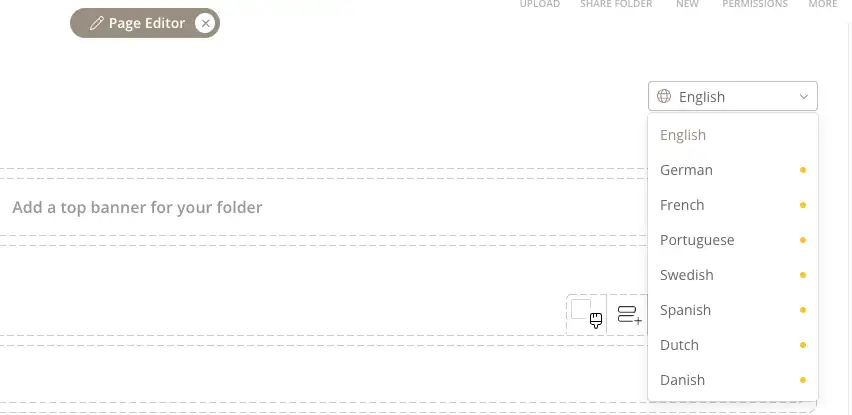
If your Kontainer is used in more than one language, you can give your page design a version for each language. Users then automatically see the page in the system language they have chosen.
When the Page editor is open, use the language picker at the top right to switch between languages. A small dot next to a language shows that the page still has content to translate.
Text, images, GIF animations, videos and links can all be versioned per language, while the layout and settings such as padding, background and position stay the same for every language. Folder names can be translated too.
Read the full guide in Folders and page designs in multiple languages.
Content max width
Set a maximum width of the page/folder view if you don't want images and text stretched. By default, content is responsive to browser size.

The setting is found under Settings/Appearance/General.

That’s it, really. Let us know how you get on.