


Add-on – Beta
Semantic search lets your users search the DAM the way they would describe an asset out loud. A search for "packshots of leather bags without people" returns assets that match the meaning of the query, not just the letters in it.
In Kontainer, the feature is called the DAM Search Agent. It is currently in Beta and is enabled per client by the Kontainer team, so contact Customer Success to have it activated on your solution.
How it works
An embedding model reads each file — the image itself, document text, metadata and searchable custom fields — and indexes what it finds in a vector search index that belongs only to your solution. A second model interprets what the user typed and routes the query to semantic, keyword or filter matching.
Because the index is built from your own files, the agent performs as well as the guidance you give it. The setup below is what turns a generic AI search into one that understands your library.
Choose your AI provider
Semantic search needs an AI provider, and you have two options:
- Kontainer's integrated AI – runs entirely inside the Kontainer system. Nothing is shared with third parties, which makes it the straightforward choice when data protection is the deciding factor.
- An external provider – such as OpenAI, Gemini, Anthropic, Amazon, or Copilot. If your organization already uses one, it is likely the stronger model and can be steered to better match your own tone of voice.
Whichever you choose, the provider is set up under Settings → Configuration → AI → General, and the search agent's two jobs are pointed at in the Used for list: DAM search agent embeddings, which indexes your files, and DAM search agent prompt, which interprets what users type. A job can be assigned to only one provider at a time.
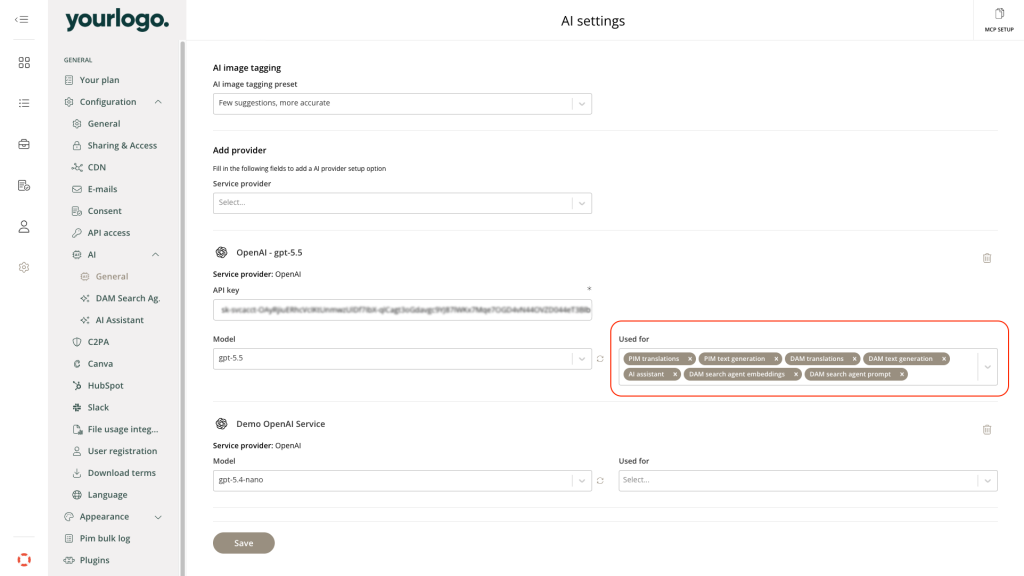
Building the index reads every file in the library, so the first run can consume a lot of tokens when the provider is an external one. The page warns you when that is the case. For token prices and packages, see AI Features for DAM, or ask Customer Success about expected volume before you start.
Set up the agent
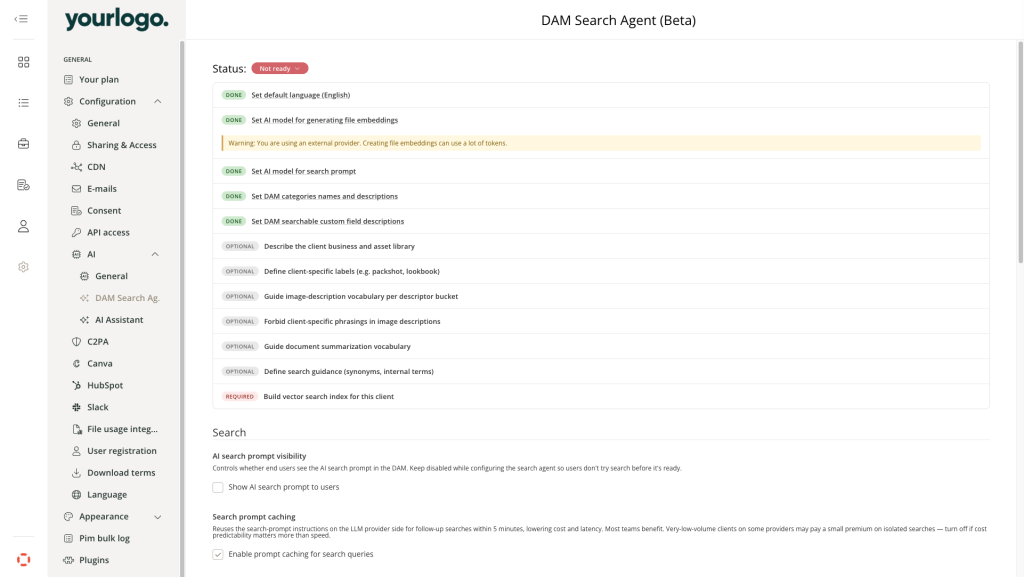
Go to Settings → Configuration → AI → DAM Search Agent. A checklist at the top shows every setup step and its status, and each row links to the setting it refers to. Status stays Not ready until the required steps are done. Remember to press Save.
Every step on the list is yours to set, with one exception: Build vector search index for this client can only be run by Kontainer, so contact Customer Success once the rest of your setup is in place.
The optional steps can be left empty, and the search will still work. But the more of them you fill in, the better the results:
- Business – a few sentences on what your company does and what the library contains, so the agent knows that in your library, a "flat" is a product shot and not an apartment.
- Image description – which descriptors the agent should emit and in what order, your own labels such as packshot or lookbook with a definition of each, and any wording it must avoid.
- Document description – the terminology that matters in document summaries, and the boilerplate they should skip.
- Search – synonyms and internal terms, so that "studio cutout" is understood as packshot and "AW24" as autumn/winter 2024. This is also where you choose which custom field categories the search may match against.
Every field has its own description on screen explaining what it affects. Note that the labels and descriptions on your DAM fields matter more than usual here, because the agent reads them to work out what each field means.
Keep Show AI search prompt to users switched off until you are finished, so nobody searches before the agent is ready.
Test before you roll out
Under Test setup you can tune the agent on a small sample instead of re-indexing the whole library for every attempt.
- Switch on Limited test mode, so uploads and custom-field edits stop triggering indexing
- Select a test folder of 100 files or fewer and run the rebuild
- Search the folder, read the generated descriptions, adjust the guidance and rebuild again — repeat until the results look right
- Switch Limited test mode off to resume automatic indexing of new content
- Ask Customer Success to build the full index, then show the AI search prompt to your users
Availability and pricing
Semantic search is an add-on for Premium plans and up, billed as a separate token package on top of your AI tokens. See the Add-on – Semantic AI Search tokens table in AI Features for DAM, or contact Customer Success.
For the rest of Kontainer's AI tools, see the AI Features for DAM guide.