


You can connect Claude to your Kontainer through the Kontainer MCP. Claude then works in Kontainer on your behalf with exactly the same rights as your Kontainer user: it can only see, change or delete what you can. For a general introduction, see MCP (Model Context Protocol) for Kontainer DAM & PIM.
Before you start
- You need a Claude account. The steps below use Claude on the web at claude.ai.
- Adding a custom connector requires permission in your Claude organisation. If you do not see the Add button, ask your Claude administrator to give you access or to add the connector for you.
- Have your Kontainer address ready, for example
https://yourcompany.kontainer.com.
Add the connector
- In Claude, open Settings and choose Connectors.
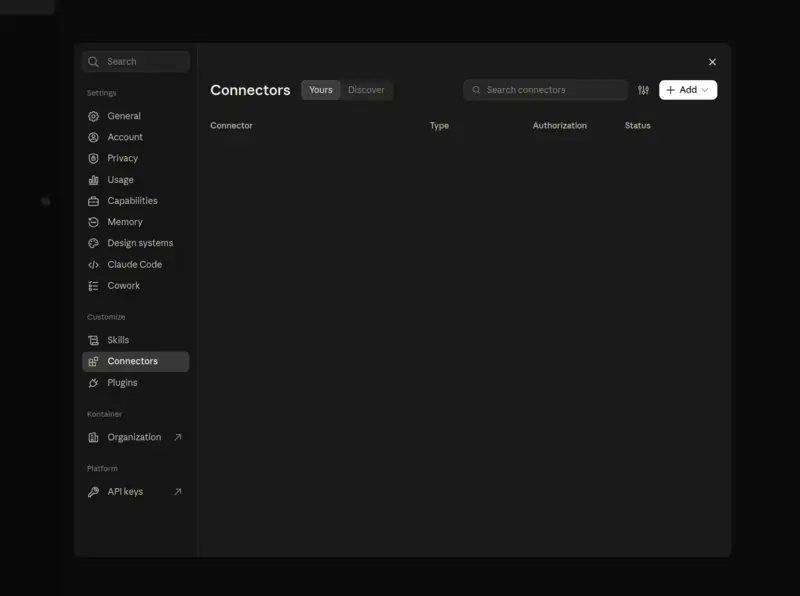
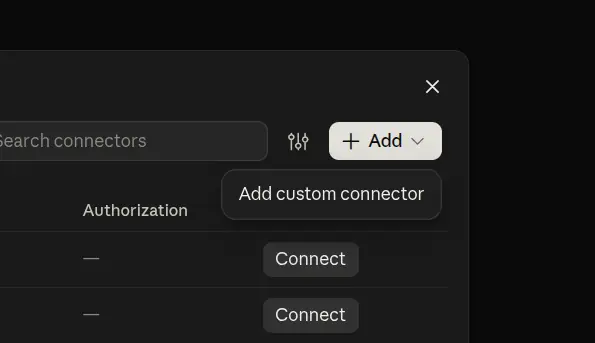
- Click Add and choose Add custom connector.
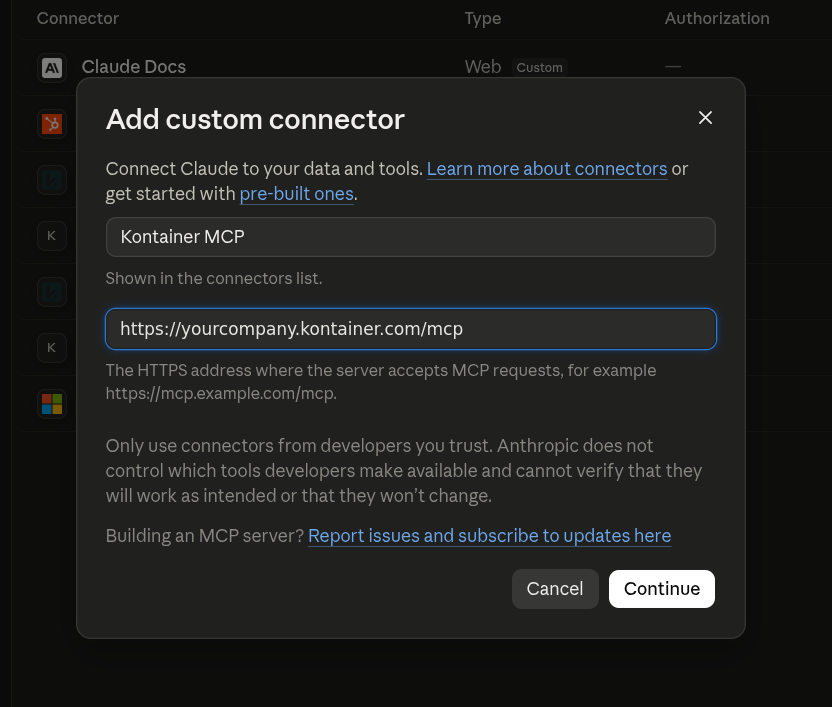
- Give the connector a name, for example Kontainer MCP. As the URL, enter your Kontainer address followed by
/mcp, for examplehttps://yourcompany.kontainer.com/mcp. Click Continue.
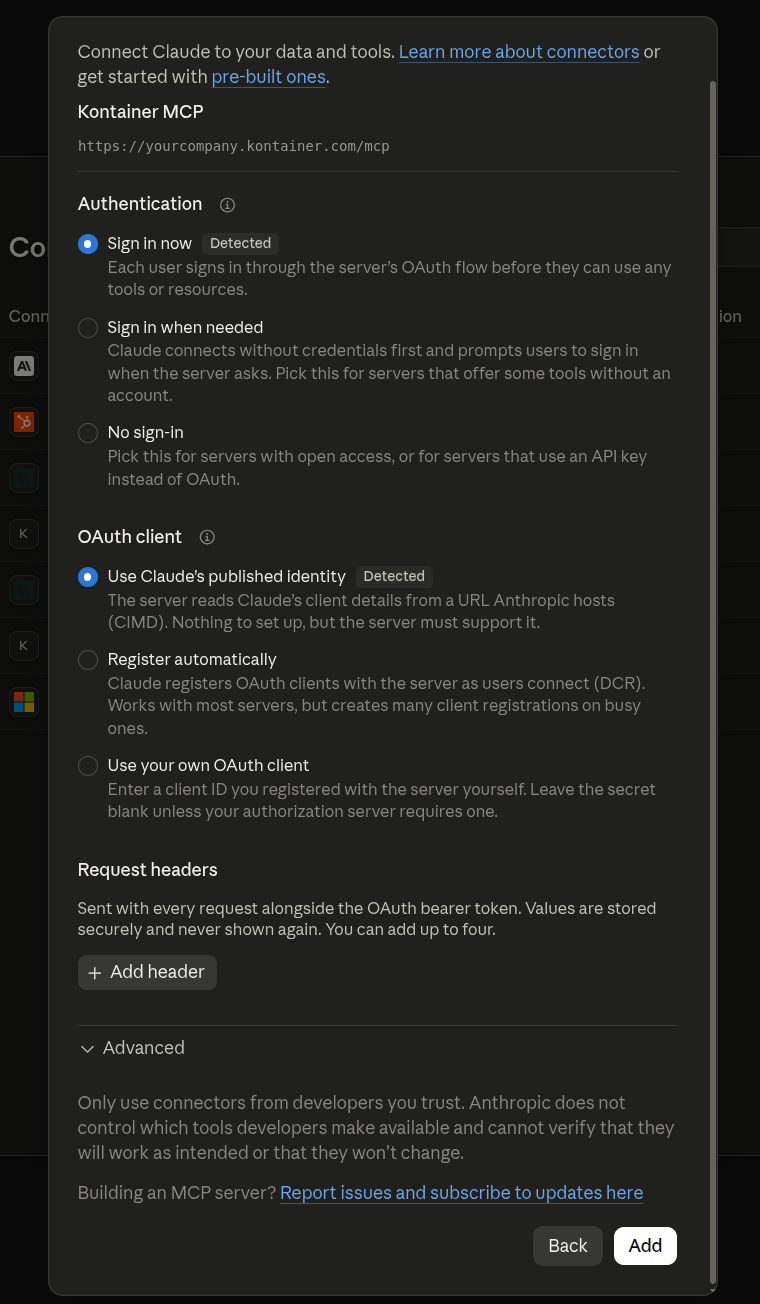
- Claude detects the right sign-in settings by itself. Do not change anything here, just click Add.
- Click Connect on the new connector.
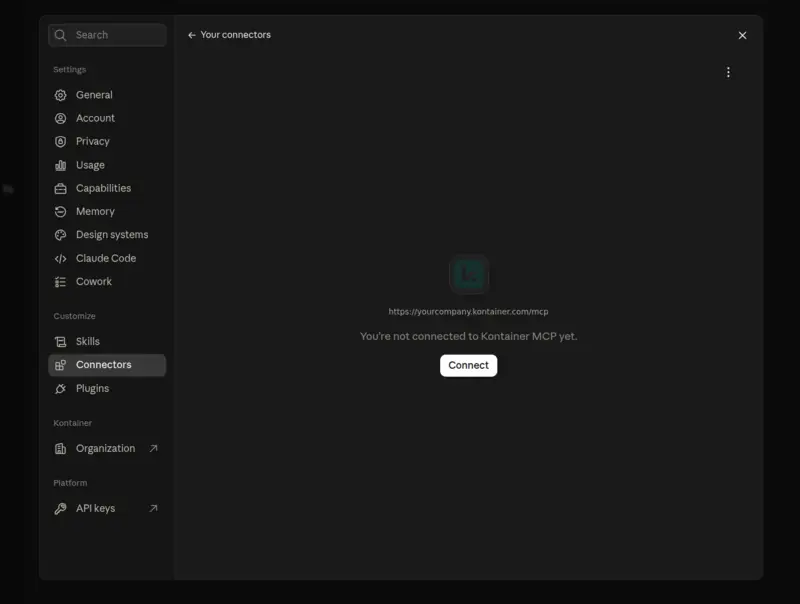
- You are taken to your Kontainer login page. Log in as usual, then approve that Claude may connect to your Kontainer, just like when you sign in with Google somewhere. If you are already logged in to Kontainer, you only need to approve.
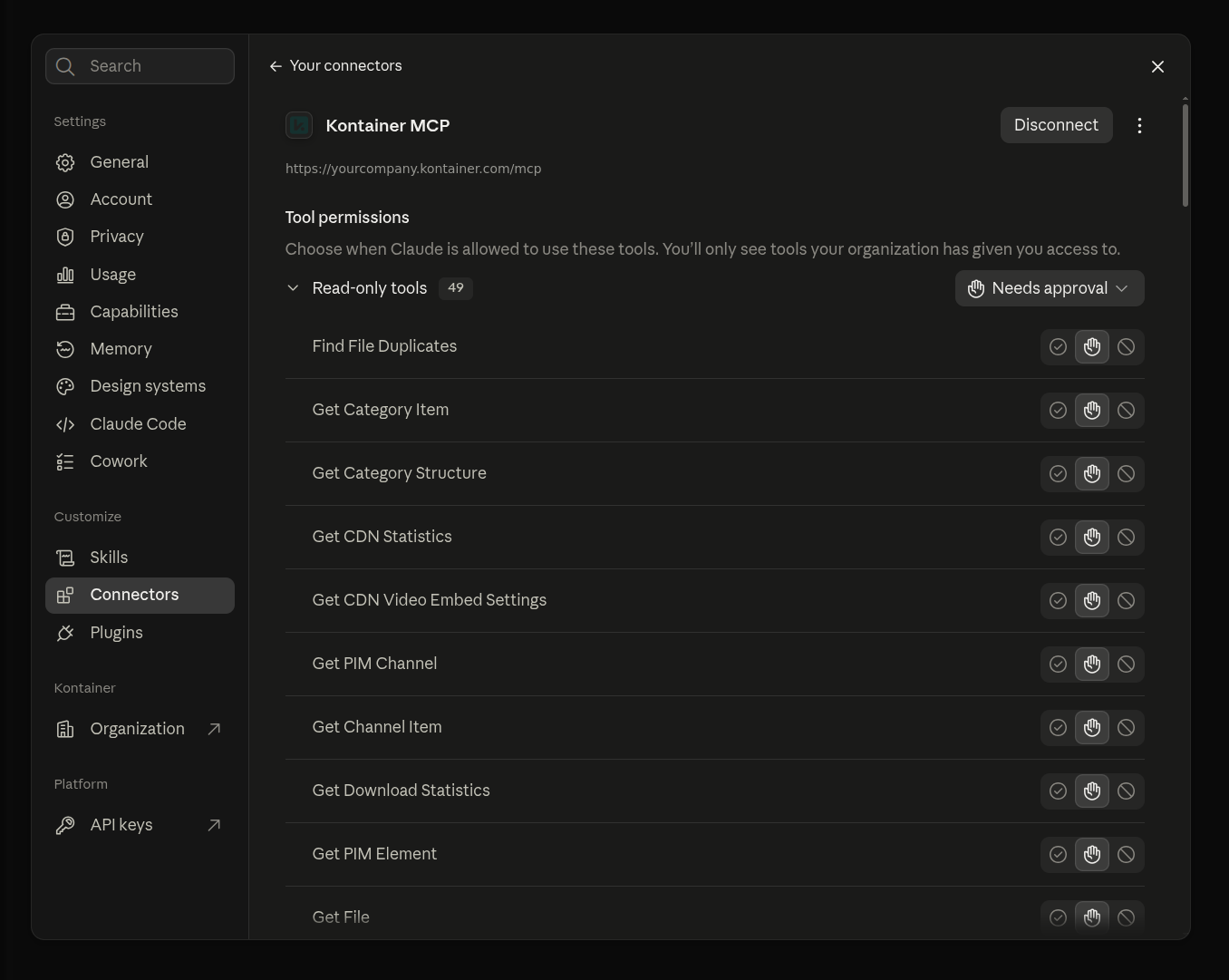
- Claude takes you back to the connector, which is now connected. Under Tool permissions you can choose for each tool whether Claude may use it without asking, must ask for your approval first, or may not use it at all.


Use Kontainer in a chat
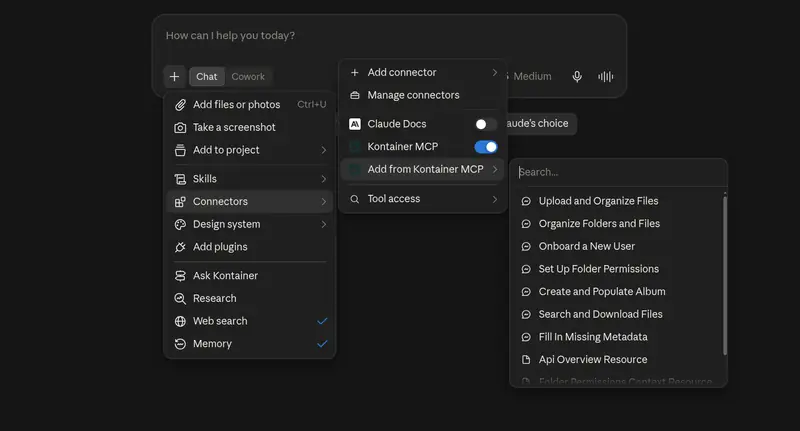
Kontainer can now be used in your Claude chats. To turn it on or off in the chat you are in, click + in the message field, choose Connectors and use the switch next to the connector.
Under Add from Kontainer MCP you will find ready-made prompts that come with the connector, for example for searching and downloading files or filling in missing metadata.
Good to know
- Claude can create and fetch CDN links for embedding or downloading files, as long as your Kontainer user is allowed to. Those are the links to use in other tools, such as Claude Design.
- To remove the connection again, open the connector under Settings > Connectors in Claude and click Disconnect.