


Folder tagging lets you add data to a folder itself, not only to the files inside it. You can use it to record things like a customer, a segment, an industry, a year or a project owner on the folder. In Kontainer, this information is shown as Folder data.
Folder data uses the same kind of fields as file data. You can use text fields, dropdowns, yes/no fields, dates and so on, depending on how your data categories are set up.
What you can use folder tagging for
Folder tagging is useful when a folder represents something in its own right, such as a project, a case or a campaign. Typical examples are folders called "Projects" or "Cases", where each subfolder holds everything about one project.
Search for folders instead of files
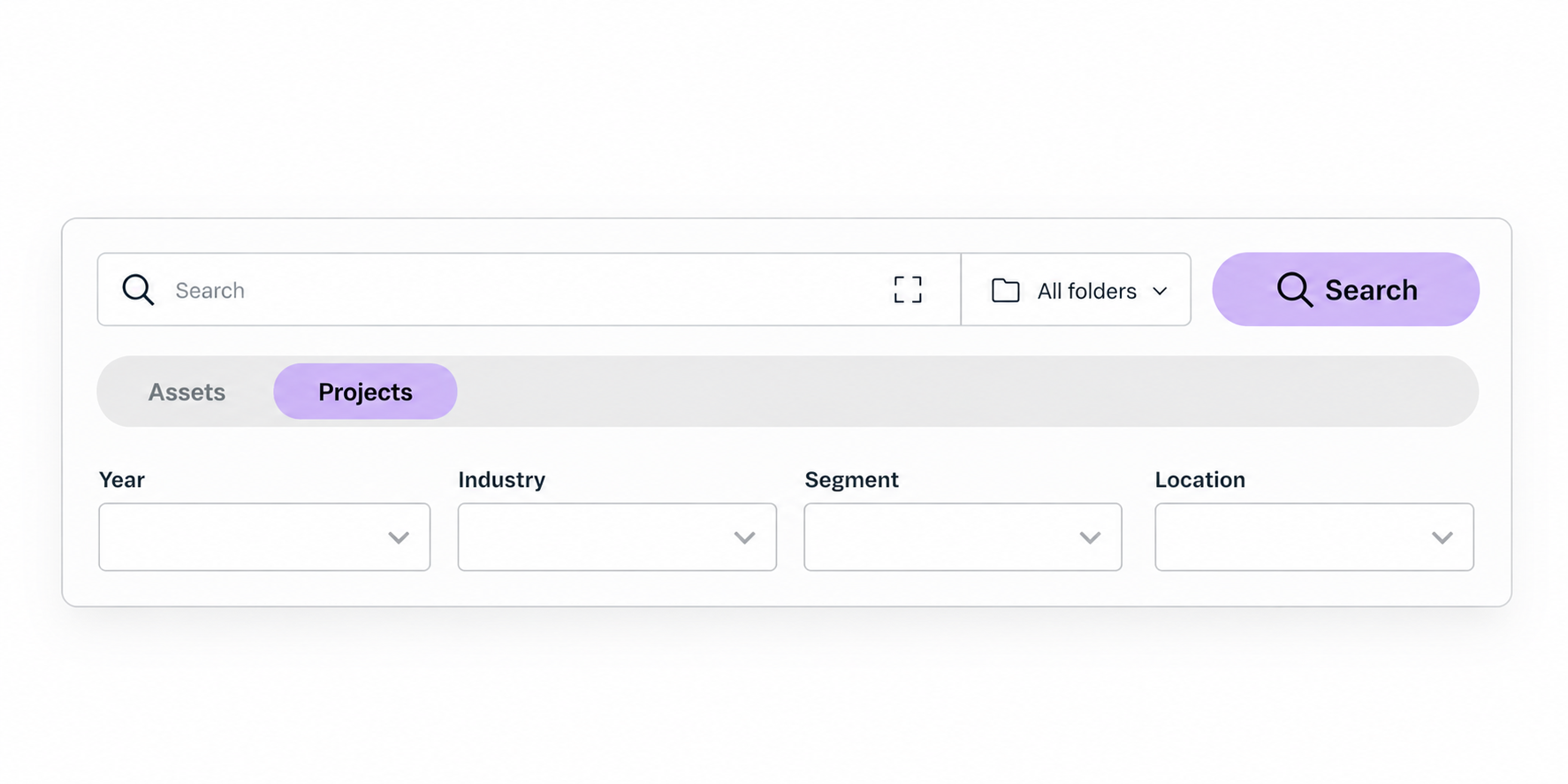
The main benefit is in search. Normally a search returns files. With folder tagging, users can search for the folders themselves, for example to find all project folders within a certain segment, year or industry.
With two sets of data fields, the search can show two tabs, for example Assets and Projects. The Assets tab searches and filters files as usual, while the Projects tab searches and filters project folders using the folder data.
A second set of data fields is set up by Kontainer. Contact us if you want separate search tabs for files and folders. You can also use folder tagging with just one set of fields.
Fill page designs with folder data
Folder data can also be shown in the folder's page design. See Use folder data in page designs below.
Before you start
Folder tagging uses a DAM data category that has been made available for folders. If you don't see the folder data options described below, no category has been enabled for folders on your account yet. Contact Kontainer support and tell us which data category you want to use on folders.
To edit folder data, you need write access to the folder. With read access you can still view the folder's data, but you can't change it.
Tag a single folder
- Find the folder you want to tag and tick its checkbox to select it.
- Click More in the action bar at the top. You can also right-click the folder.
- Choose Edit Folder Data.
- Fill in the fields you want to set.
- Save your changes.
If you only have read access, the menu option is called View Folder Data instead, and the fields can't be edited.
Tag several folders at once
You can give several folders the same values in one go.
- Select two or more folders. Don't include any files in the selection.
- Click More in the action bar, or right-click the selection, and choose Bulk Edit Folder Data.
- Fill in the fields you want to set on all the selected folders.
- Save your changes.
The same values are written to every selected folder. You need write access to all of them for the bulk option to appear.
A folder can only hold data from one data category. If some of the selected folders already have data in a different category, they are skipped, and Kontainer tells you how many were skipped. The rest are saved as normal.
See a folder's data
Open the information pane for a folder to see its tags. They are listed under the Folder data section. Empty fields are not shown.
Use folder data in page designs
Folder data fields can be inserted as placeholders in the text of a page design made with the Page editor. When the page is shown, each placeholder is replaced with the value tagged on that folder.
This means you can build one page template and use it across many folders. Each folder then shows its own data automatically, for example its customer, segment, industry and year, without you typing it into every page.
Read more about text in the Page editor in Custom folder design & landing pages (Page Editor).
Where folder tagging is not available
| Folder type | Can it hold folder data? |
|---|---|
| Regular folders | Yes |
| Mirror folders | Read only. A mirror folder shows the data of the folder it mirrors. To change it, edit the original folder. |
| Smart folders | No |
| Albums | No |
| The top-level folder and the trash | No |
Using folder data in automations
If your account uses automations, folder data can drive them in two ways.
Automations that run on folders
When you create an automation, you can choose whether it runs on files or on folders. A folder automation:
- starts when a folder's fields change, or runs on a schedule
- matches on the data set on the folder itself
- can move, rename or notify, and can set or clear folder fields
For example, you can move a folder to an archive area when its status field is set to "Finished".
Automations that run on files
When an automation runs on files, you can also match on the data of the folder each file is in. When you add a criterion for a field that is available on folders, choose whether to read the value on the file or on its folder.
This means you can tag a folder once and have an automation act on every file in it, without tagging each file.
Folder data belongs to the folder it is set on. Files in subfolders are not covered by the parent folder's data, so tag each subfolder you want included.
Good to know
- Folder data and file data are separate. Tagging a folder does not change the data on the files inside it.
- Required fields in the data category are also required when you save folder data.
- Changes to folder data can be picked up by automations through the Folder fields changed event.