
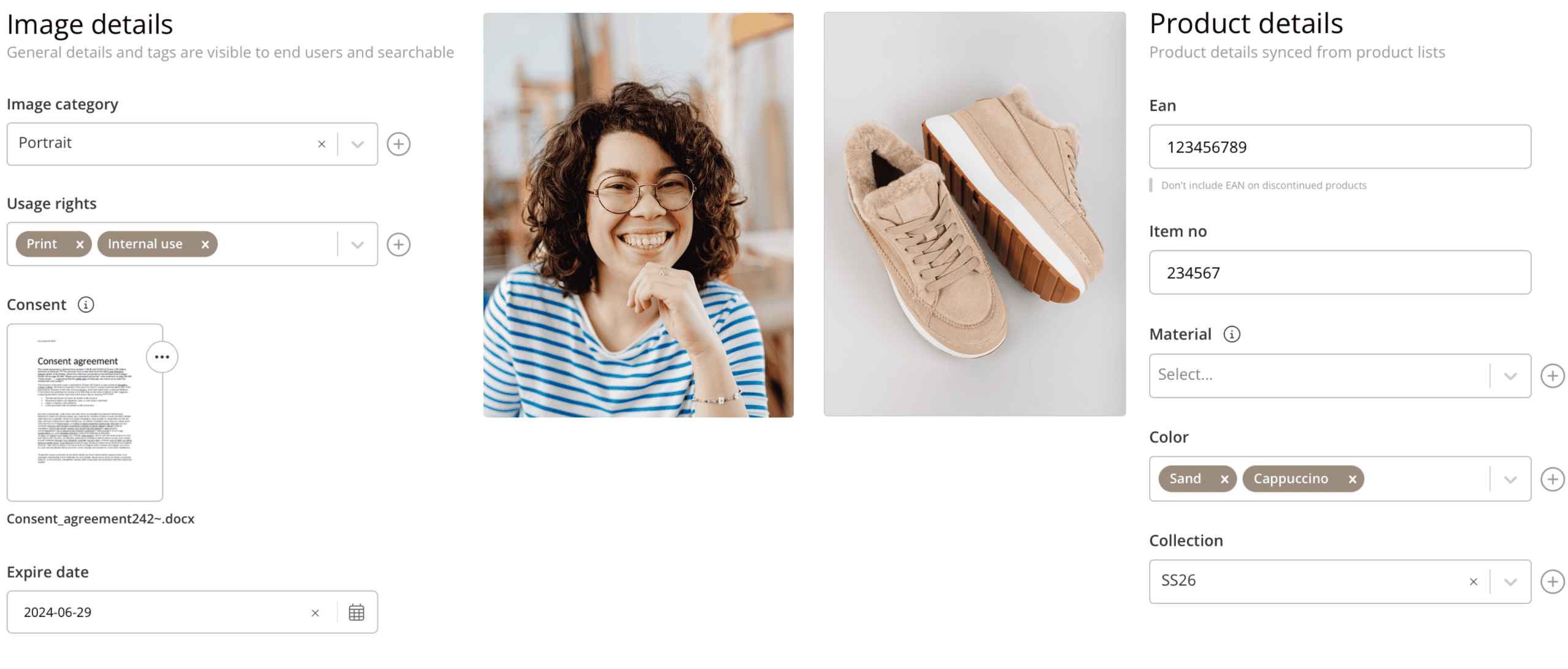
Tagging data on files is a central DAM feature that enables many other key aspects. Depending on your setup, these can include:
- user-friendly filtered search
- smart folders
- expiry dates
- consent management
- approval workflows
- usage terms and conditions
Most of our clients tag data on their files either manually, automatically via import or both. In this article, we go through the basics of tagging.
Note: Many clients auto-enrich data on files via automations. If unsure whether anything is set up on your Kontainer, do reach out, and we can check for you.
Click here to access the administrator guide for creating and managing fields.
Adding data
To start adding data, select the files you want to add data to and use the Edit file data button found by right-clicking, or under one of the three-dotted more menus shown on the files and in the drop-down menu bar at the top.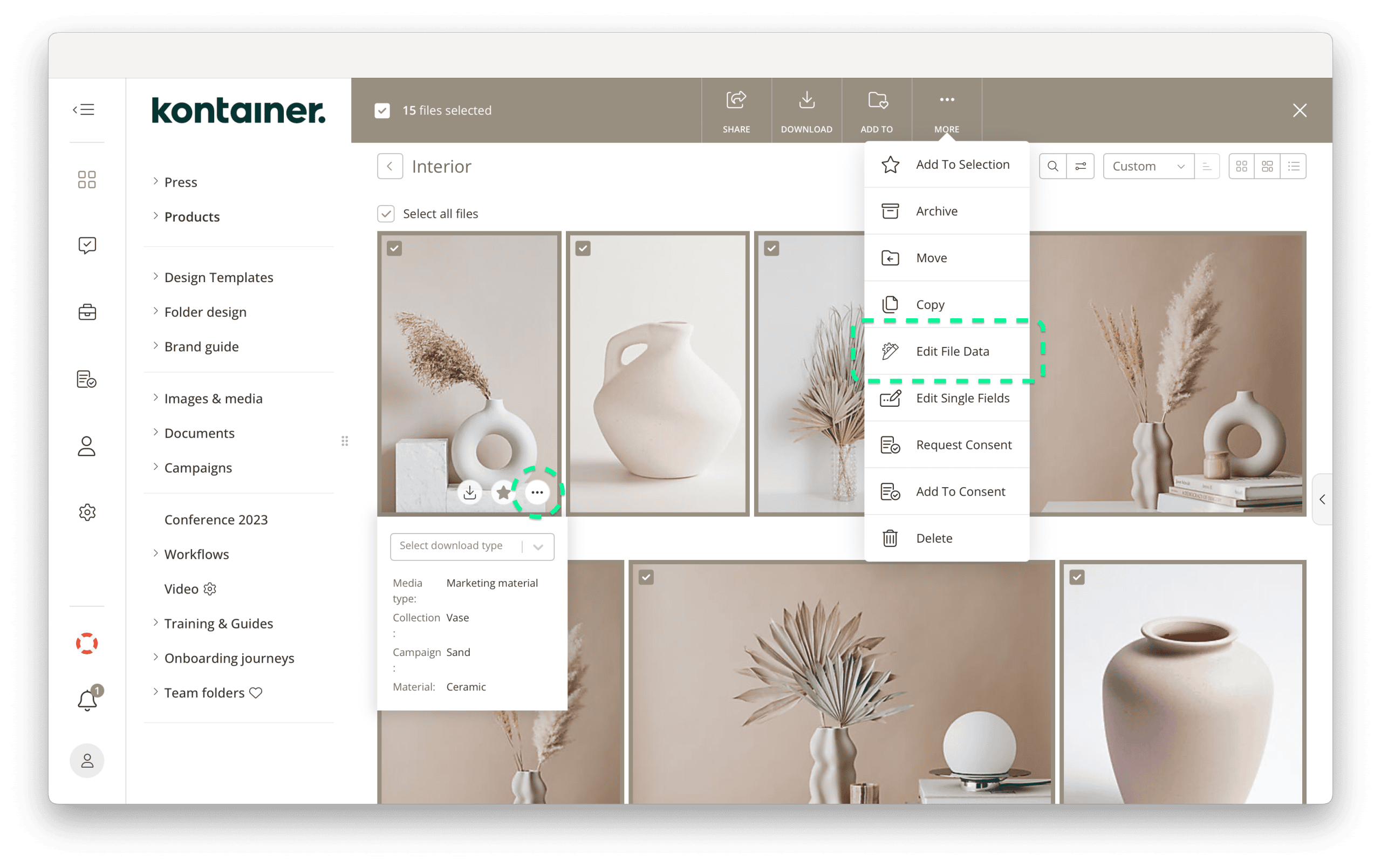
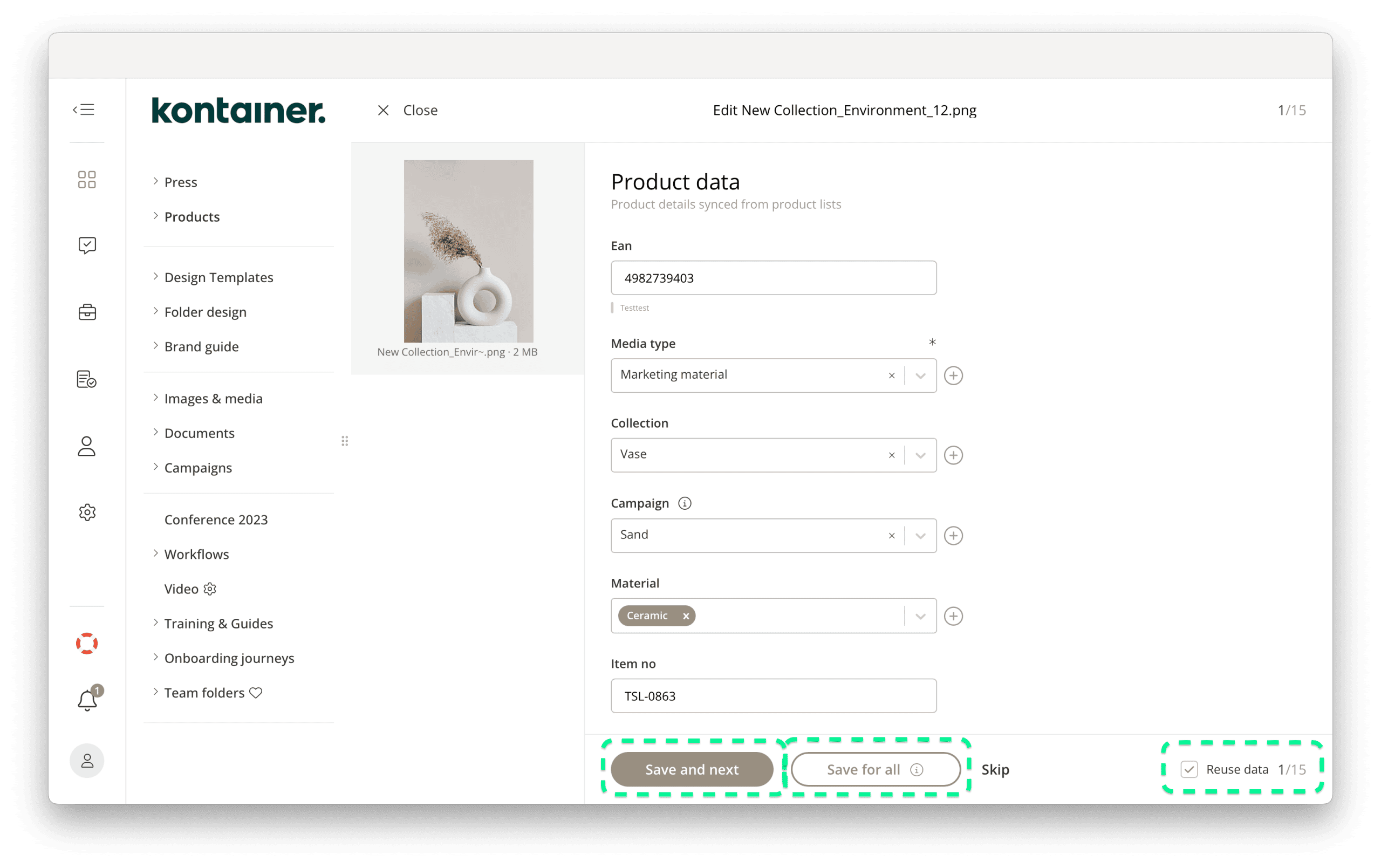
Add data to the first file and choose either:
- Save for all, if the data should be the same for all files
- Save and next, ticking perhaps the Reuse data checkbox, if not all data is the same for all the files
Note: The pluses to the right of the data fields below allow you to add new values. Administrators and those granted access have this option.
If editing a single file, you have the Edit file data option available in gallery mode (when you have clicked on it, so it opens in full screen)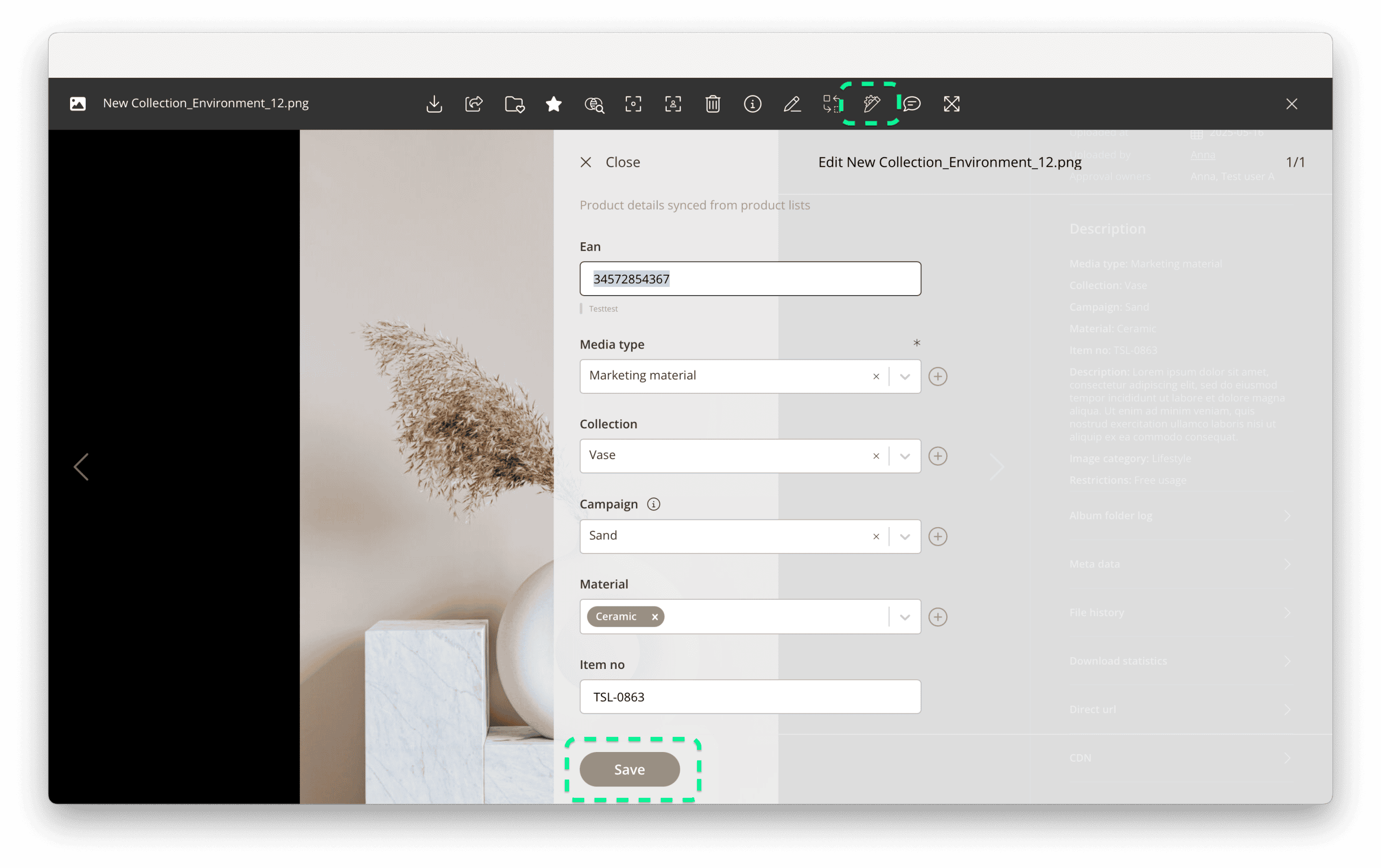
Adding additional data
If you need to go back and edit later on, we recommend using the Edit single fields option. Select the files you want to edit, right-click the selection or use one of the three-dotted more menus to find the option.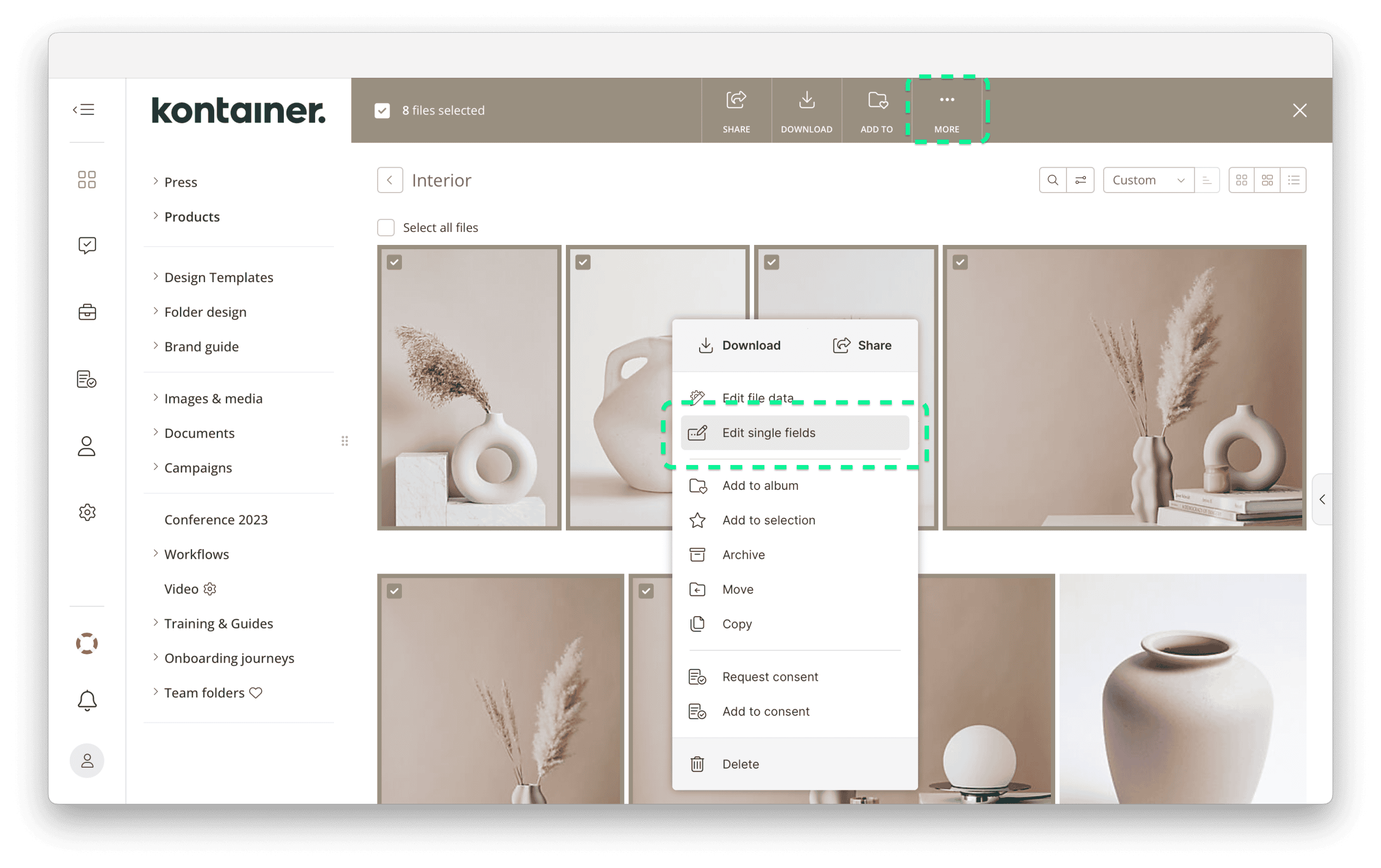
Open the fields you want to edit by ticking the checkboxes next to them, add the data, then click Save.
On multiple-value fields, you can select the Keep existing checkbox to add new values while keeping the existing data there.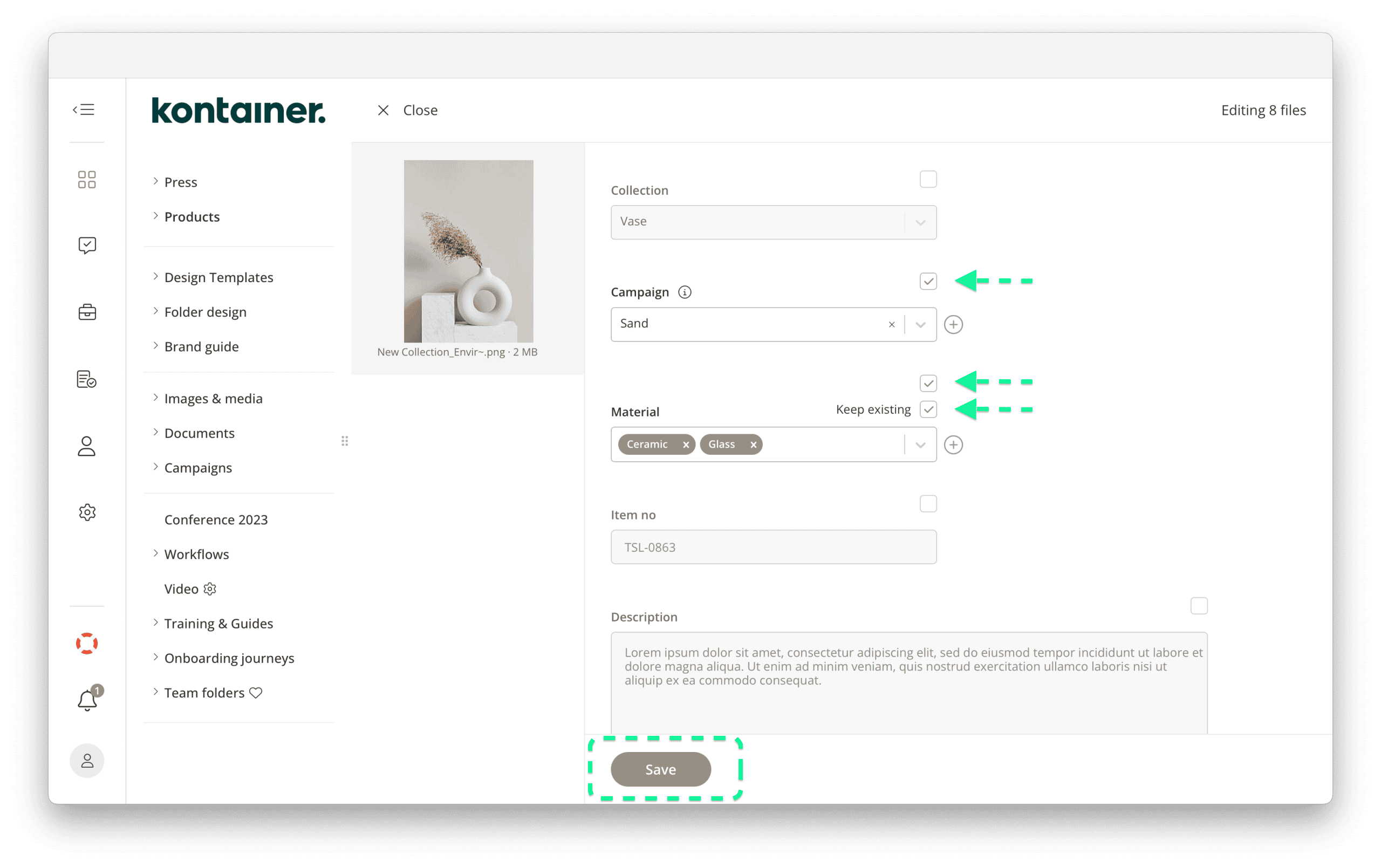
Required fields
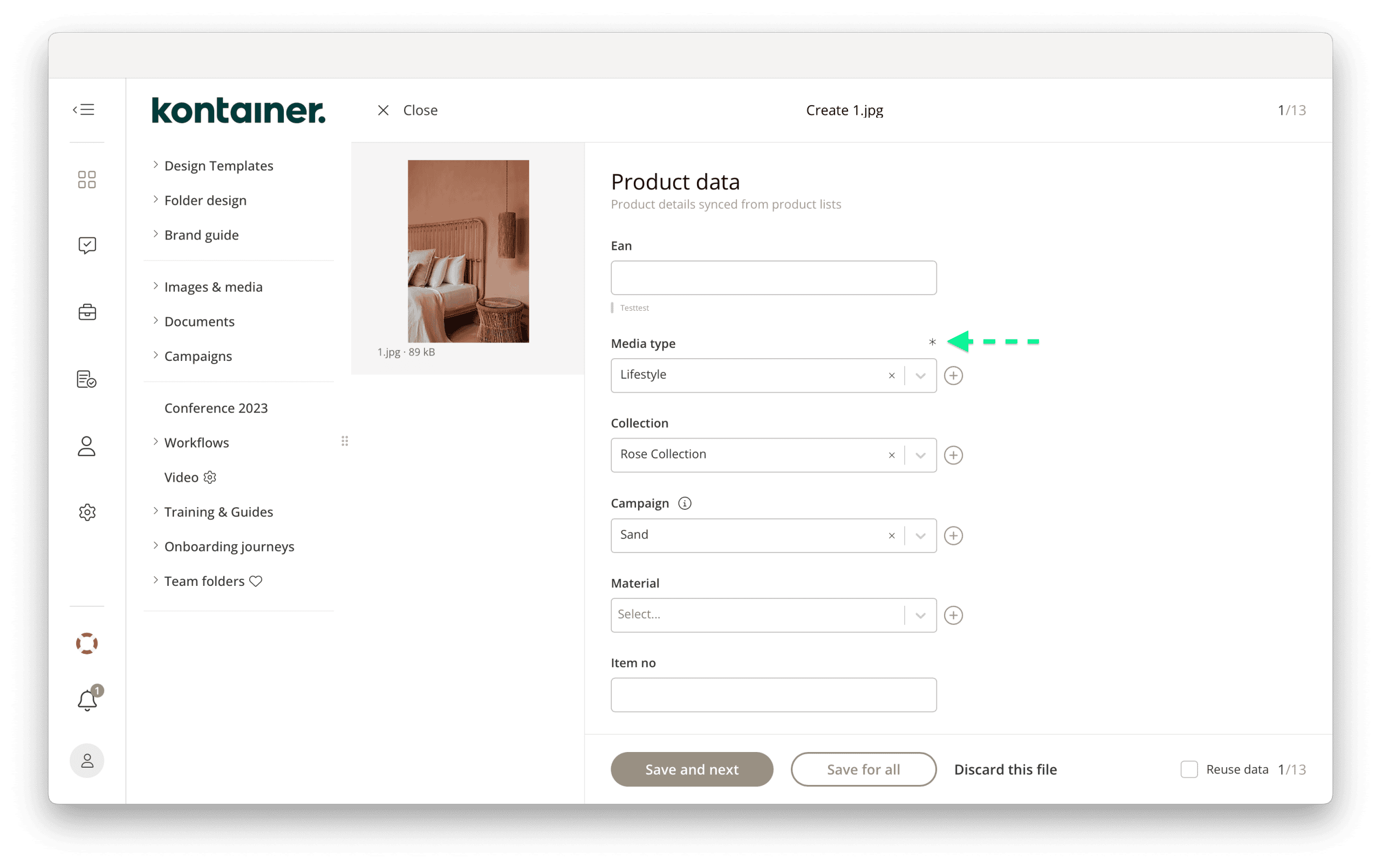
If you are uploading files into a Kontainer with specific data fields set as required, these fields must be filled in upon upload. These fields are marked with an *.
When required fields are present, the data form below will automatically appear upon upload.
Note: Required fields and field visibility may differ from one user to another, depending on permission settings. For more information, visit our Permissions guide here.
These are the basic tagging options in Kontainer. If you have any questions, feel free to email customer support.
Related articles: