
There are different ways to get a direct link to each file in your Kontainer.
If you quickly want to share a single file with a user, here are different easy ways to go about it.
Share Link
Get external link
Create a share link simply by right-clicking on a file and selecting share.
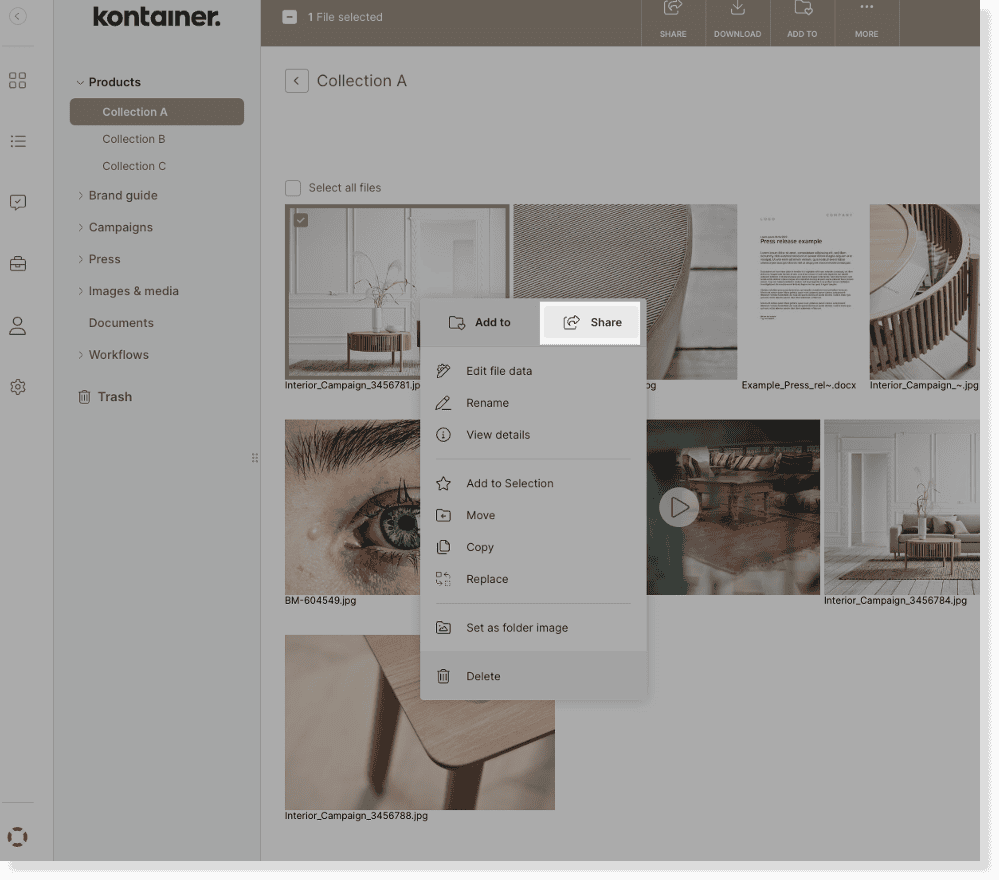
You will then see the window below, where you can:
- set an expiry date
- choose the visibility of custom fields and download templates
- enable brand section
- enable download notifications
- hide the folder menu
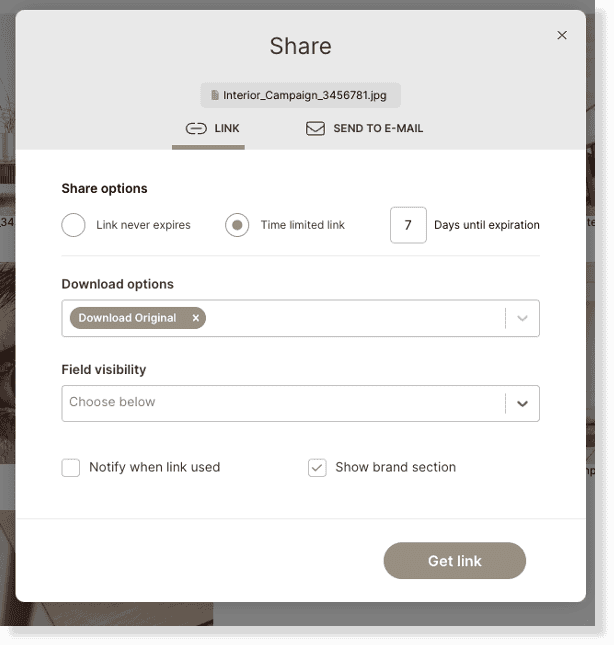
Click on Get link to receive a share URL to download this file.
The file will be available to everyone receiving this link.
Get external link
You can also share single files or folders with other existing users in Kontainer that have acces to the respective folder.
Simply switch to the tab “Internal” and retrieve the link.
Send link via e-mail
Instead of manually sending this share link out – externally or internally – you can share the link by e-mail directly from your Kontainer.
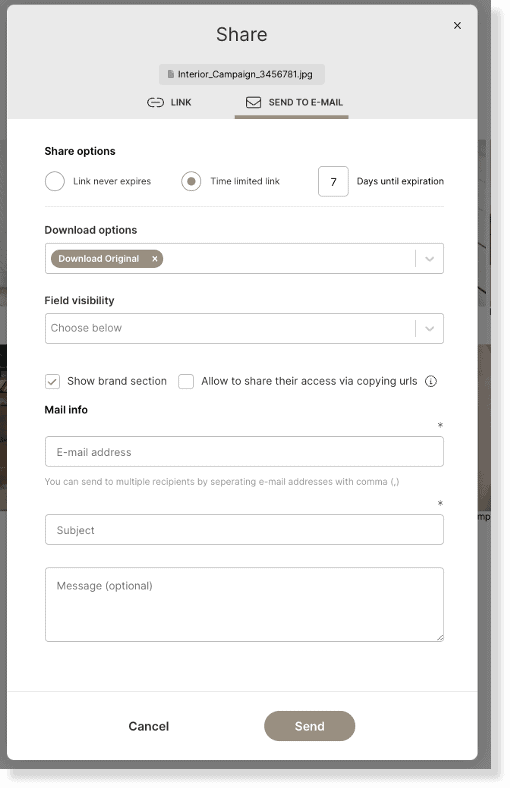
Go to the tab “send to e-mail” and choose the settings just as in the link set-up, as described above.
Additionally, when sending a direct e-mail, you can select the following:
- the e-mail address
- mail header
- mail text body
Direct Link
Alternatively, you can create a direct link for one of your existing users.
Every file in your Kontainer has a unique direct URL that you can use to share with a user that has permission to see the respective folder.
Choose View Details on your file and then find Direct URL in the menu on the right-hand side.
Select a user from the drop-down menu to share the file with.
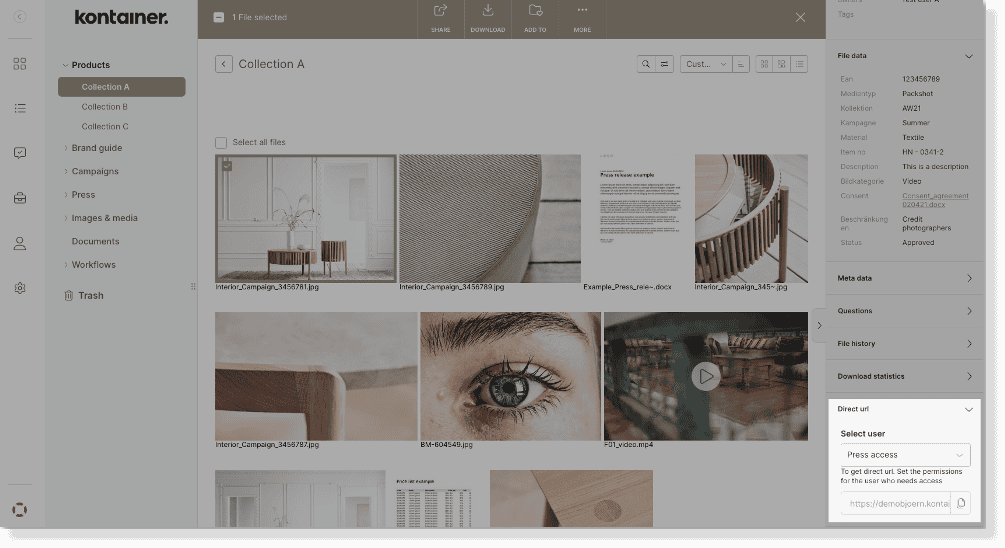
The user that receives this link will also be able to navigate the Kontainer via this link.
This direct link is just a shortcut or a straight way into a specific file for existing users of your Kontainer.
CDN embedded link
The CDN link is a more reliable, secure and scalable link to a file in your Kontainer. This can, for instance, be used to embed a file in a newsletter.
You can find a download or embed CDN URL right below the Direct URL in the file data:
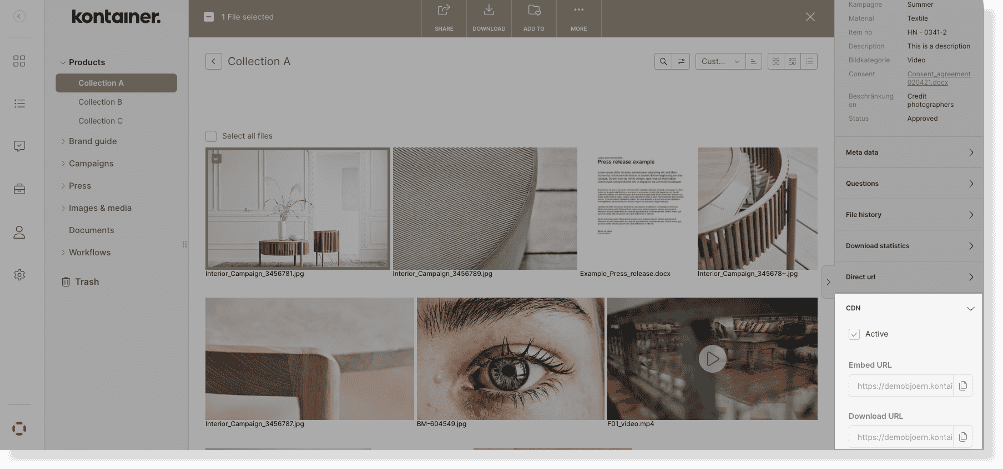
Activate CDN and copy the embedded display link or the direct download URL.
Have a look at the more detailed explanation here.