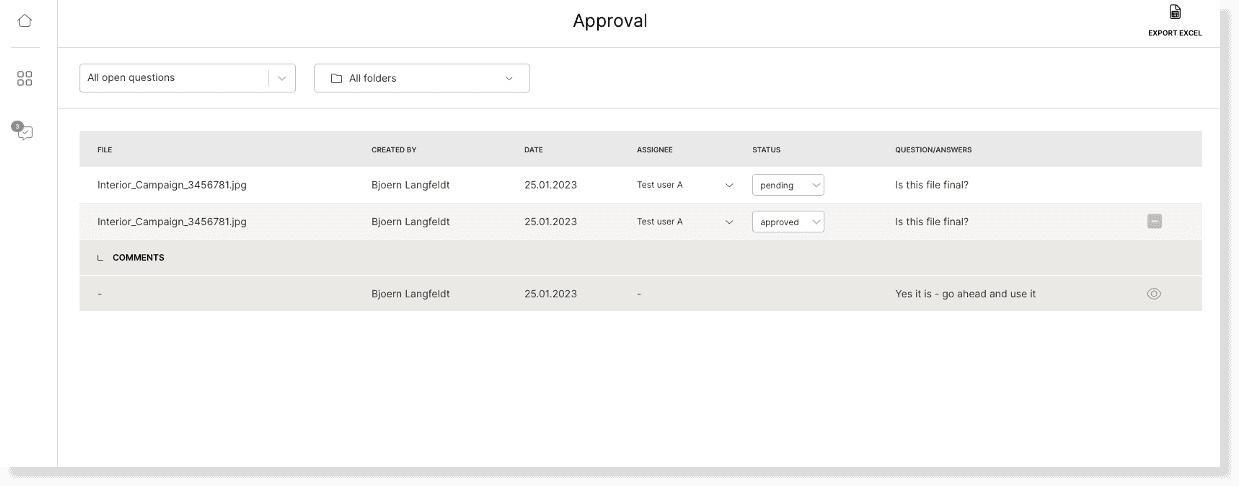
Create approval workflows and communicate with your colleagues and other user groups of your Kontainer.
For example, ask external agencies or the graphic department to make changes to a visual. Or if the merchandising department needs to approve the correct pack shot for a given market.
This can be done through the commenting and question section, which we will explain in the following section.
Comments and Questions
Select a file and open the gallery preview. Click on the speech bubble icon in the menu at the top.
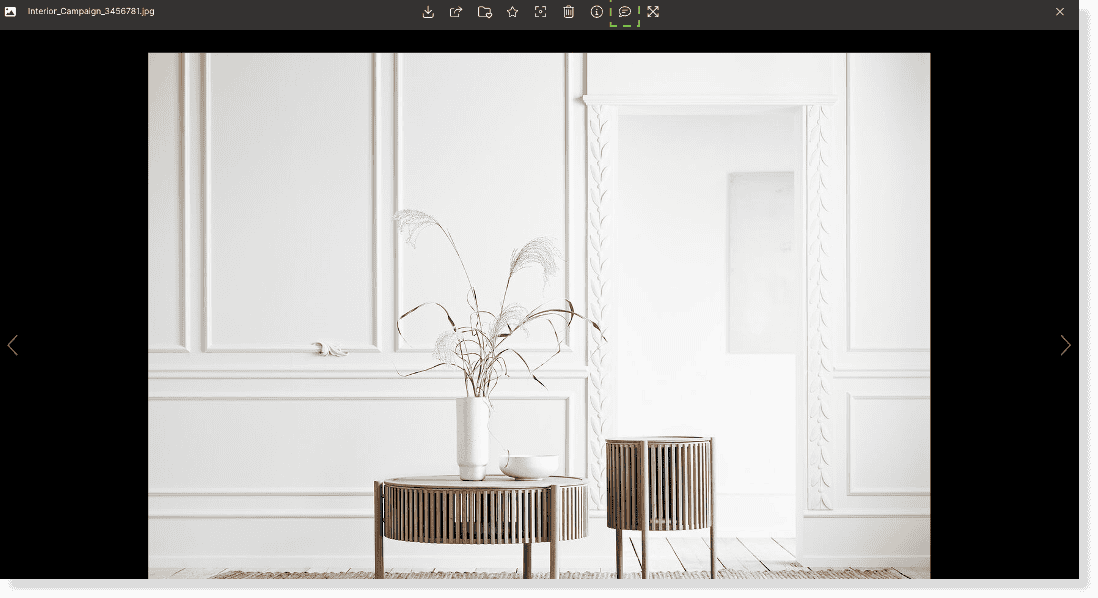
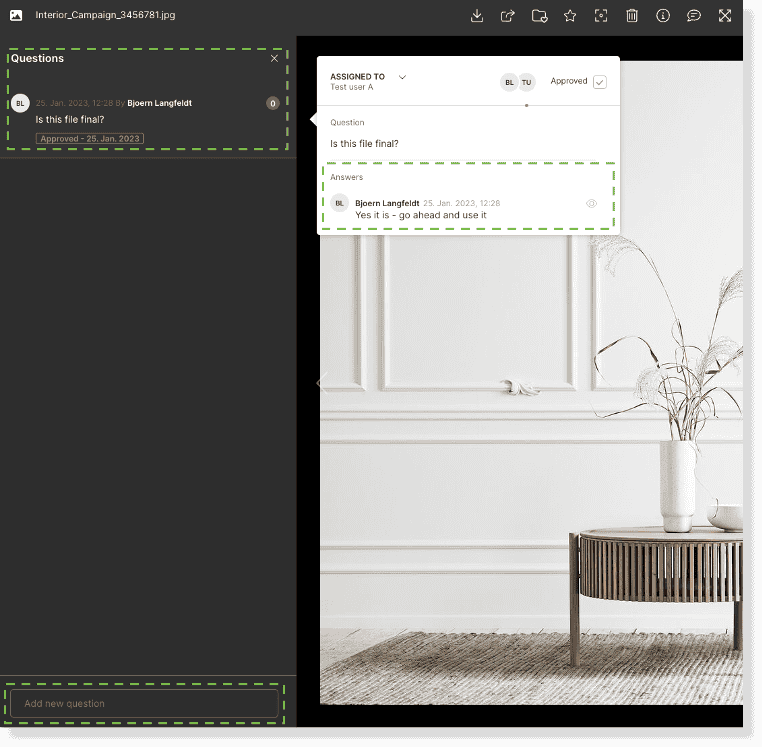
In this section, you can…
- pose questions
- comment
- answer
- approve questions
- ask new questions
…regarding a file at hand.
Notify Users
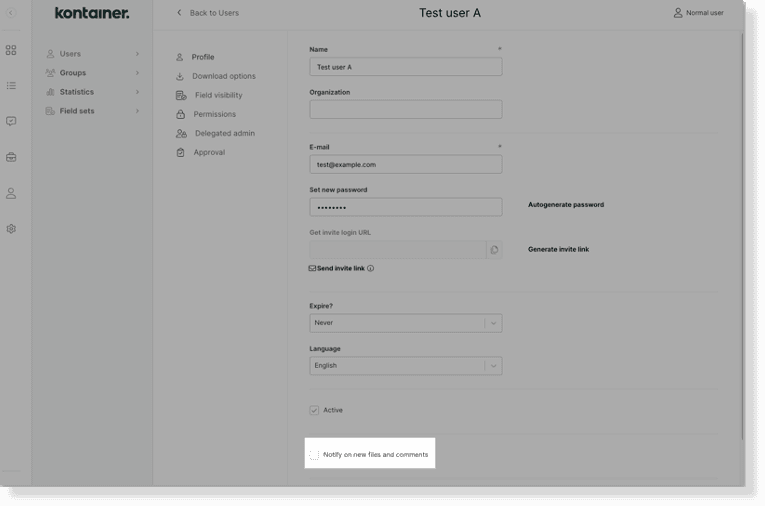
You might want to notify certain users when there is a new comment or question on a file.
You can do this by going to Access > Users. Then click on a specific user and find their profile settings. Here you will be able to enable/disable the notification setting.
Approval Workflows
Premium+ feature
It is possible to create workflows for approvals of files. This could mean that files are automatically moved to another folder when approved by different departments.
Contact us if you want to hear more about approval workflows.
When notifying a user about new comments/questions, they will be visible on the left-hand side under Approvals.
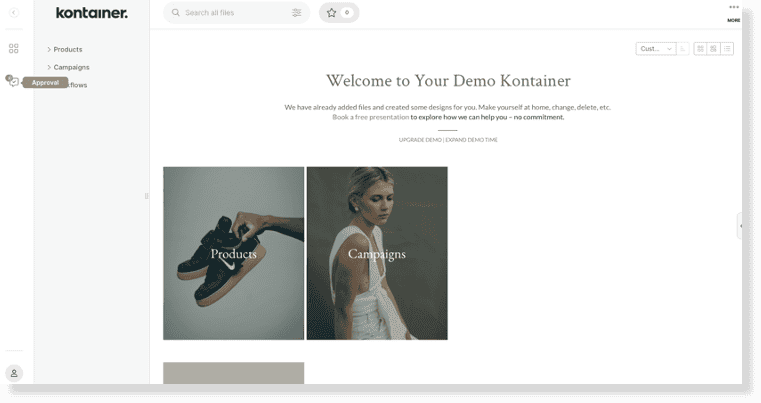
Here, the user can see a list of all questions/comments – open, pending or approved.
And the user will be able to comment and/or approve, depending on their set permissions.