
The EU AI Act introduces new transparency requirements for AI-generated content, taking effect on 2 August 2026. If your organization publishes visual content in the EU, these rules affect how you label and export your assets. This article explains what the requirements are and how Kontainer's EU AI/C2PA module helps you stay compliant.
Note: This feature might be available as a paid add-on, depending on your Kontainer subscription plan. See the pricing overview for more information.
Note: These requirements apply to content published in the EU. This article is provided for general guidance and is not legal advice — please consult your legal team regarding your specific obligations.


What the EU AI Act requires
The transparency obligations are set out in Article 50 of the EU AI Act (Regulation (EU) 2024/1689). In short, AI-generated and AI-manipulated content must be identifiable — both by machines (through embedded, machine-readable marking) and, in certain cases, by people (through a visible label).
The rules distinguish between three types of content:
| Content type | Visible AI label on image | C2PA watermark (machine-readable) |
|---|---|---|
| 1. Fully AI-generated | Required | Required |
| 2. Partially AI-generated | Required | Required |
| 3. AI-manipulated (e.g., color adjustments) | Not required | Required |
What is C2PA? C2PA (Coalition for Content Provenance and Authenticity) is an invisible, machine-readable watermark embedded in the file — similar to metadata — that certifies how the content was created. It does not change how your image looks.
Official EU resources
- Article 50 – Transparency obligations (EU AI Act Service Desk, European Commission)
- Regulation (EU) 2024/1689 – full legal text on EUR-Lex
- The AI Act – overview (European Commission, Shaping Europe's Digital Future)
- Code of Practice on Transparency of AI-Generated Content (European Commission)
How Kontainer helps
Kontainer supports both requirements through the EU AI/C2PA module:
1. Automatic C2PA watermarking
Configure your settings once, and Kontainer embeds the C2PA watermark automatically via your download templates. Every file exported through those templates carries the machine-readable provenance information required by the AI Act — no manual steps needed.
2. Visible AI icon on images
For fully or partially AI-generated content, you can add a visible AI label directly on the image. The icon is preserved on every export — regardless of output format, cropping, or resizing — so your content stays compliant across all channels.
3. AI detection & tagging
A new info panel on each asset shows whether it is AI-generated. If Kontainer hasn't detected this automatically, you can set the AI status manually. This makes it easy to keep track of which assets need labelling before publication.
Getting started
The EU AI/C2PA module is activated per account. To have it enabled, please contact our support team or your Kontainer representative. Once the module is active on your account, you can configure everything directly in the Kontainer interface as described below.
Step 1: Set Content Credentials on your files
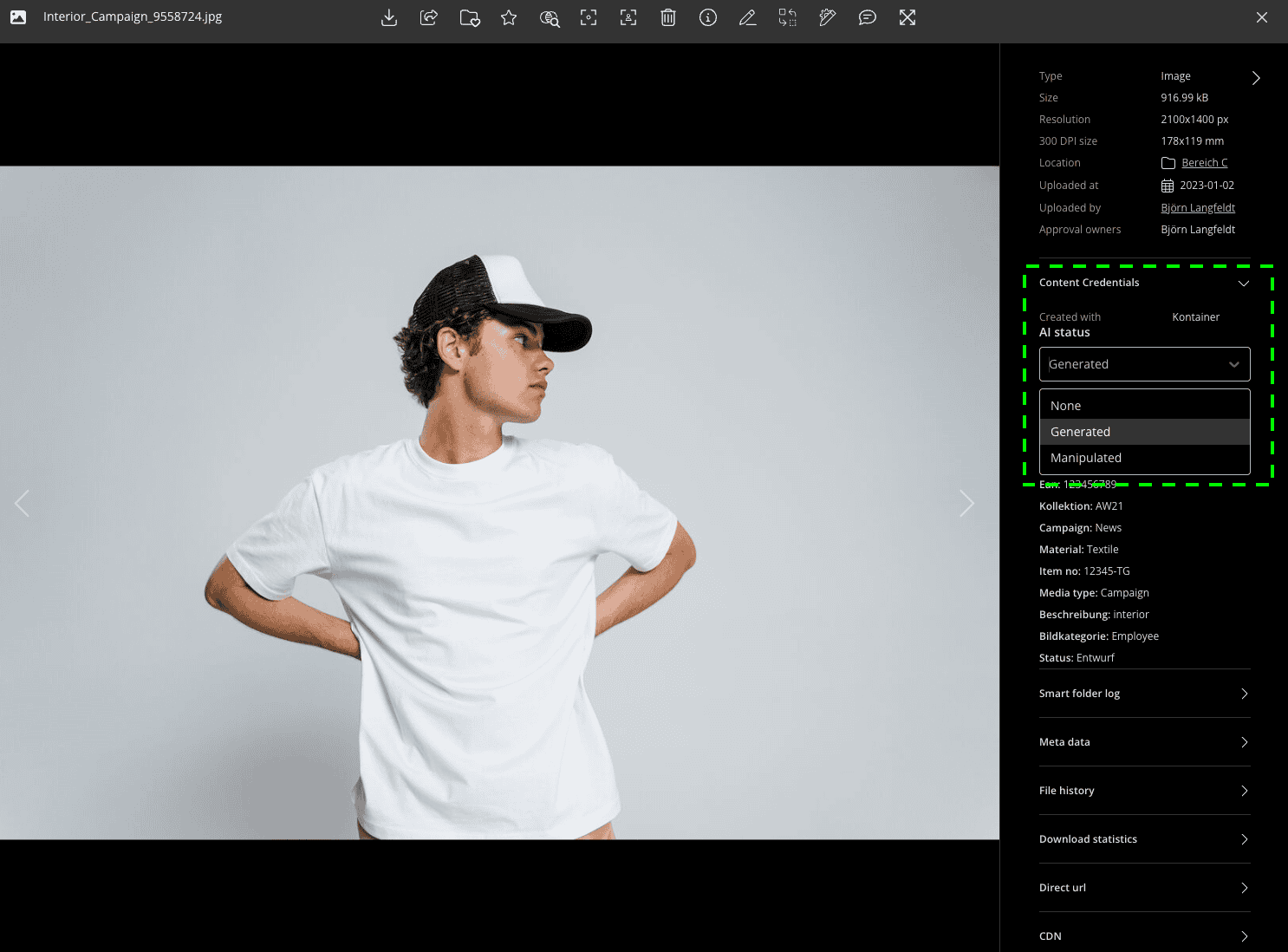
Every file in Kontainer has a Content Credentials section in its info panel, showing how the file was created and whether it is AI-generated.
If an image was generated with a tool such as ChatGPT, Adobe Firefly, or another application that embeds C2PA Content Credentials, Kontainer automatically detects this on upload and displays the corresponding information — including which tool created the file, when it was created, and its AI status.

If a file does not carry Content Credentials, you can set the AI status manually. Open the file, expand the Content Credentials section in the info panel, and choose one of the following from the AI status dropdown:
- None — the file is not AI-generated or AI-manipulated.
- Generated — the file is fully or partially AI-generated. These files require both a visible AI label and machine-readable C2PA marking.
- Manipulated — the file has been modified by AI (for example AI retouching or colour adjustments). These files require machine-readable C2PA marking, but no visible label.
Tip: The AI status determines how the file is treated on download — for example, whether a visible AI marker is applied. Make sure your AI-generated assets are correctly tagged before they are shared or published.

Step 2: Configure your account-wide C2PA settings
Go to Settings > Configuration > C2PA to control how Kontainer signs and labels AI content on download. Here you can configure:
Signing
- Embed C2PA metadata on AI master downloads — signs AI-generated or AI-manipulated master files with an invisible C2PA manifest when they don't already carry one. This is the machine-readable marking required by the EU AI Act.
Visible AI marker
- Apply visible AI marker on AI master downloads — stamps the selected AI marker on AI-generated assets whenever the master file is downloaded. Files that already carry C2PA are re-signed, so the marker stays verifiable.
- Apply visible AI marker on AI modified master downloads — also stamps the marker on files that are partially modified by AI (not fully generated), such as AI retouching.
The visible marker is applied on every download — regardless of whether it is the original file or a cropped version — so your content stays labelled across all channels.
AI marker icon and position
You can choose which icon is stamped on AI-generated downloads:
- Content Credentials (CR) — the icon recommended by the C2PA initiative.
- EU AI label — the European Commission's official mark for AI-generated content.
- Your own icon — upload a custom marker of your choice.
Finally, use the Marker position control to choose where on the image the icon should be placed, for example in a corner or along an edge. The preview shows you where the marker will appear. Click Save to apply your settings.

Step 3: Setting in download template
You can also control C2PA behaviour for individual renditions. Go to Settings > Download options, edit a download template, and scroll to the C2PA / Content Credentials section. Here you can:
- Strip C2PA / Content Credentials from this download — remove provenance data from files exported via this template.
- Apply AI marker to this rendition when the asset is AI generated — stamp the visible marker on this specific rendition.
- Apply AI marker to this rendition when the asset is AI modified — also stamp the marker on AI-modified assets for this rendition.
- Store C2PA at a separate URL to reduce file size (CDN only) — keep the C2PA manifest at a separate URL instead of embedding it, which reduces the file size of the delivered asset.
This gives you full control over which export formats carry provenance data and visible labelling — for example, applying the marker on social media renditions while keeping internal working files unmarked.

The AI-watermarking features are available as an add-on.