
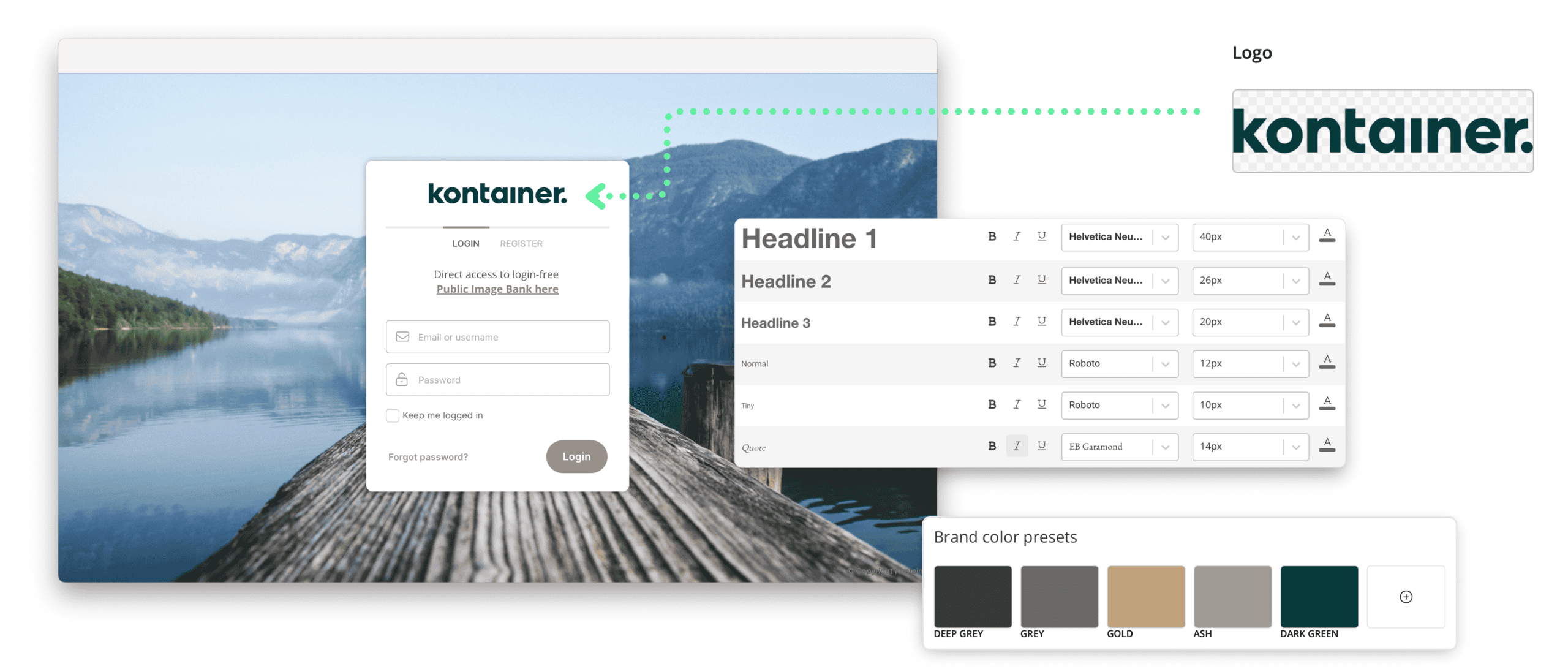

Styling customization is key to making Kontainer a seamless extension of your organization, reflecting your unique look and feel.
Key styling aspects include:
- Logo & fonts
- Colors and presets
- Folder styling
- Folder CMS functions
- Contact information & social links
Note: Dark mode, custom CSS, and right-to-left (RTL) layouts are not supported.
Use this guide to set up your brand-new Kontainer and come back to make ongoing adjustments. If you are missing anything or would like some inspiration, feel free to reach out to the customer success team.
Related Guides
Make Custom Landing Pages | Add a Brand Section | A Guide to Download Templates
Inspiration Links
Page Editor Design Suggestions | Brand Guide
Overall look & feel
Whether you use Kontainer as an image bank, brand portal, DAM and/or PIM, adapting your organization's visual identity is straightforward and makes a great difference to users.
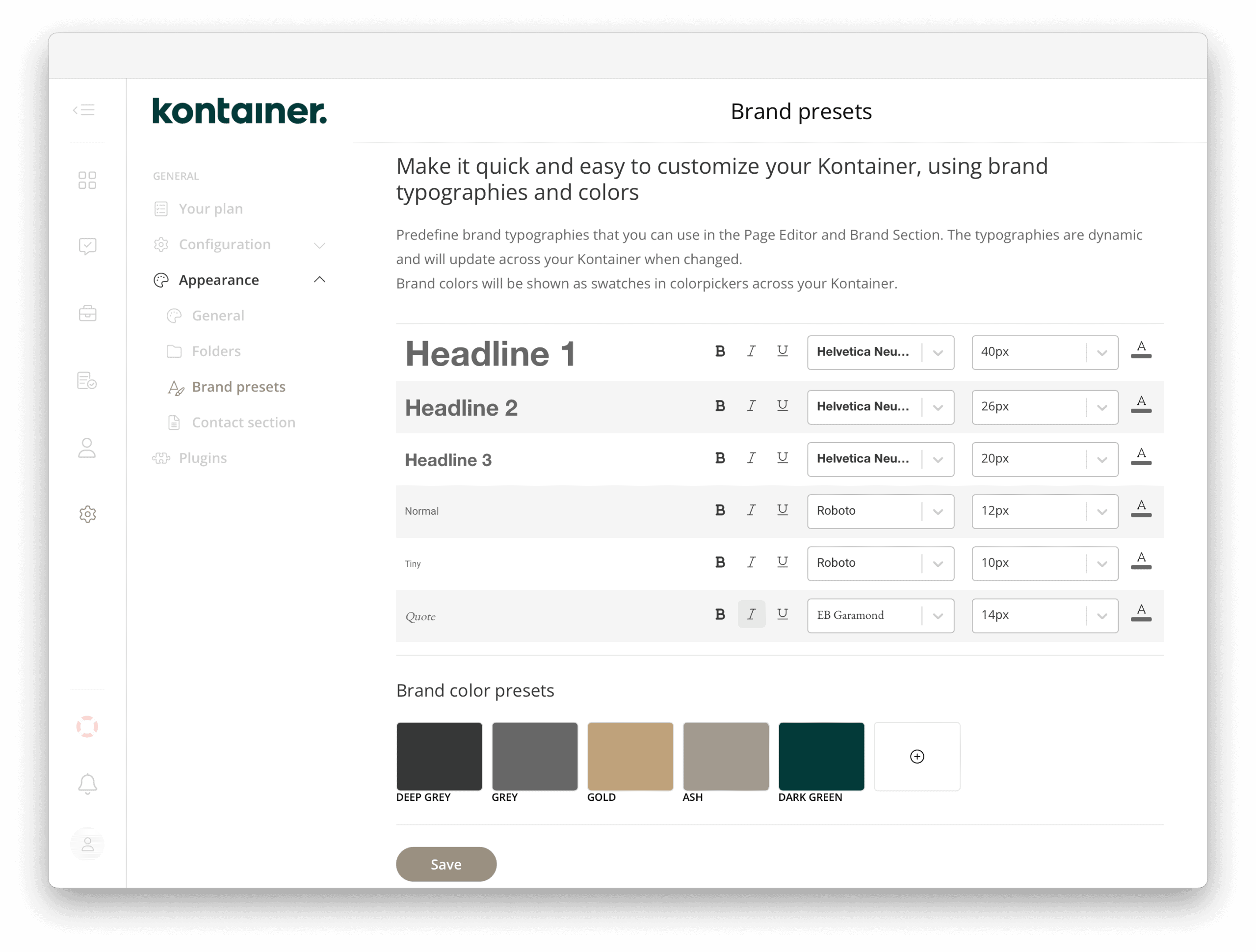
Brand presets
Before you start styling your Kontainer, we recommend defining text styles and brand colors in advance. These make it quick and easy to select colors while customizing the look and feel of your Kontainer, and easy to create text elements in the Kontainer folder CMS features Page editor.
Go to Settings → Appearance → Brand Presets.
Brand fonts: If you want to add additional fonts to your Kontainer, please send them to us.
Remember to Save your changes.
Login page
Make an impression and guide users on your login page by adding an eye-catching background image and any relevant message.
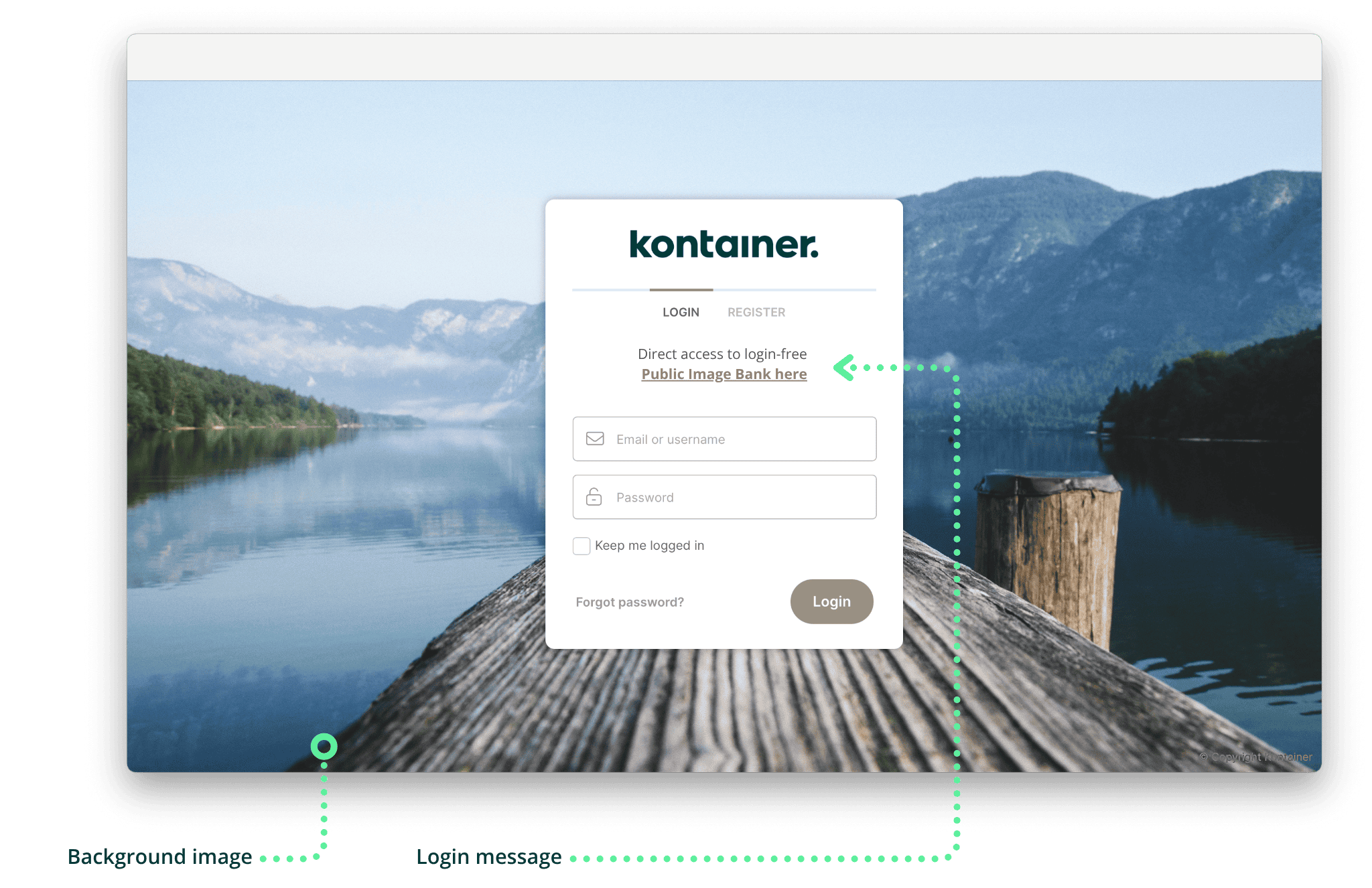
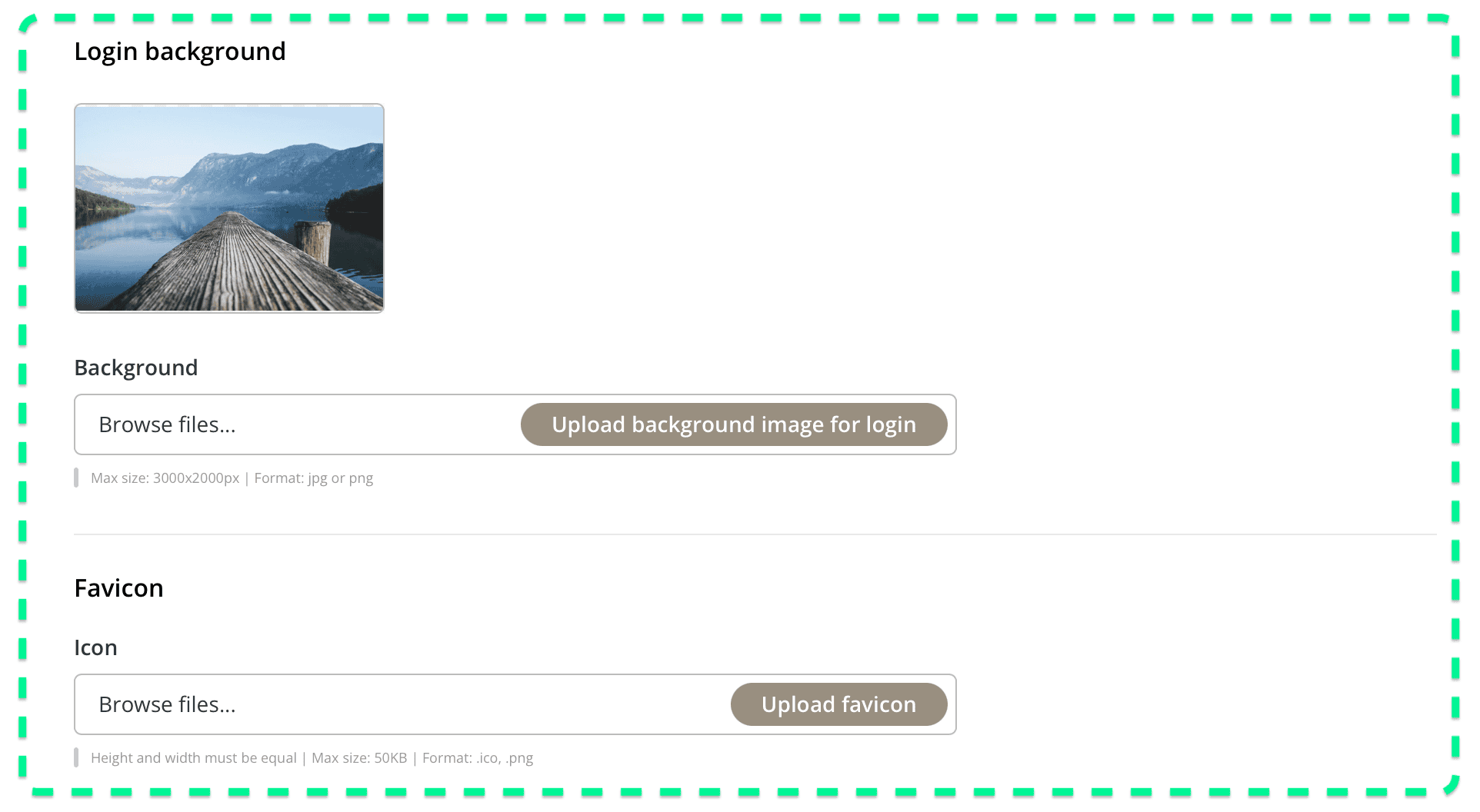
Background image
To change the background image, go to Settings → Appearance → General, and scroll down to the bottom.
Allowed formats: JPG and PNG.
Max size: 3000 x 2000px
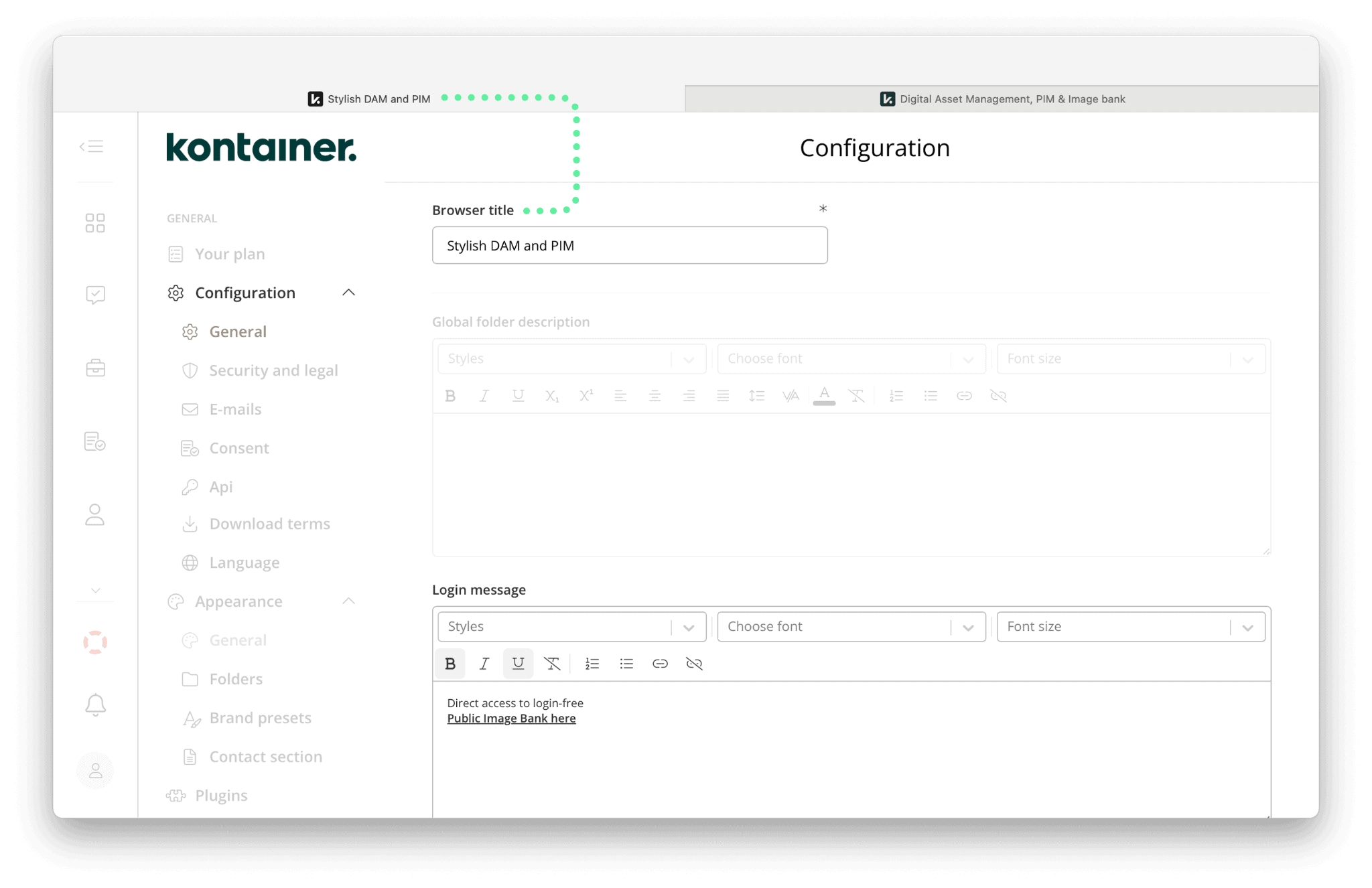
Favicon: can be added below the background image. A favicon is the small symbol shown next to the browser title, see image in the section below 'Welcome message & browser title'.
Login disclaimer / terms text
You can add disclaimer and terms text shown on the login page, with per-language translations.
Welcome message & browser title
To add a welcome message or guiding text, go to Settings → Configuration → General.
Here you can also customize the Browser title.
Remember to Save your changes.
Email templates
The welcome, login, and permissions email texts can be customized, each with per-language translations.
Logo
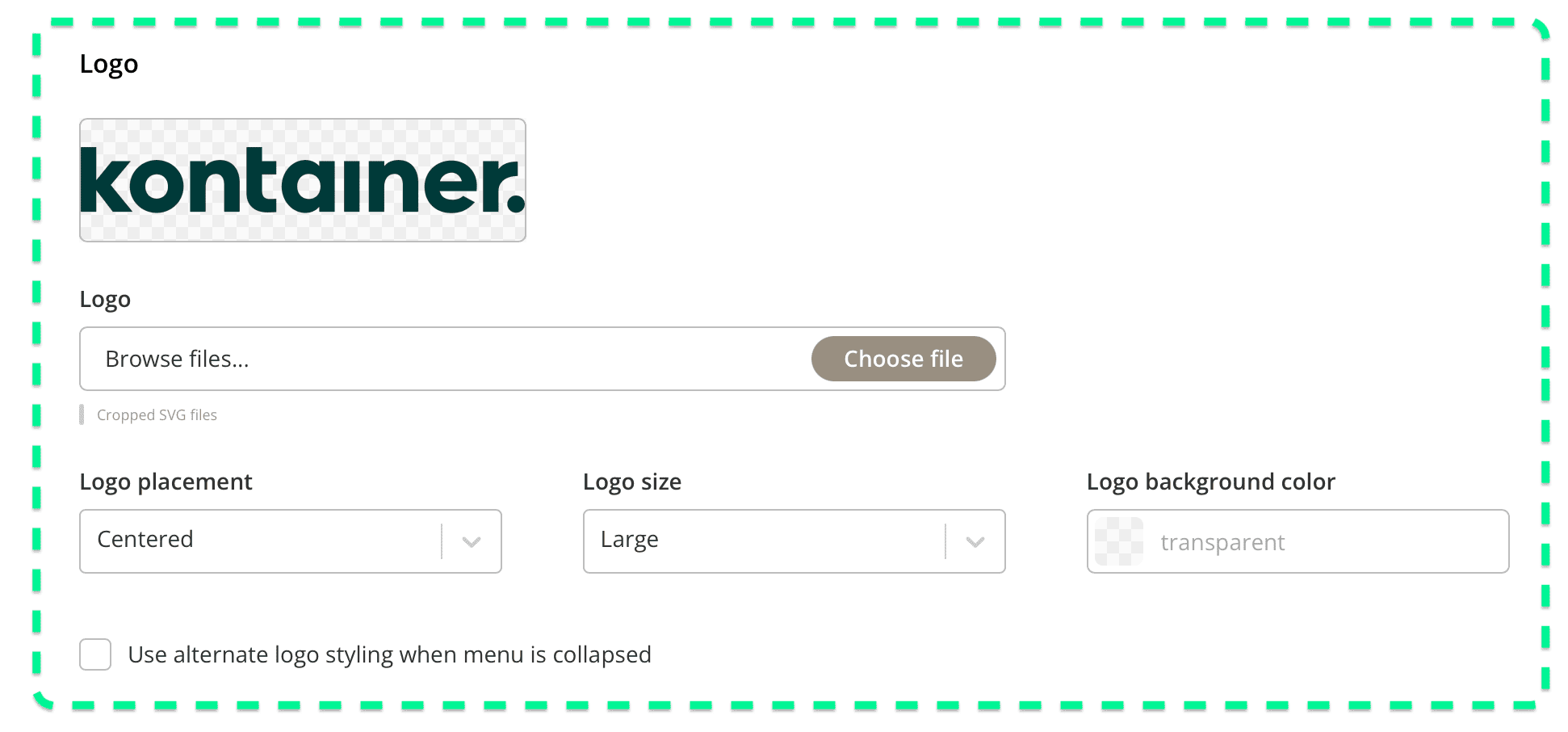
To add your logo, go back to Settings → Appearance → General.
The logo will be shown on your login screen, in the top-left menu bar in Kontainer, and in any emails sent from the system.
Allowed formats: SVG and PNG.
Remember to Save your changes.
Color settings
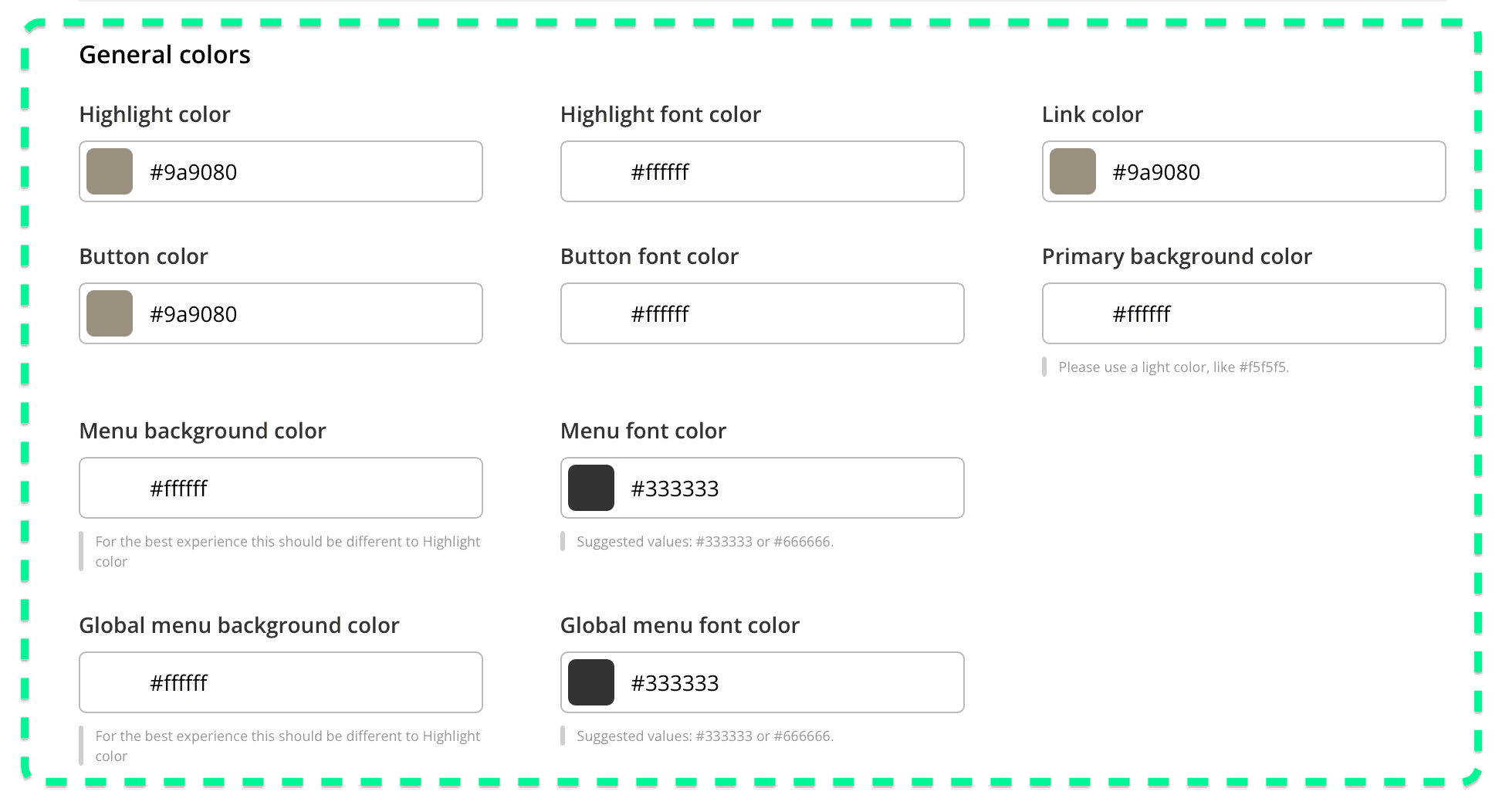
Color settings are similarly set under Settings → Appearance → General.
We generally recommend using light background colors and darker font colors.
You can also set an alternative logo (with its own placement and background color), the button font color, and the menu colors: the global menu background and font, and the folder menu background and font.
The main background color and its low-contrast highlight color control the overall page background and subtle accents.
Remember to Save your changes.
System font
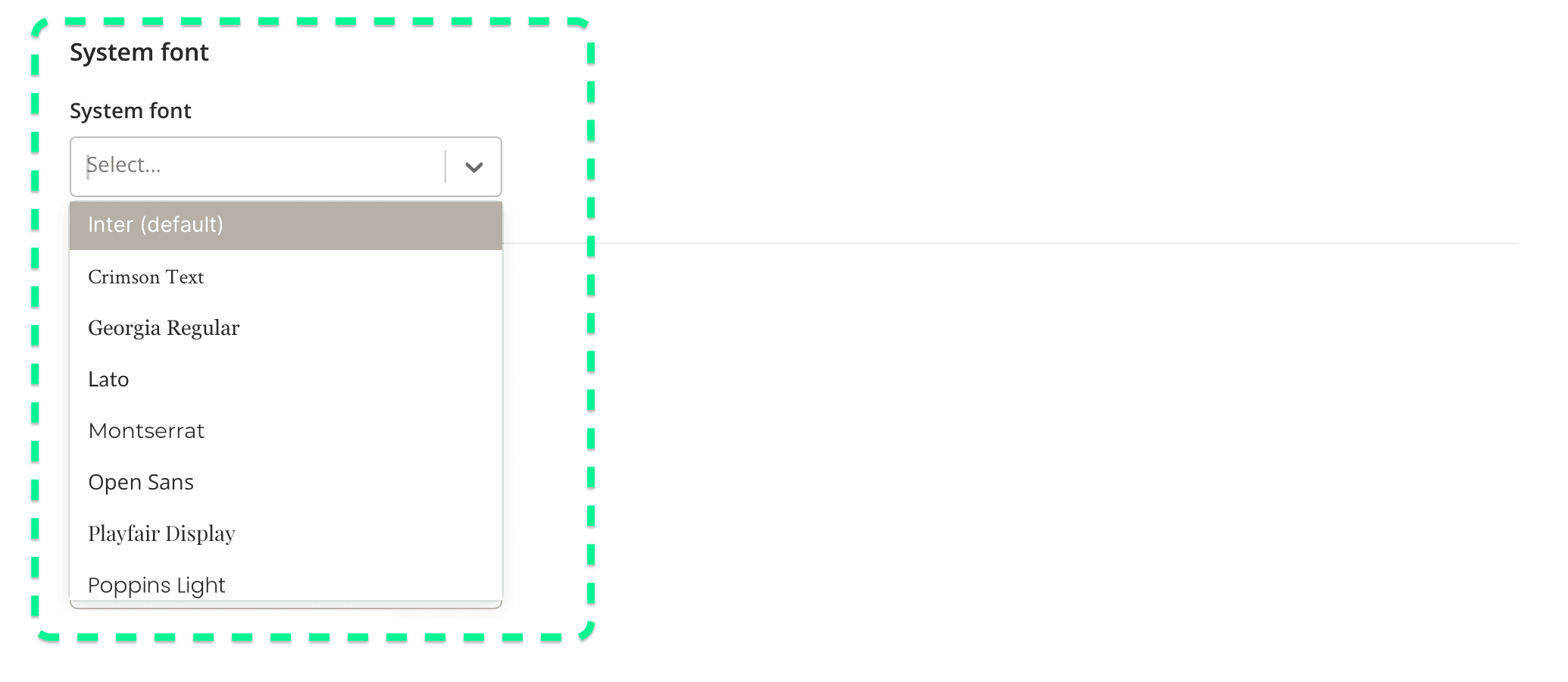
Below the color settings, you can change the system font.
Brand fonts: If you want to add additional fonts to your Kontainer, please send them to us. To add a new system font, we require Regular (400) and Bold (700), and, for an optimal viewing experience, Medium (500) and Light (300).
Folder menu settings
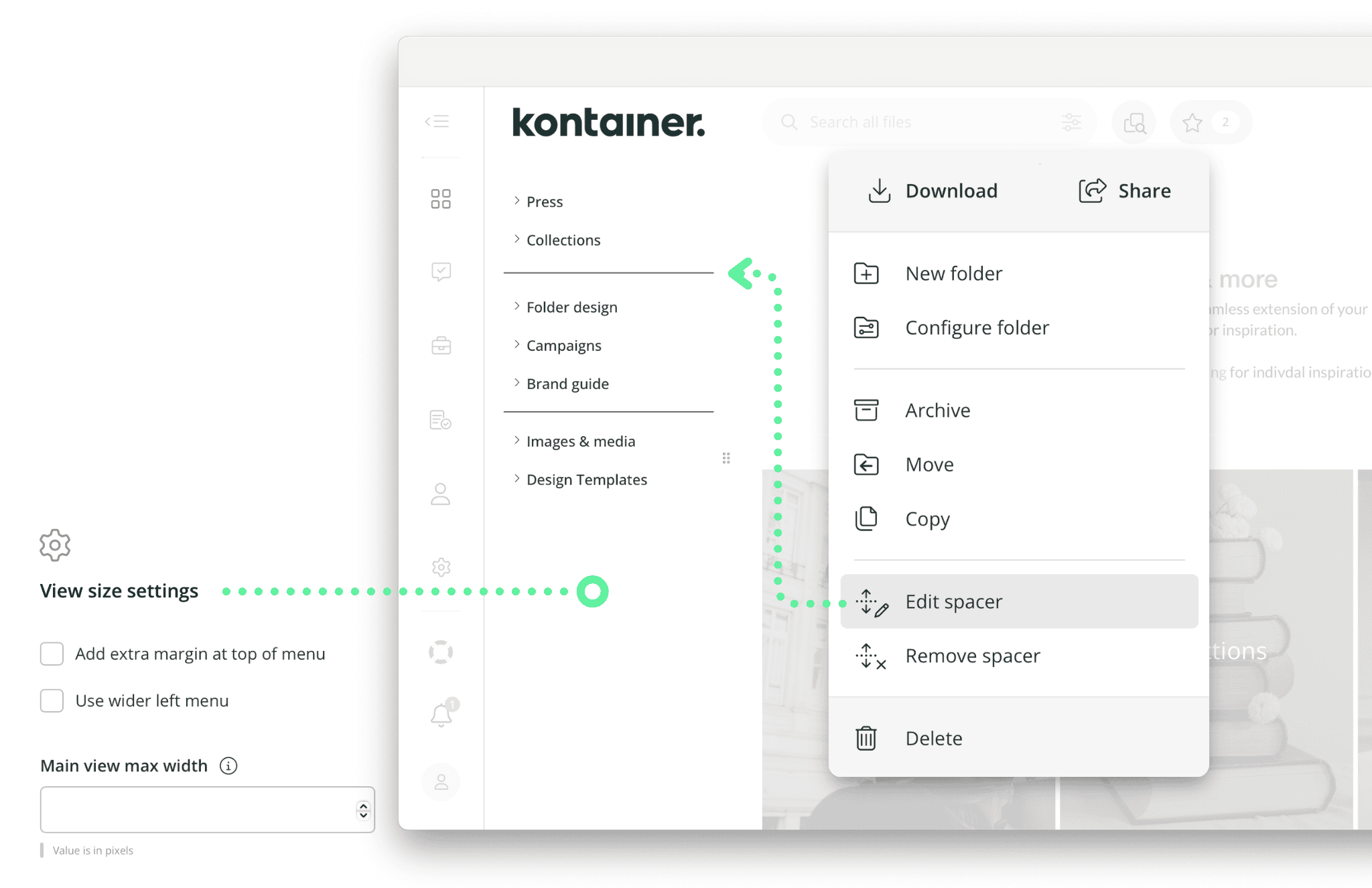
To customize the appearance of the folder menu, you use a combination of the margin options in Settings → Appearance → General and spacer options found by right-clicking folders in the actual folder menu.
When creating users, you can choose whether to leave this menu visible or hidden. Find out more in the guide here.
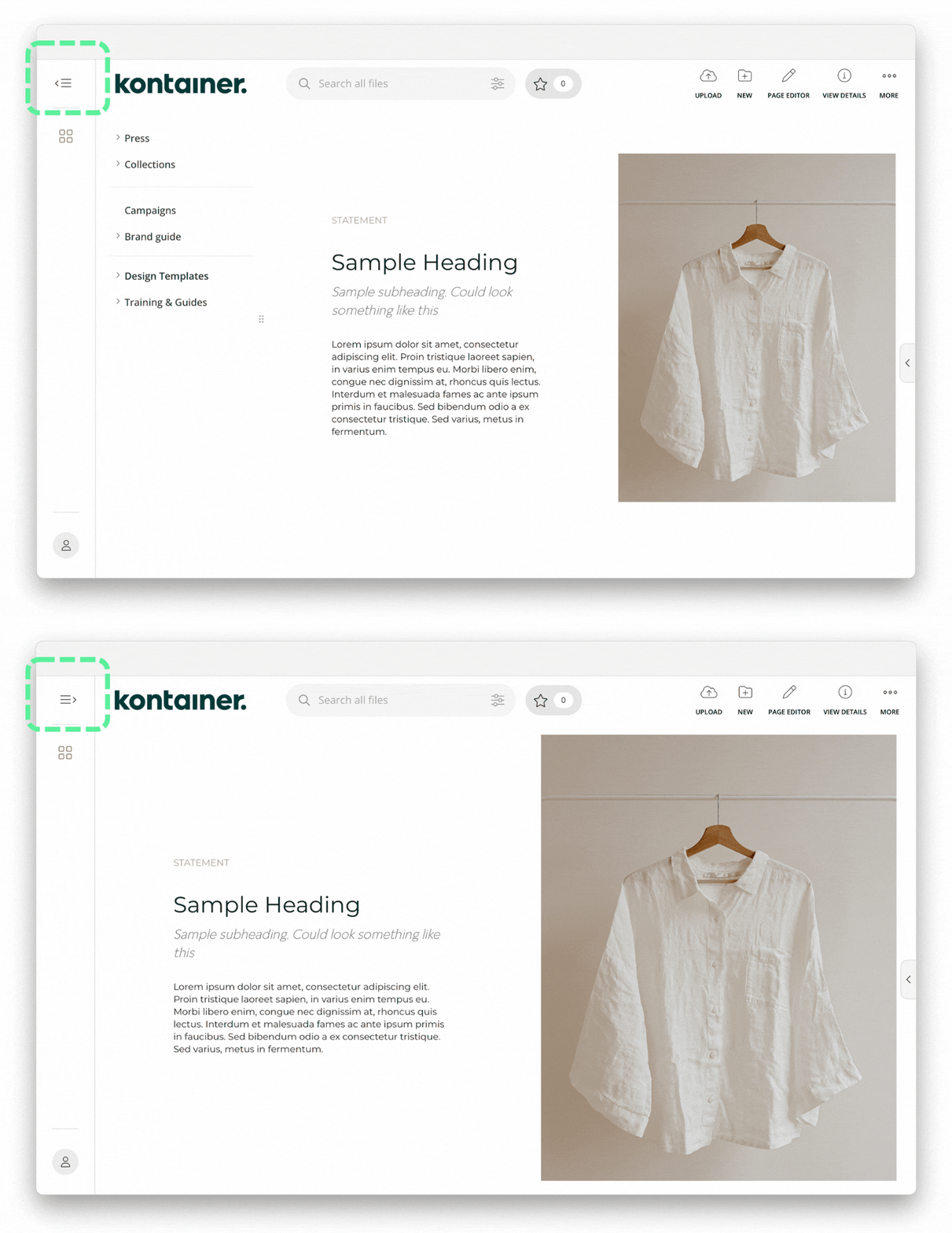
Layout options
Additional layout options include a wide left menu, a maximum view width, folder text alignment, hiding filenames, and a social-links toggle.
File & folder display options
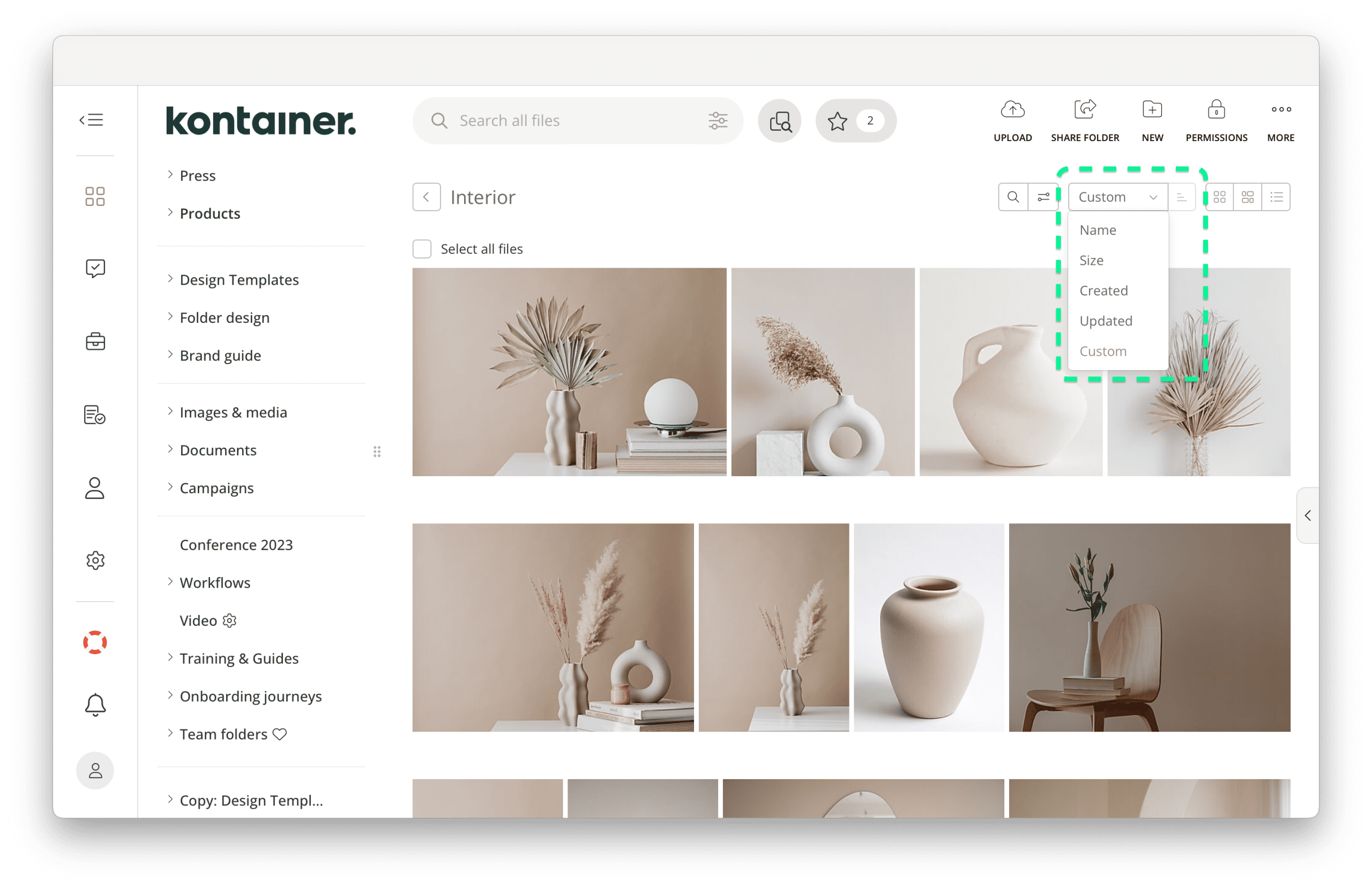
Sort orders
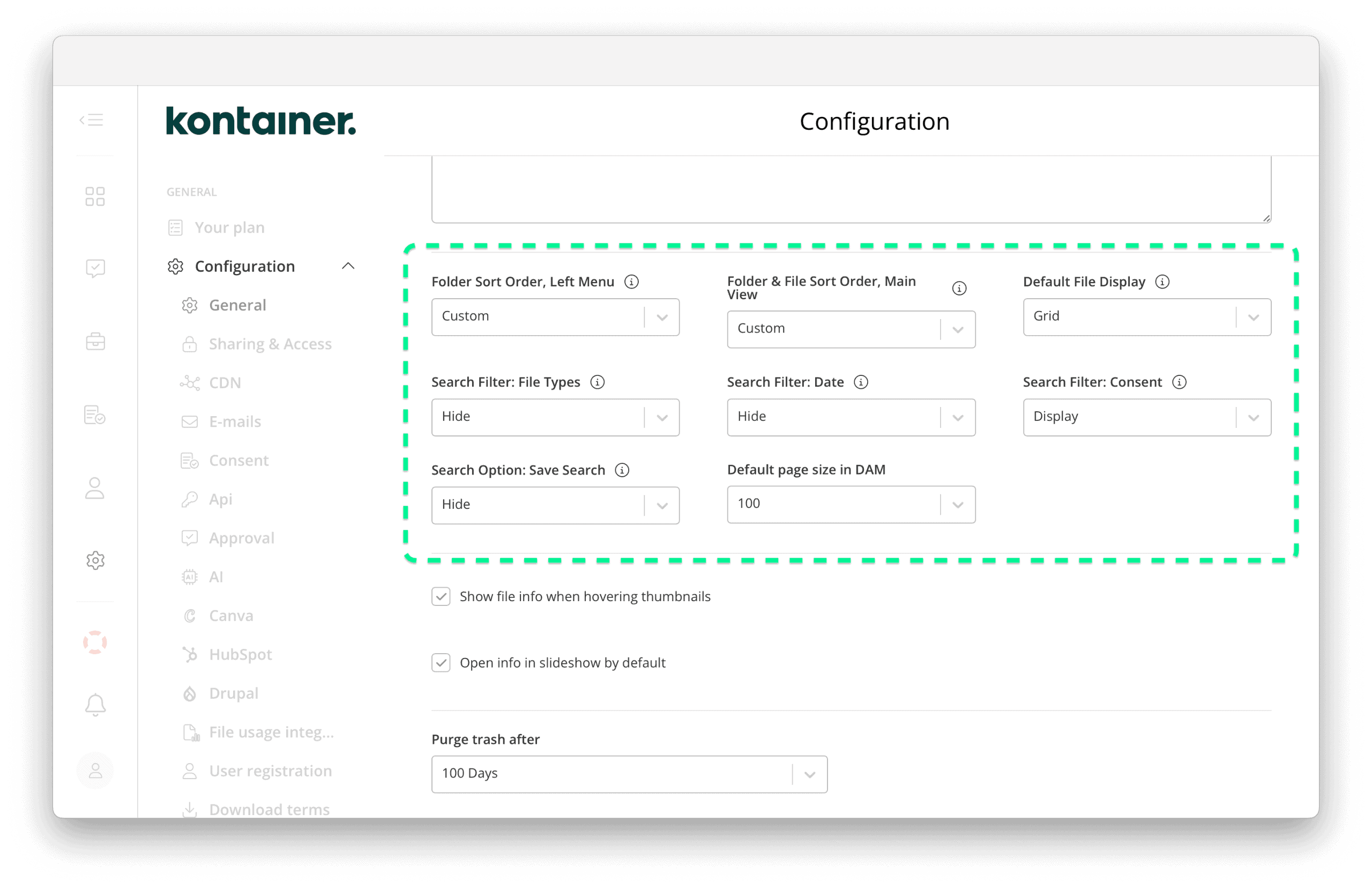
The default presentation order of your files and folders is managed under Settings → Configuration → General.
Select either:
- Name (Alphabetical order)
- Size (original file size)
- Uploaded (dates)
- Custom (manual)
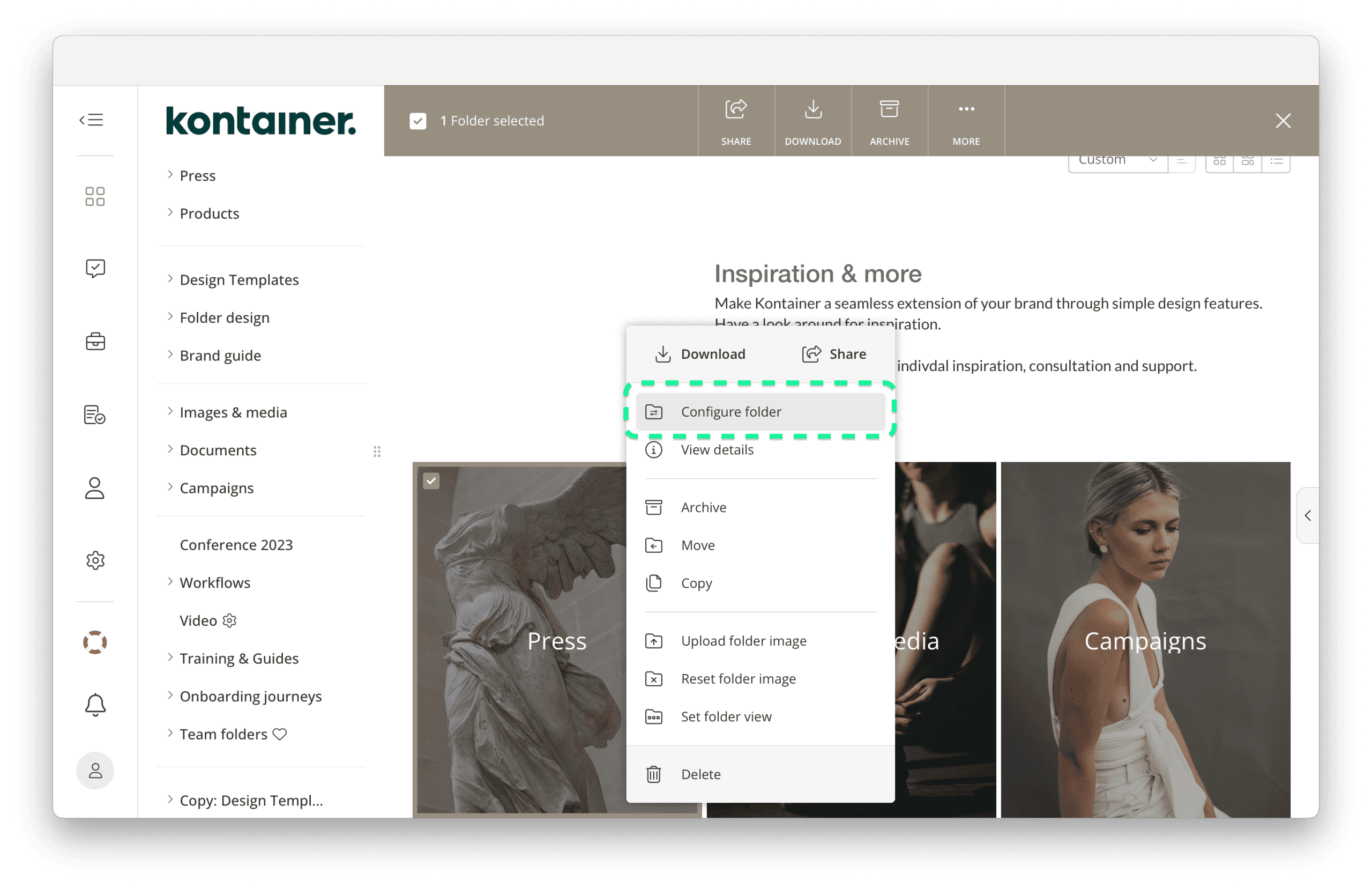
In addition to the overall default sort order, the order within individual folders is managed by right-clicking a folder and selecting Configure folder.
And users can change the viewing order when browsing folders.
File display
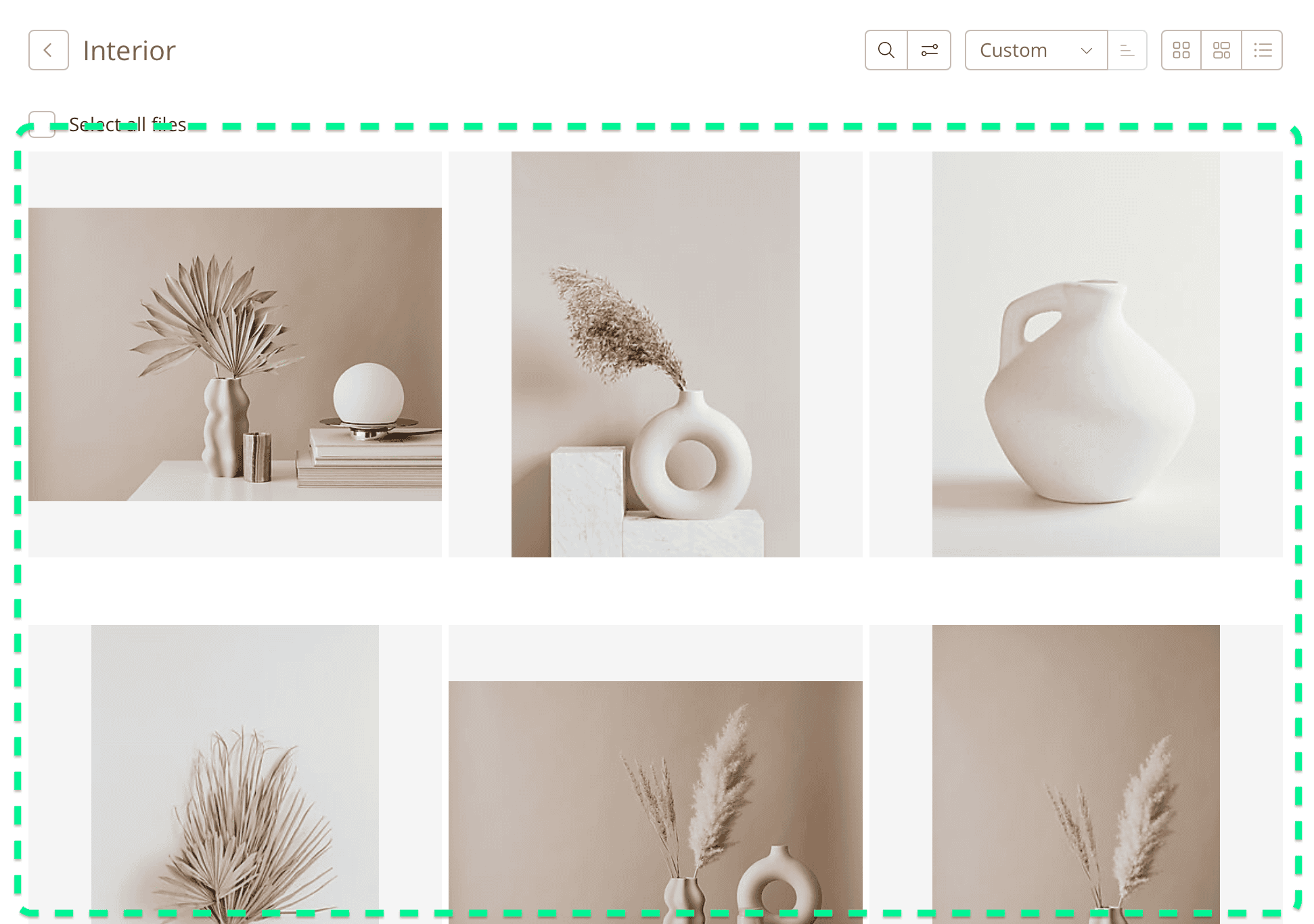
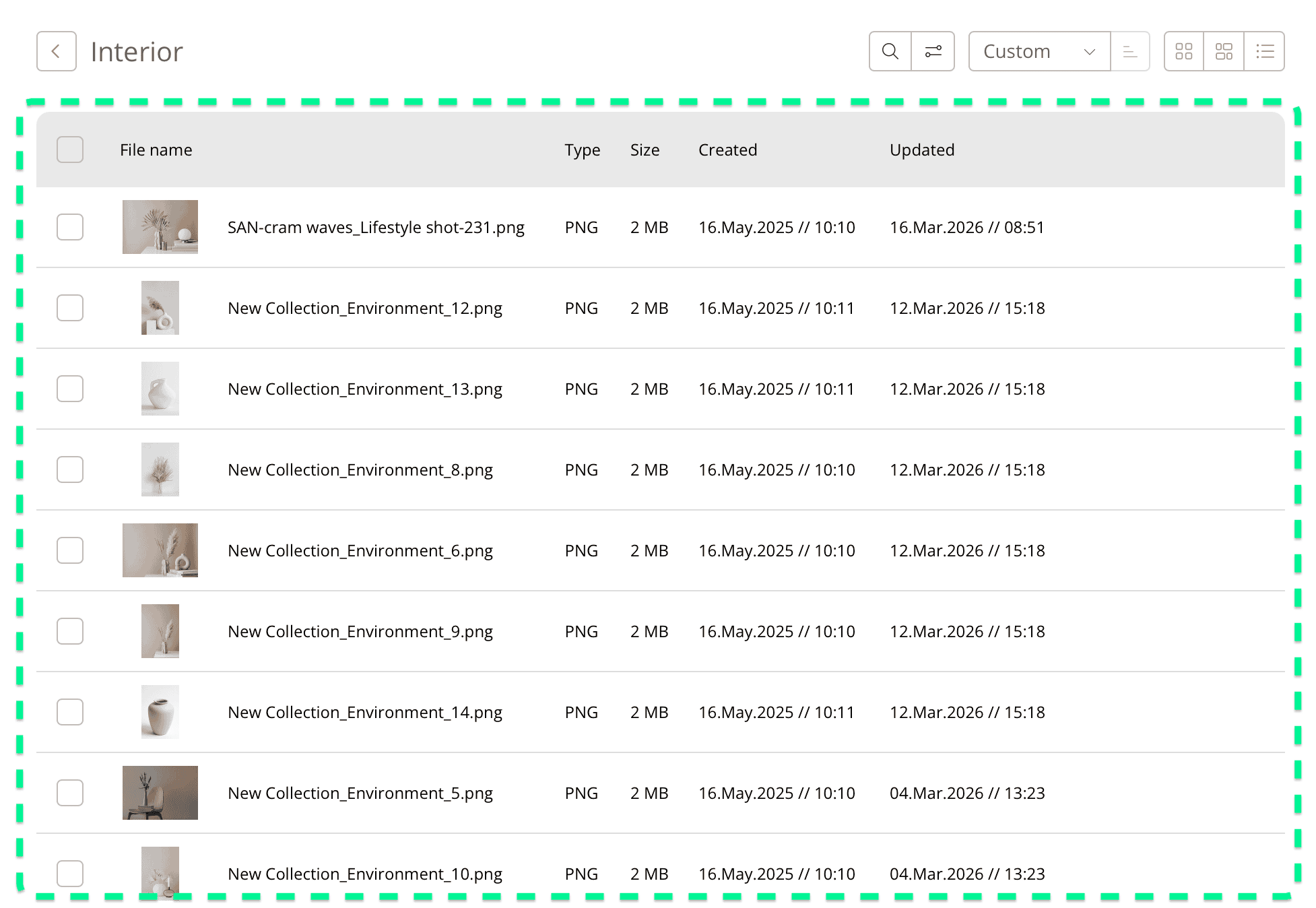
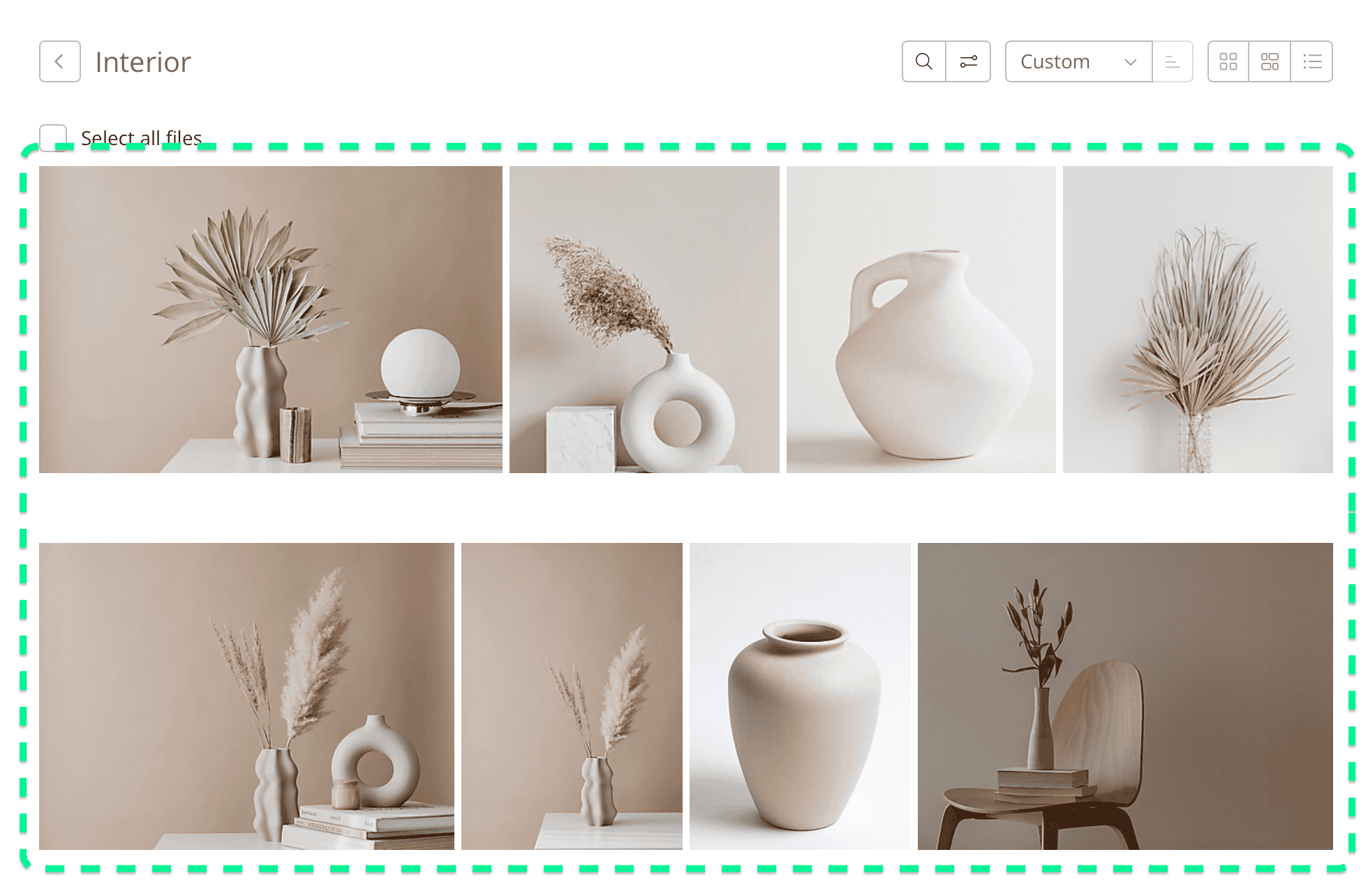
This is also where you select the overall default file display. There are three options to consider.
Again, these settings can be changed on a folder-by-folder basis – see Configure folder above, and by users while browsing.
Folder display
In this section, we will cover the styling of your folders. This is the way folders are displayed in overviews.
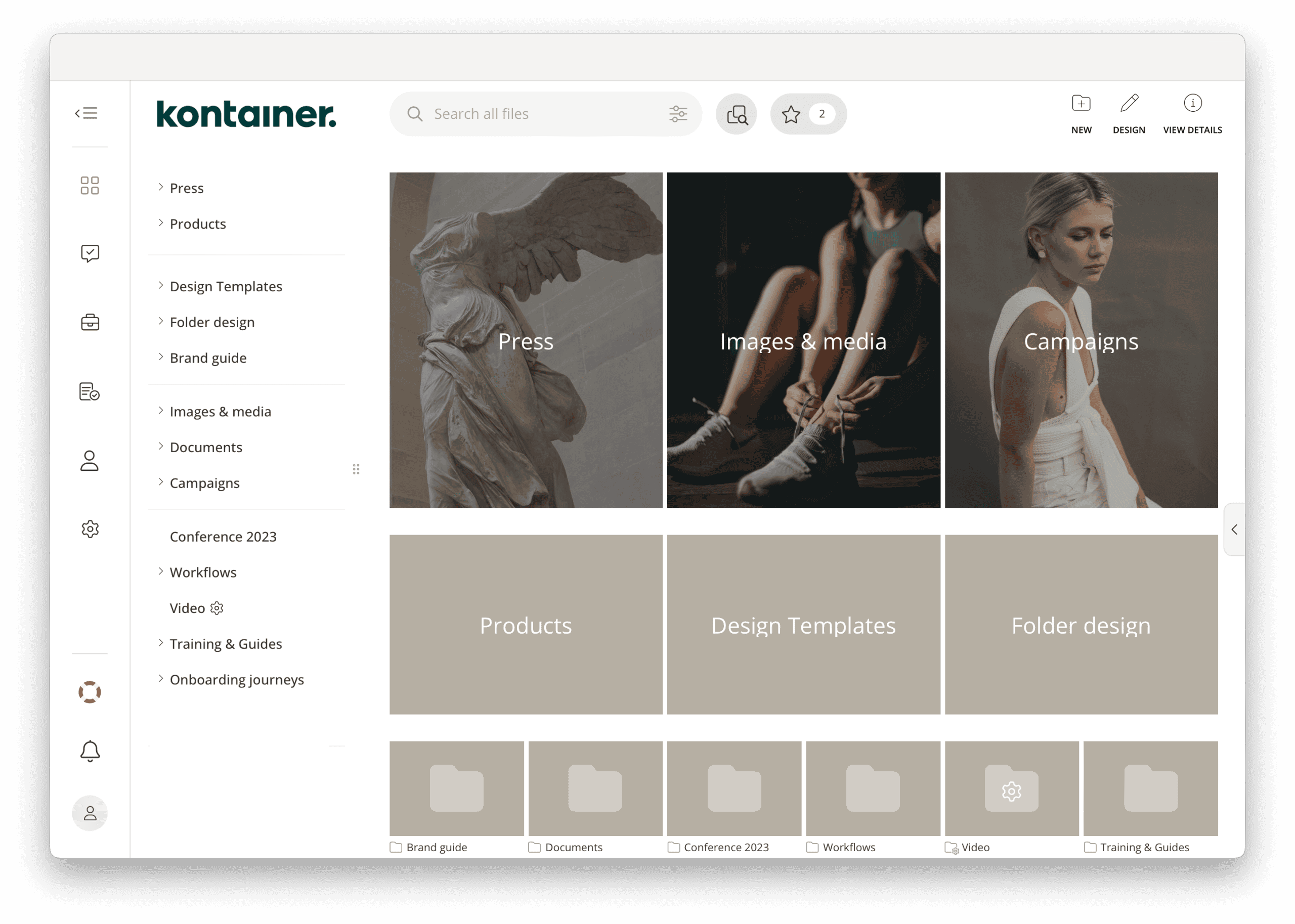
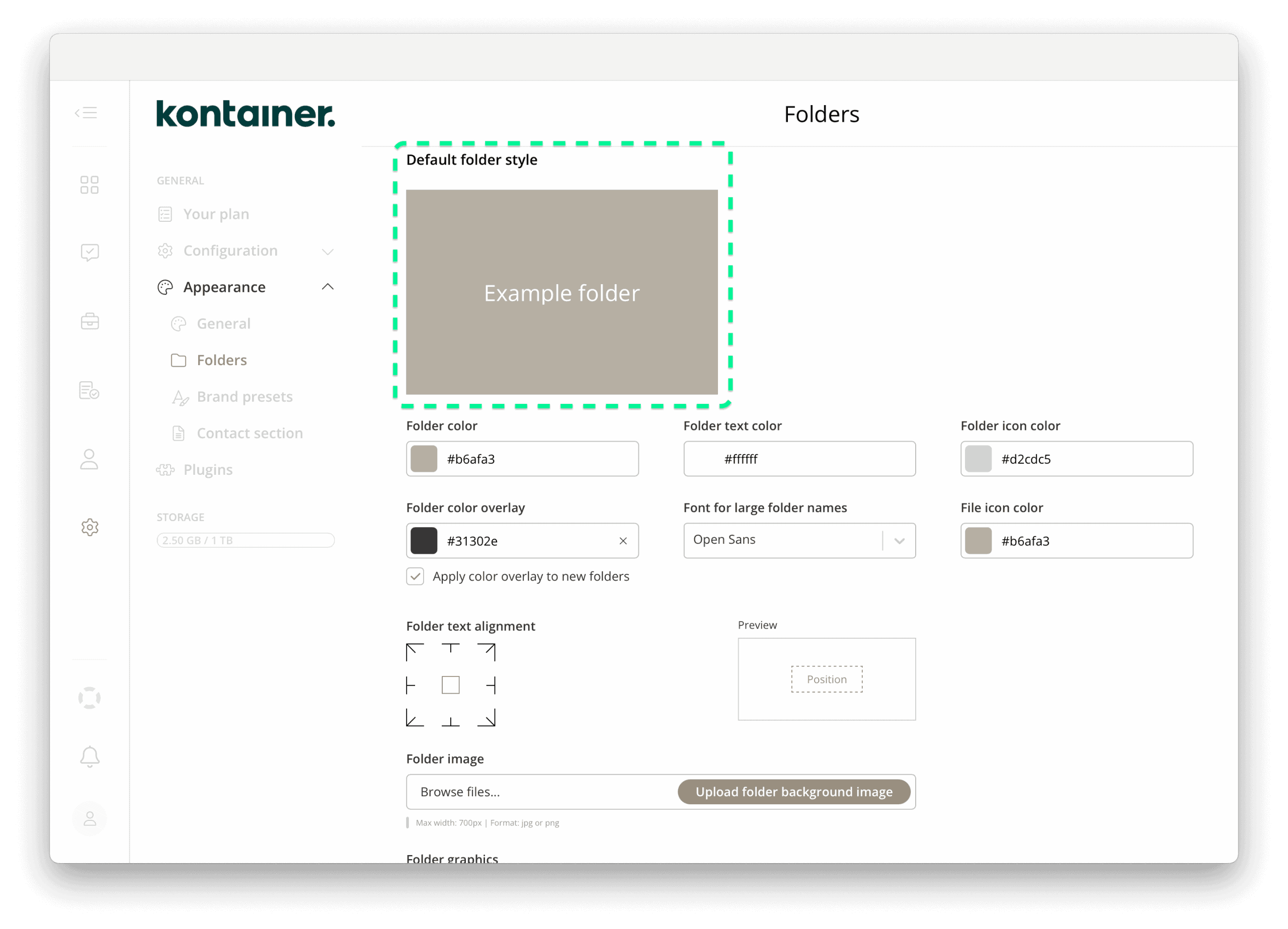
The default display settings for folders are found under Settings → Appearance → Folders.
The folder example will visualize your selections as you go. These presets will subsequently apply to all the folders you create.
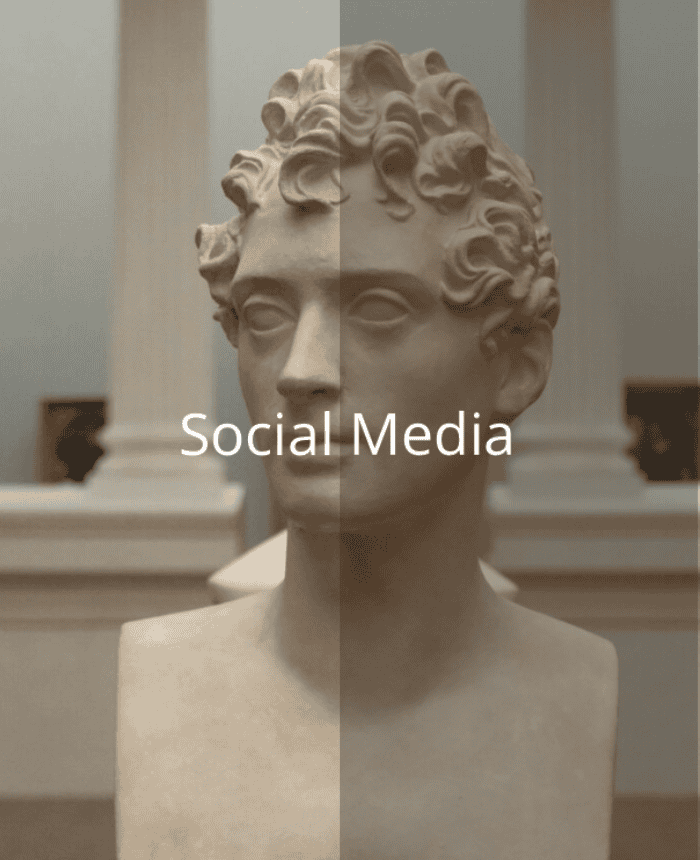
Folder color overlay refers to an optional color mask for folders with image covers used to improve contrast and readability.
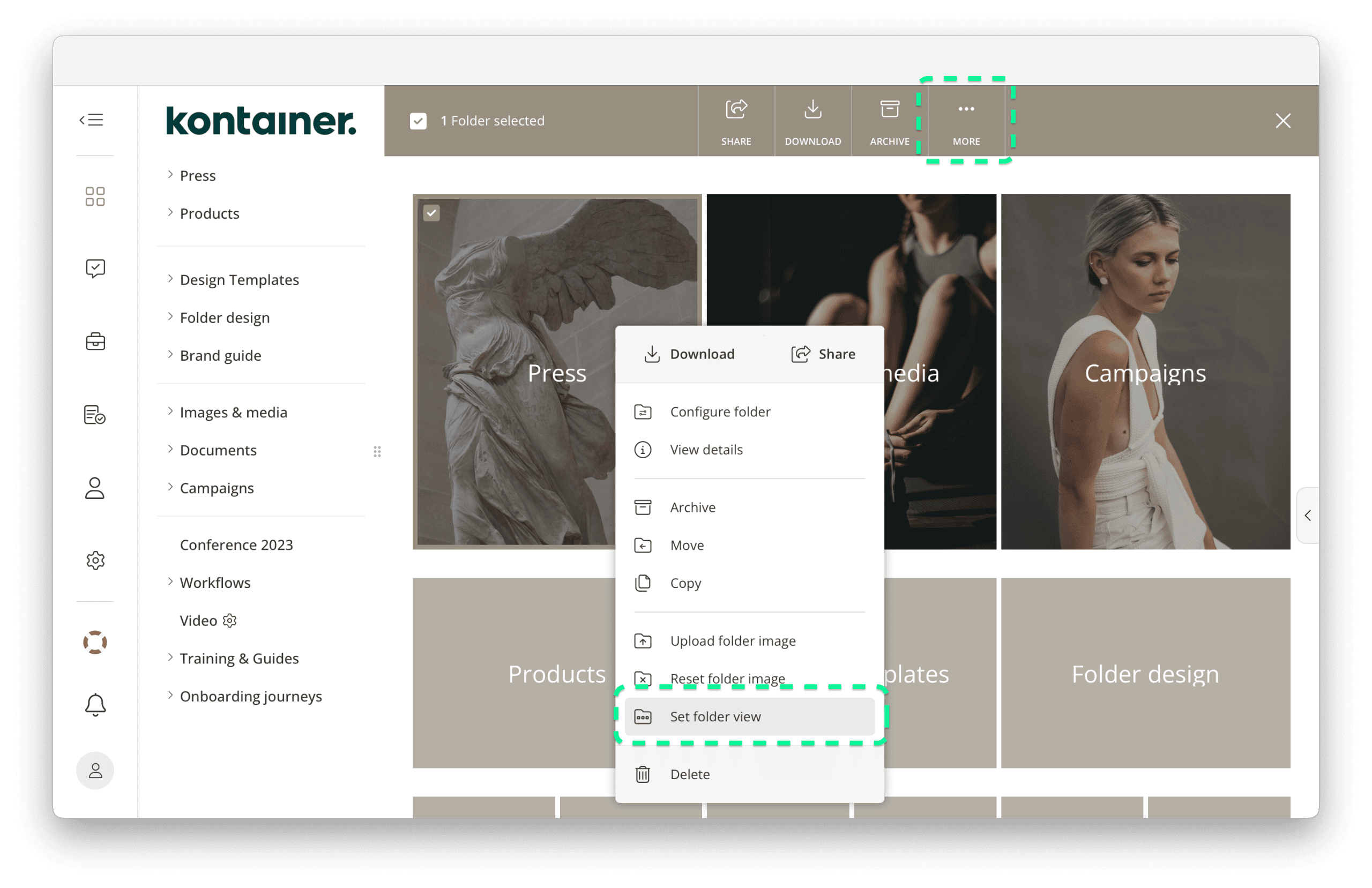
To manually change settings for a folder, right-click the folder or use the More menu to open Folder view.
There are three folder display sizes, as follows:
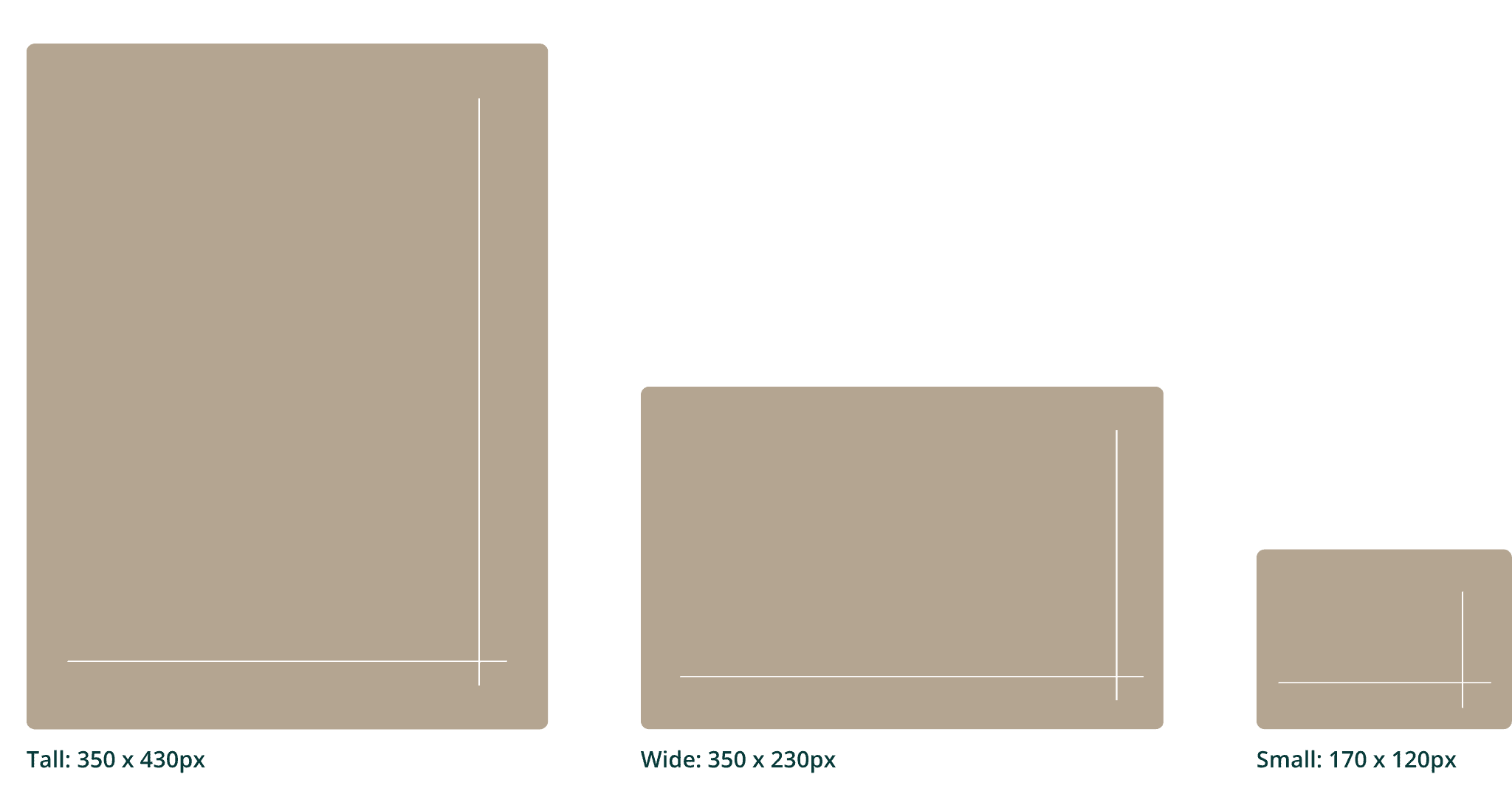
If you want folder names displayed on the folders rather than below, select the option Folder graphics → Large folder name.
Then, select your font and size.
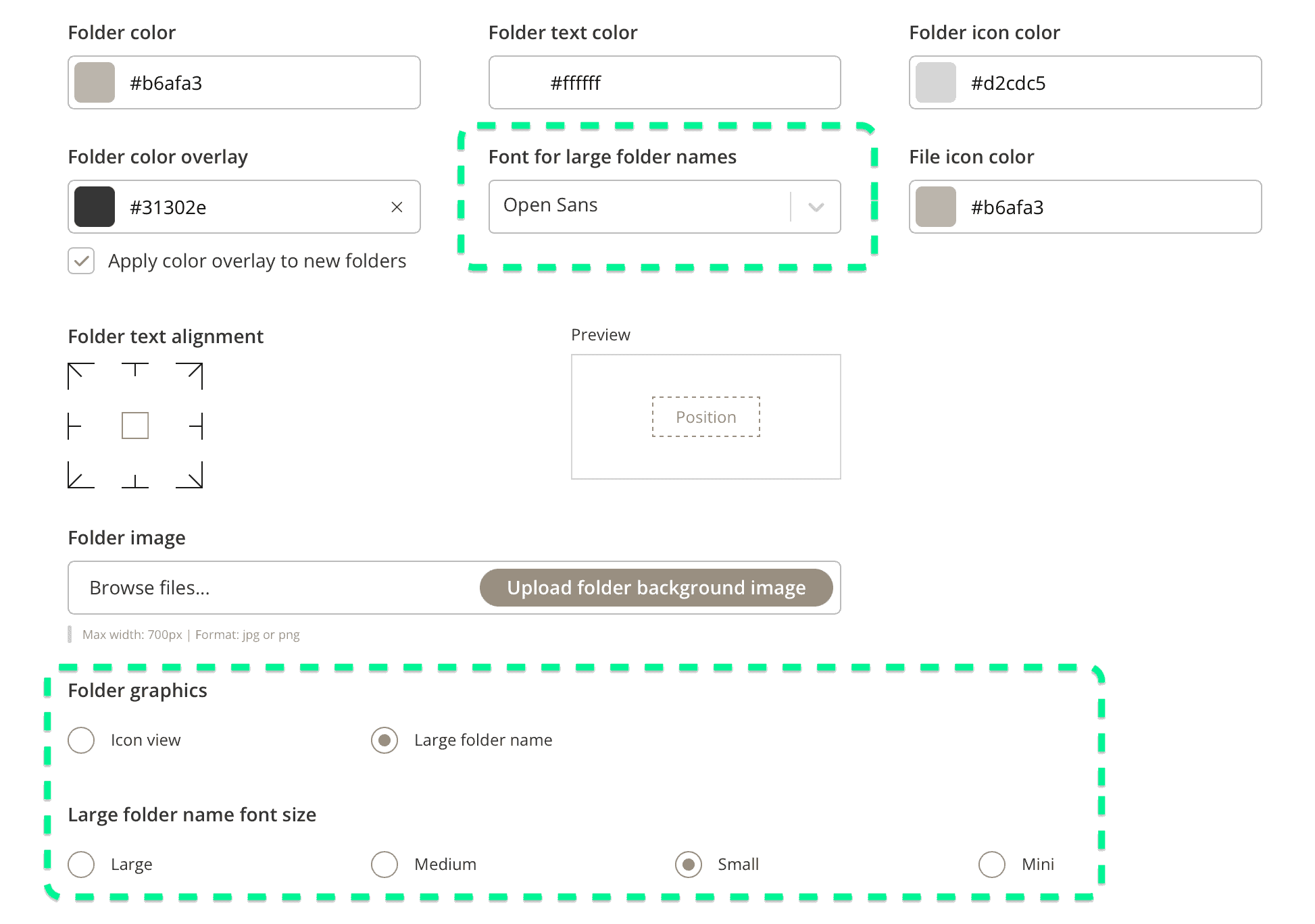
Remember to Save your changes.
Further customization options include file display sizes, file names, folder and design element corner styles.
If you have any questions about styling, feel free to reach out.
Folder CMS functions
The Page editor functions transform folders into guides, press releases, product presentations, landing pages and more. See the full design guide here.
Find it in the top right corner of your folders.
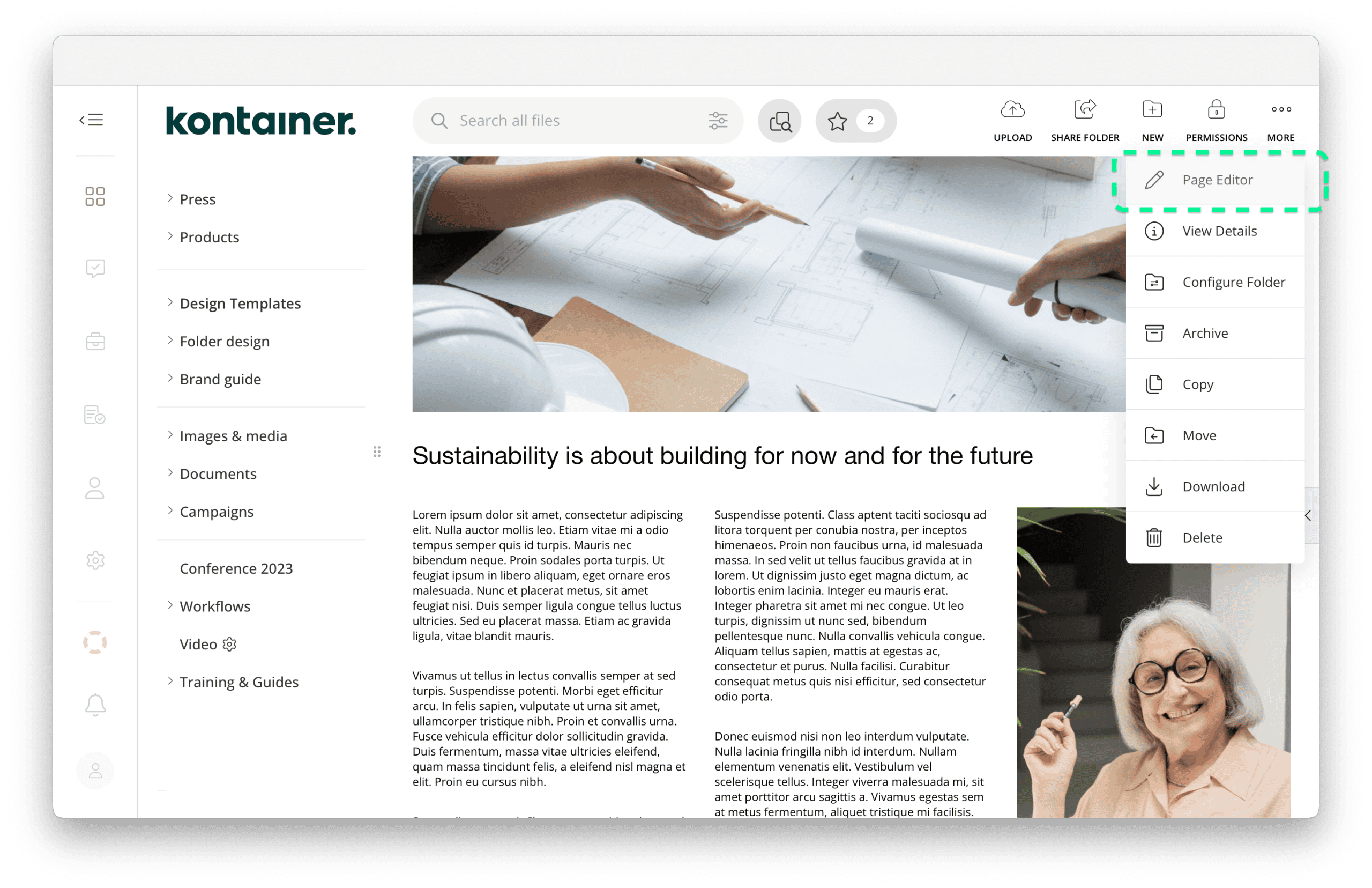
From here, you can add content boxes and start creating your designs. Get inspiration and see the full design guide here.
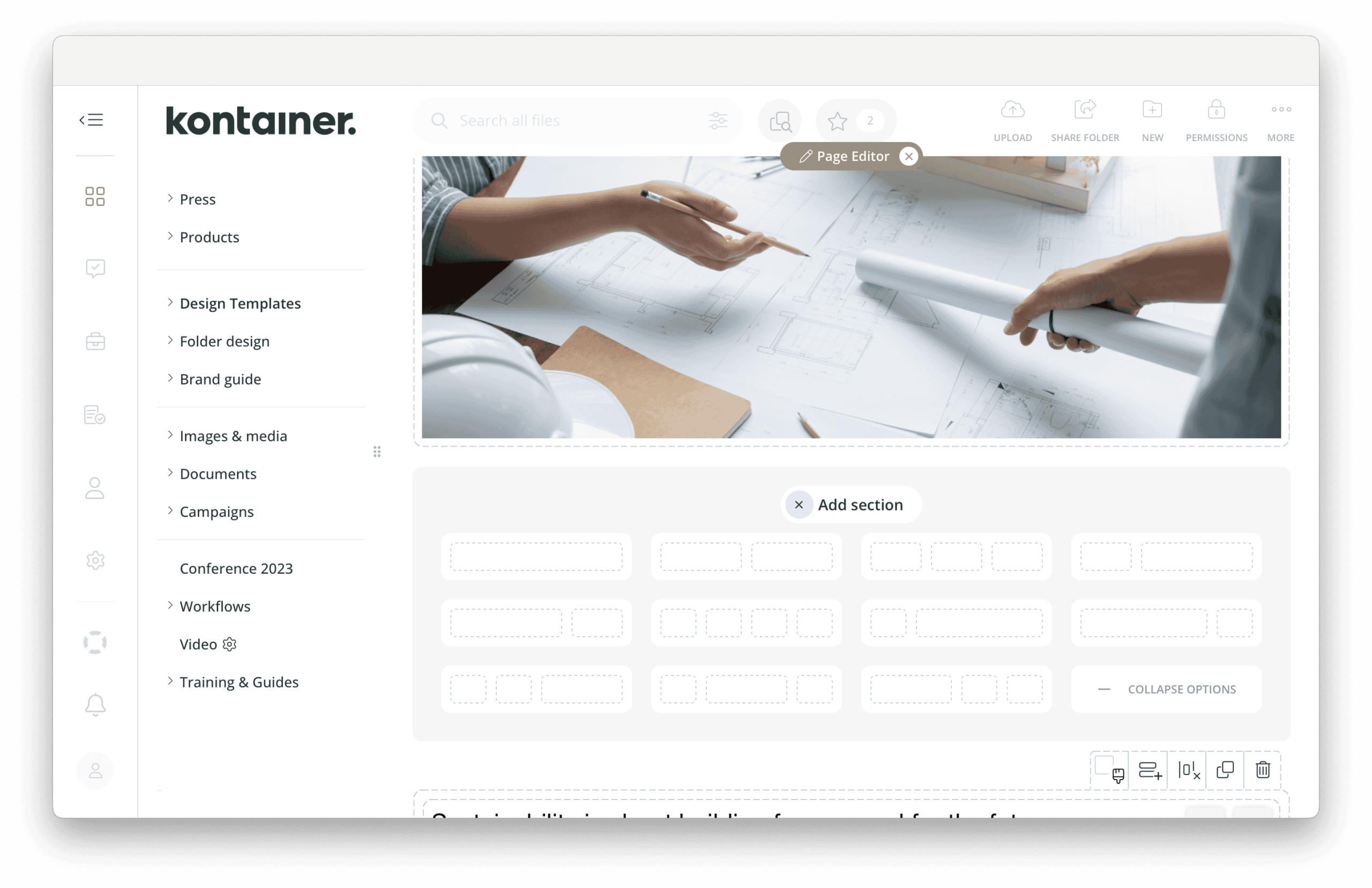
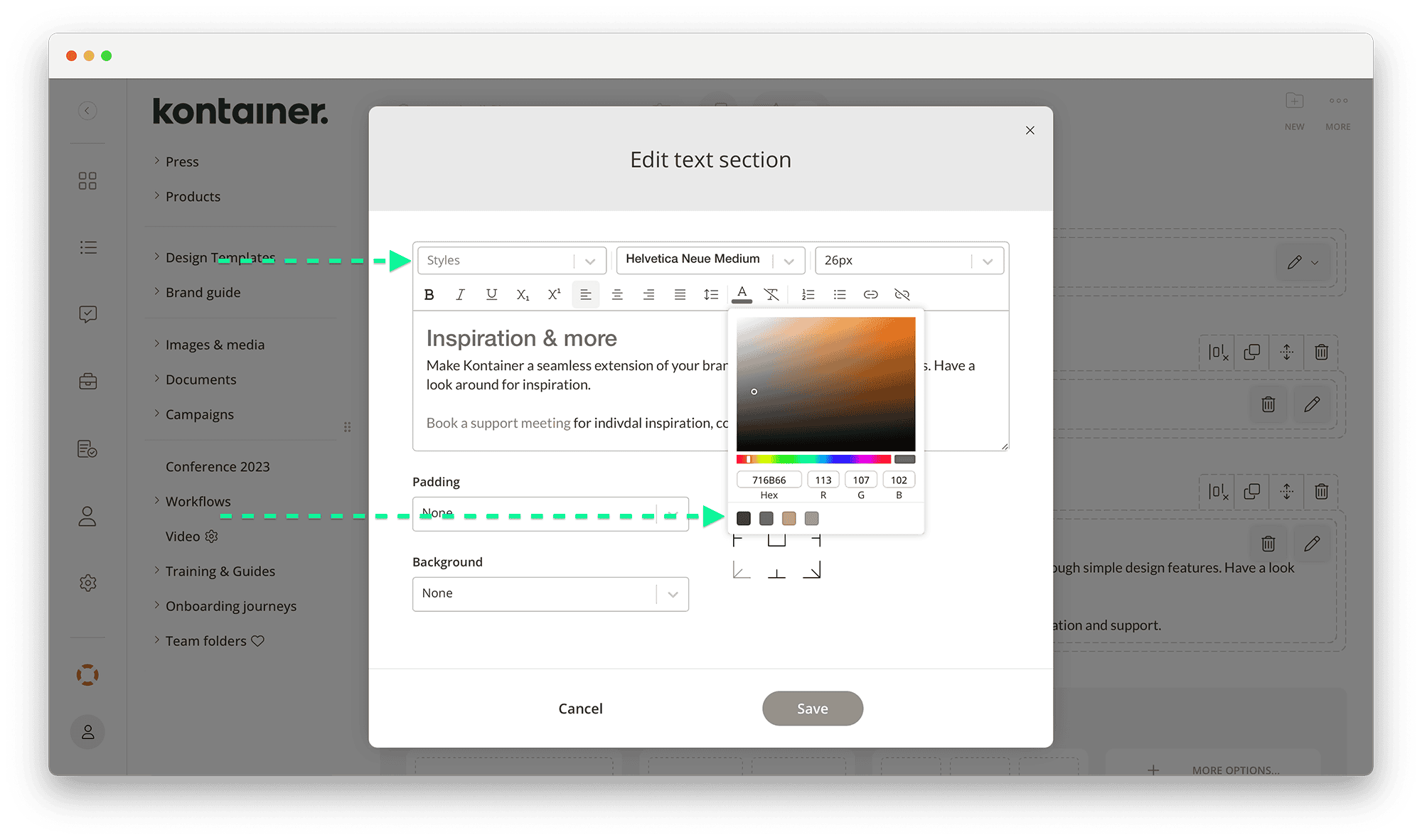
Use your text and color presets to quickly create engaging and coherent content.
Manage access
Remember: Folders are not visible to users until they have been granted access. To learn more about access, see our Permissions guide here.
Share protections & trash
You can prevent URL copying on a share link or shared user, and set trash to be pruned automatically after a chosen number of days.
Related Guides
Make Custom Landing Pages | Add a Brand Section | A Guide to Download Templates
Inspiration Links
Page Editor Design Suggestions | Brand Guide
If you have any questions about styling or need further inspiration, feel free to email the customer success team.