


You can give a Microsoft Copilot Studio agent access to your Kontainer through the Kontainer MCP. The agent then looks things up in Kontainer on behalf of the person chatting with it, with exactly the same rights as that person's Kontainer user. For a general introduction, see MCP (Model Context Protocol) for Kontainer DAM & PIM.
This is a different setup from using Copilot Studio as an AI provider. There, Kontainer sends texts to your agent to translate. Here, your agent reaches into Kontainer.
Before you start
- You need a Copilot Studio agent. You can add Kontainer to an existing agent or create a new one.
- Have your Kontainer address ready, for example
https://yourcompany.kontainer.com. - Copilot Studio currently connects to the read-only Kontainer MCP: the agent can search, browse and read files, folders, product data, users and statistics, but cannot change anything. Copilot Studio loads at most 70 tools from one MCP server, and the read-only server is the one that fits.
Add Kontainer to your agent
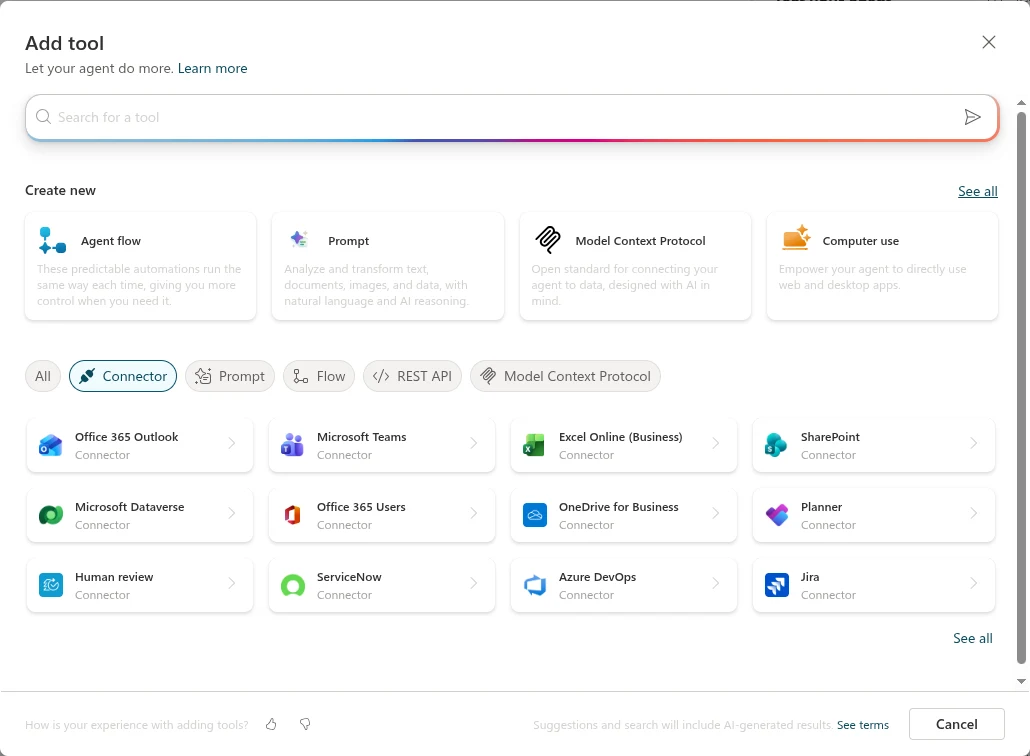
- Open your agent in Copilot Studio, go to Tools and click Add a tool. Under Create new, choose Model Context Protocol.
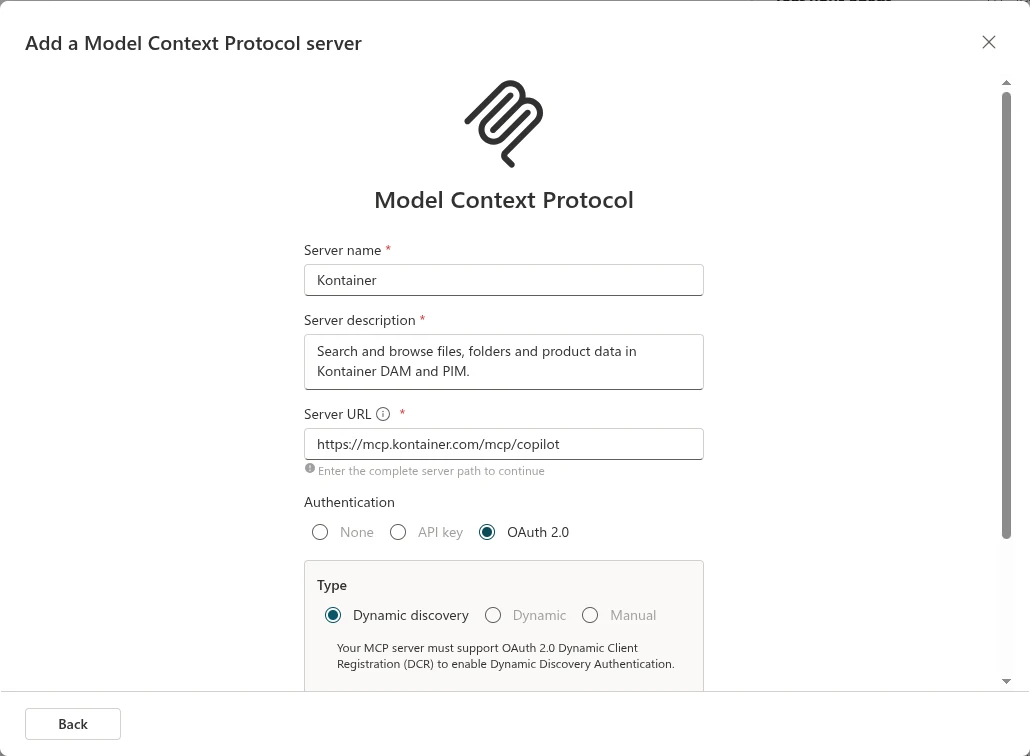
- Fill in the form:
- Server name:
Kontainer - Server description: for example Search and browse files, folders and product data in Kontainer DAM and PIM. The agent reads this to decide when to use Kontainer.
- Server URL: your Kontainer address followed by
/mcp/copilot, for examplehttps://yourcompany.kontainer.com/mcp/copilot - Authentication: OAuth 2.0, type Dynamic discovery. Kontainer supports it, so you do not need a client ID or secret.
Click Create.
- Server name:
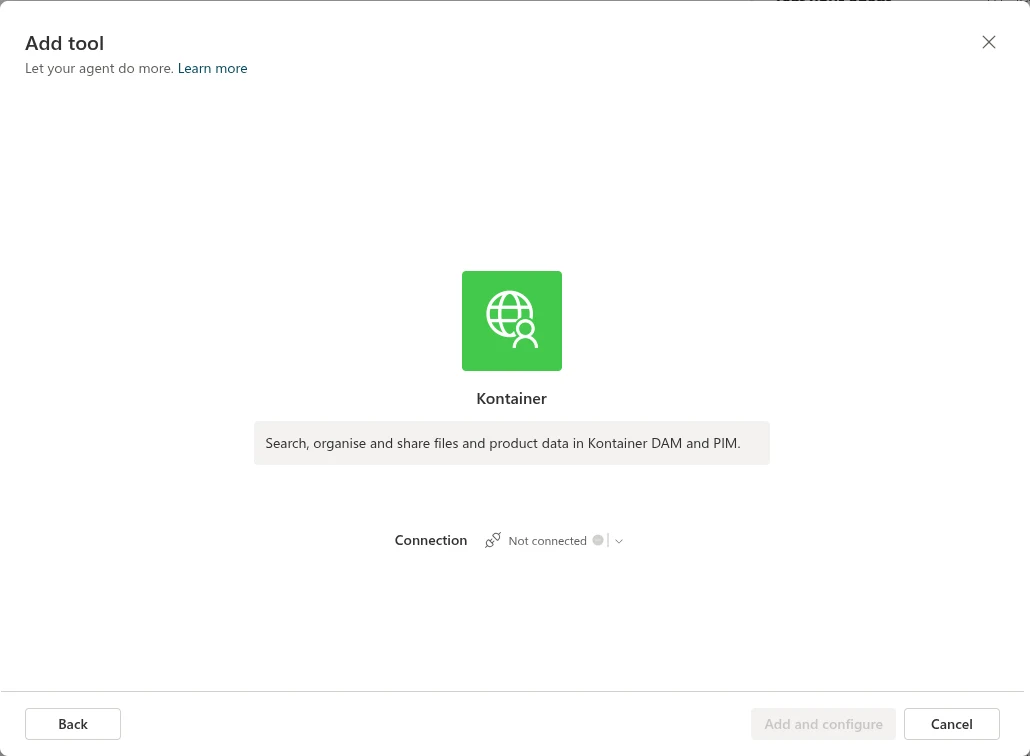
- Copilot Studio creates a connector for Kontainer. Next to Connection, open the list and choose Create new connection.
- Click Create.
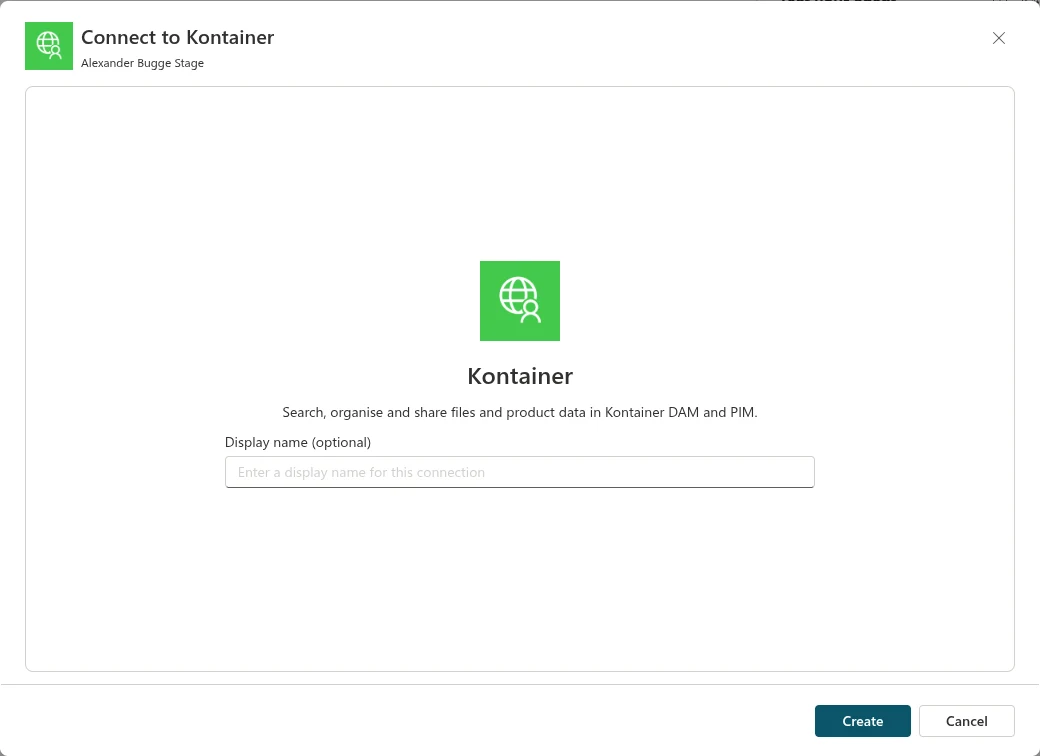
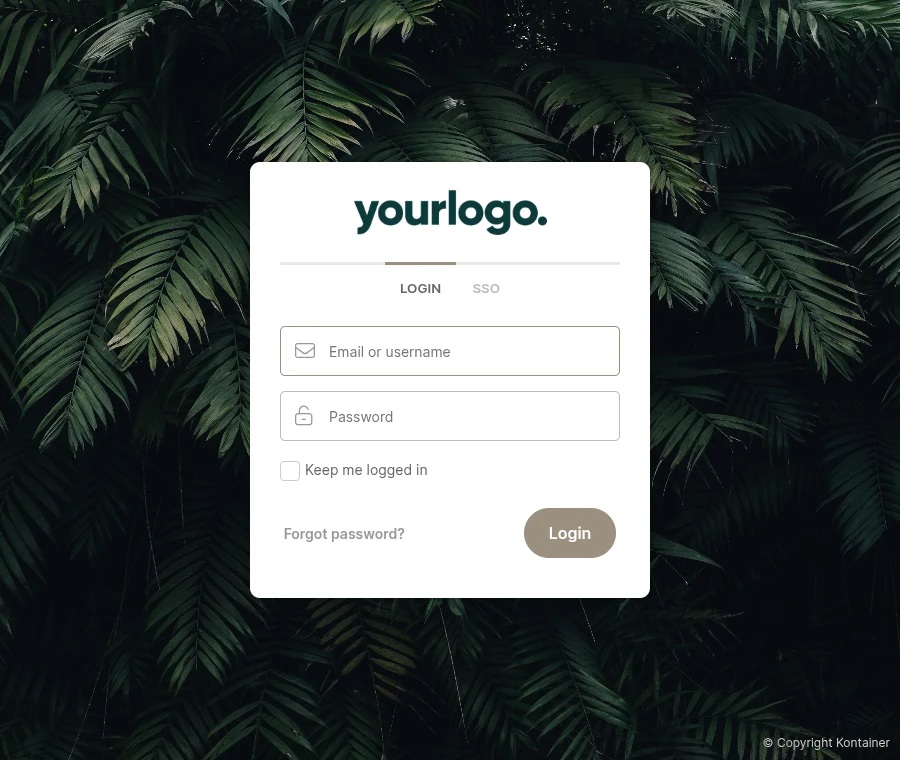
- Your Kontainer login page opens in a pop-up window. Log in as usual and approve that Copilot Studio may connect to your Kontainer. If you are already logged in, you only need to approve. If nothing opens, allow pop-ups for copilotstudio.microsoft.com.
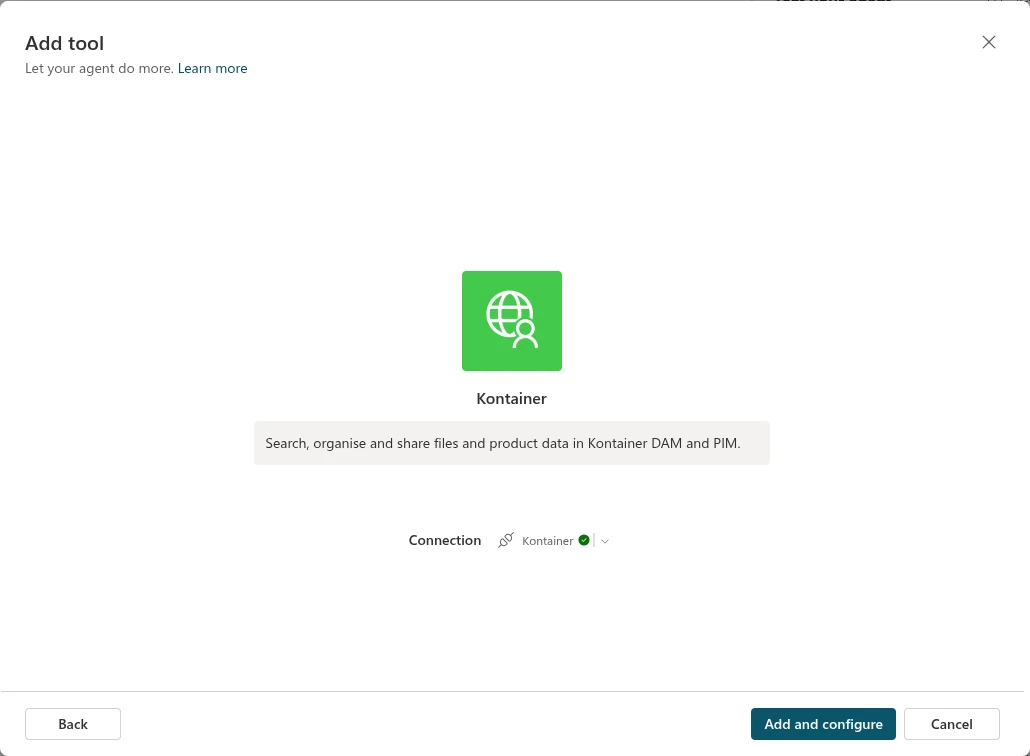
- The connection now shows Kontainer. Click Add and configure.
Tell the agent when to use Kontainer
On the agent's Overview page, add a line like the one below to the Instructions. Also consider switching Web Search off, so the agent looks in Kontainer instead of on the internet.
Use the Kontainer tools to look up files, folders and product data in Kontainer. To browse folders, use list-folders; to find files, use search-files.Try it
Ask the agent something in the Test your agent pane, for example Which top-level folders do I have in Kontainer?
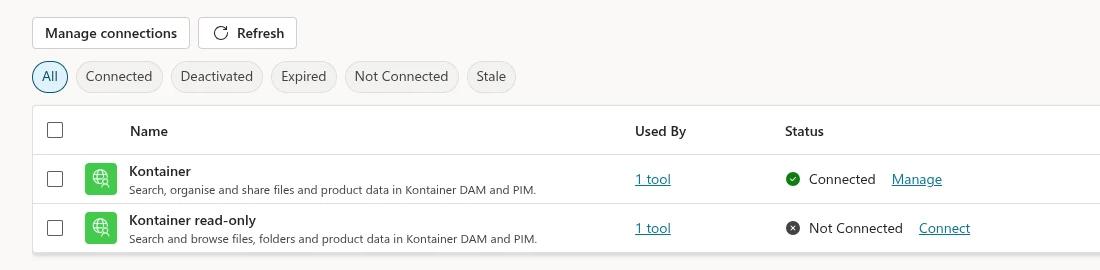
The first time, every person who chats with the agent is asked to connect their own Kontainer account. Click Open connection manager, then Connect next to Kontainer, click Submit and then Retry in the chat.
The agent now calls Kontainer and answers from your data.
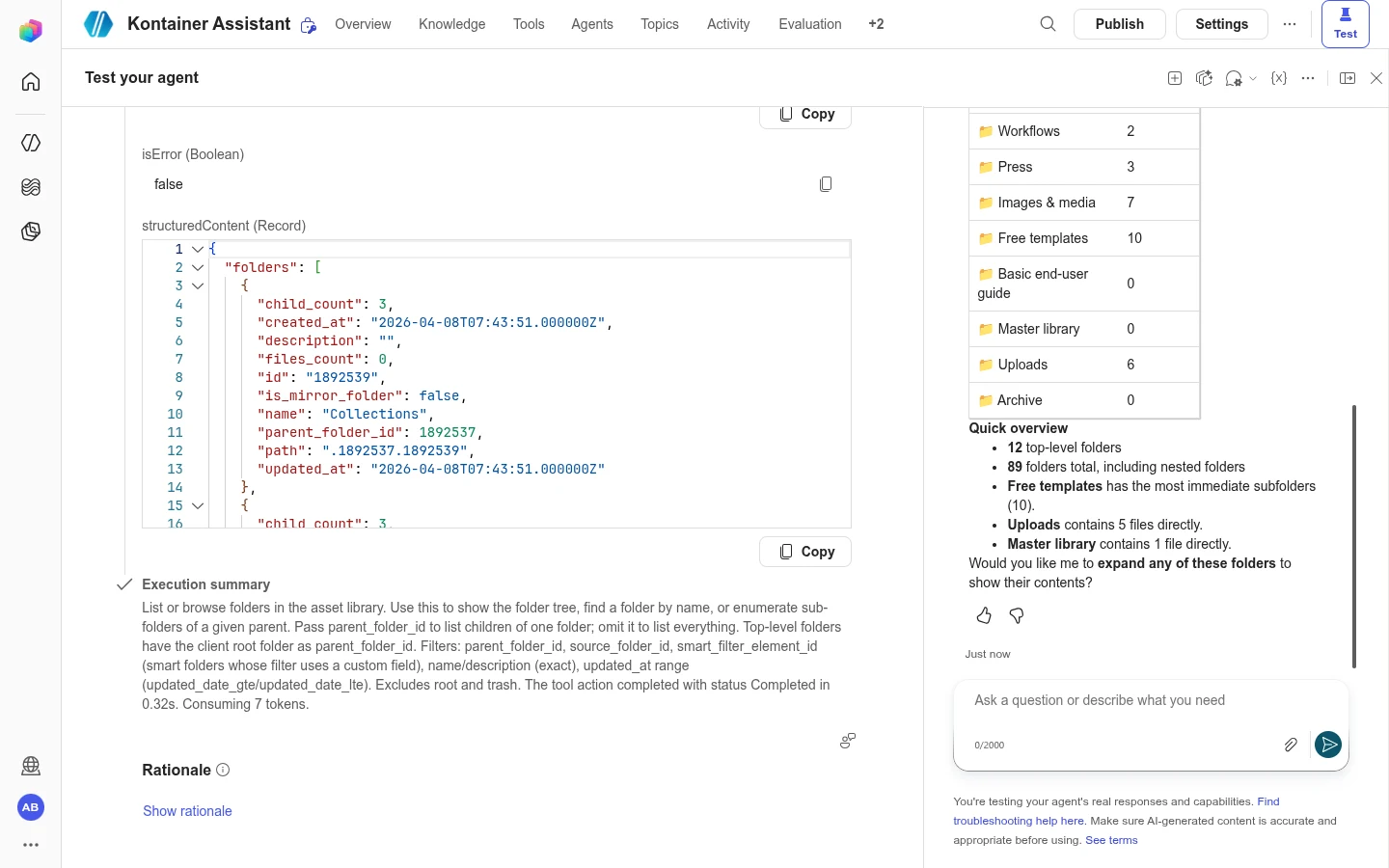
When it works, click Publish to make the agent available in the channels you have set up, for example Microsoft Teams.
Good to know
- Each person connects with their own Kontainer login, so the agent only sees what that person may see in Kontainer.
- Use
/mcp/copilot, not/mcp. The full/mcpserver has more than 70 tools, and Copilot Studio silently leaves out the rest, so the agent may say it cannot list folders or search files. - To remove the connection again, open the agent's Tools, open Kontainer and delete it, or remove the connection under Manage your connections.
Get in touch if you have any questions or would like help connecting Copilot Studio.