
Kontainer Helpdesk Kontainer Helpdesk

  • Knowledge base
  • End-user guide
  • Admin user guide
  • Support
  • English
    • Deutsch
Home / Admin settings, Users, groups & permissions / Set Time Expiration for Users

Set Time Expiration for Users

PIM DAM
1469 views Less than a minute 3

For all four user types, you can set an expiry date. Read more about the different user types here.


Go to Access > Users and click on the user, that you want to edit. Go to Profile and find the drop-down menu “Expire?”.

Set a time for expiration and confirm by clicking save in the bottom of the page.
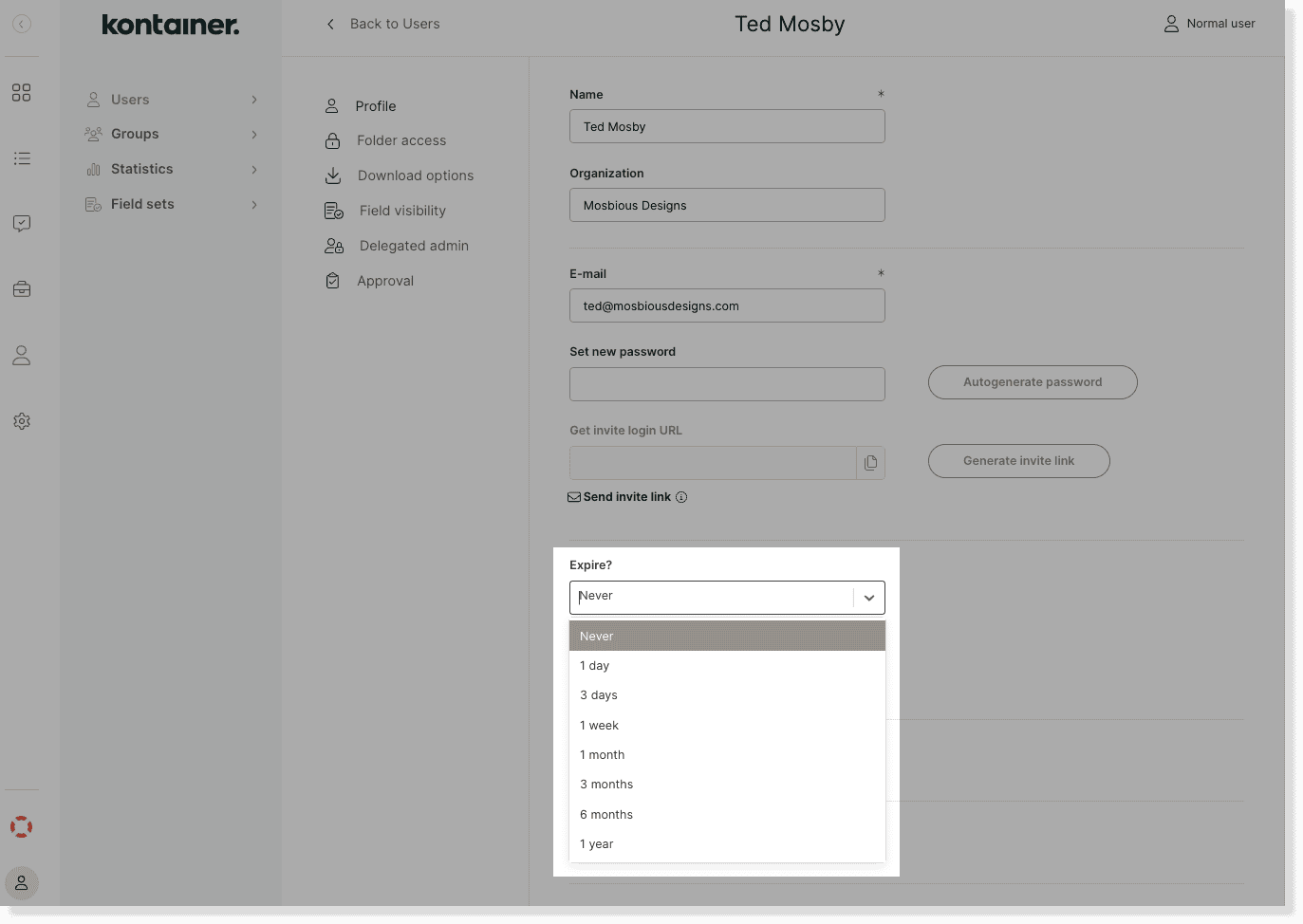
time expiration users image 1

Once the defined time period is expired, the user will be set as inactive.

You can always extend the period or set the user as active again in these user profile settings.


—

That’s about it.

Let us know in case of questions.

PIMDAM Admin settingsUsers, groups & permissions

Table of Contents

Related Articles

  • Archive folder
  • Hubspot plugin guide
  • Administrator guide
  • Adding Spacers in Your Folder Structure

Follow us

Remote support

Book a support session here

For desktop sharing click here

Cookie & Privacy Policy

Please read our privacy policy

Click here

Copyright 2026 Kontainer All rights reserved.