
Work faster and create more engaging HubSpot websites and landing pages with direct access to your centrally managed image library in Kontainer.
Our HubSpot plugin lets you search, select, and insert images—fully cropped and formatted—without leaving your HubSpot page editor. You can read more about the plugin here.
Go to the Kontainer integration page to find out more about the use cases, benefits, etc.
Please contact customer support for plugin activation and queries.
Step-by-step guide
Follow this guide to install and use the HubSpot plugin.
Step 1-3: Activate plugin & copy ID
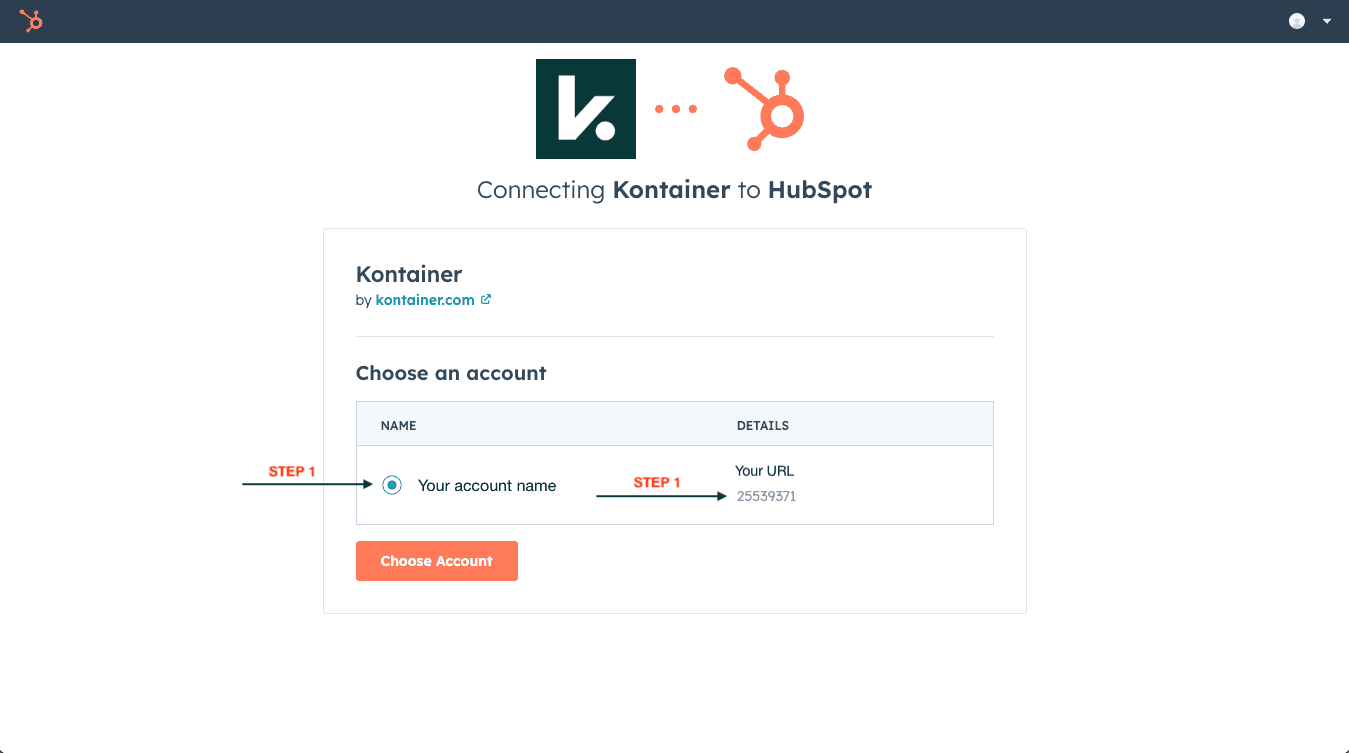
Log in to HubSpot. Then, follow this link to activate the Kontainer plugin.
Select your HubSpot account and copy the HubSpot Account ID (Step 1)
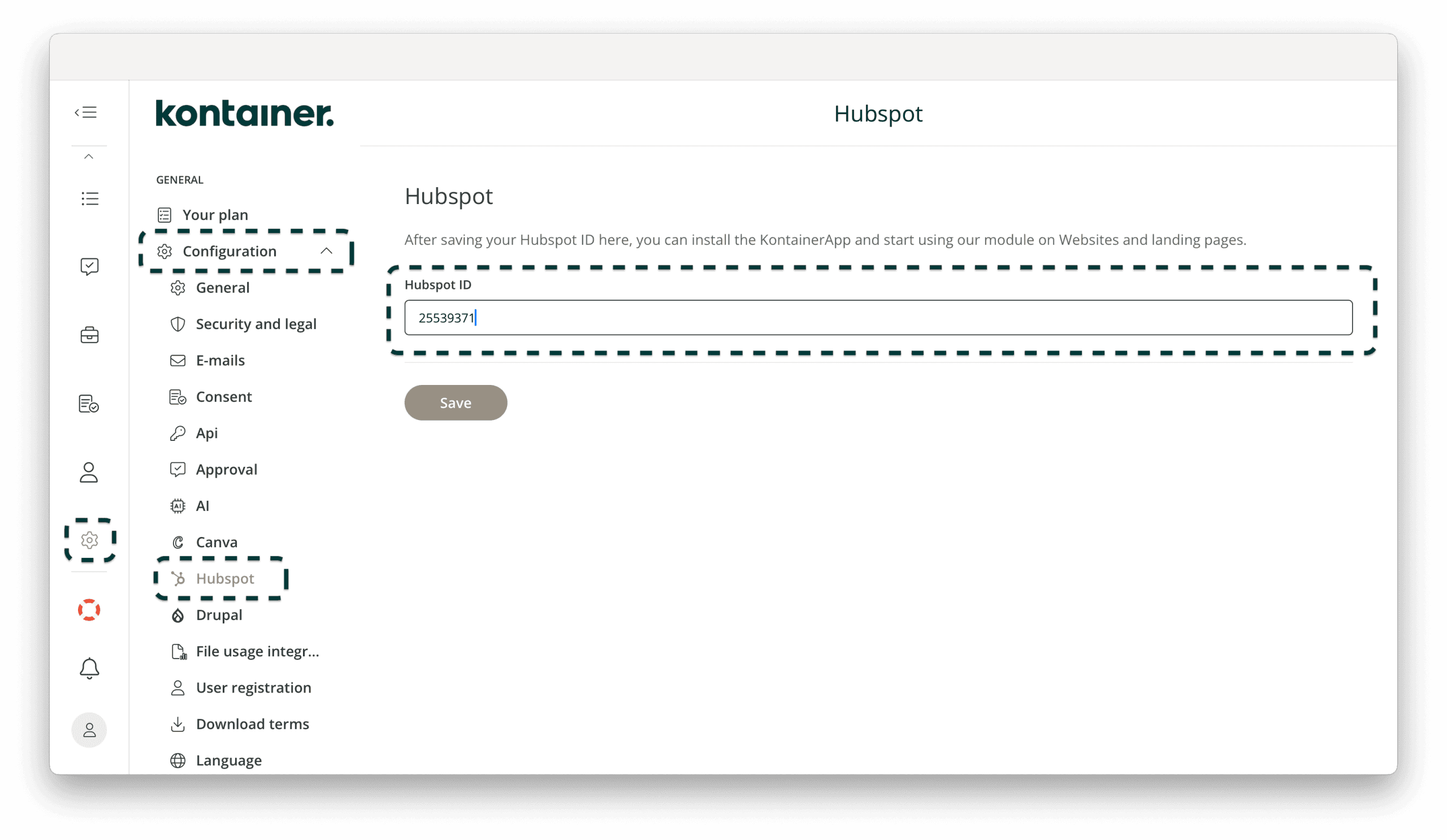
Go to your Kontainer, and paste the HubSpot Account ID into the corresponding HubSpot ID field (Step 3, example coming).
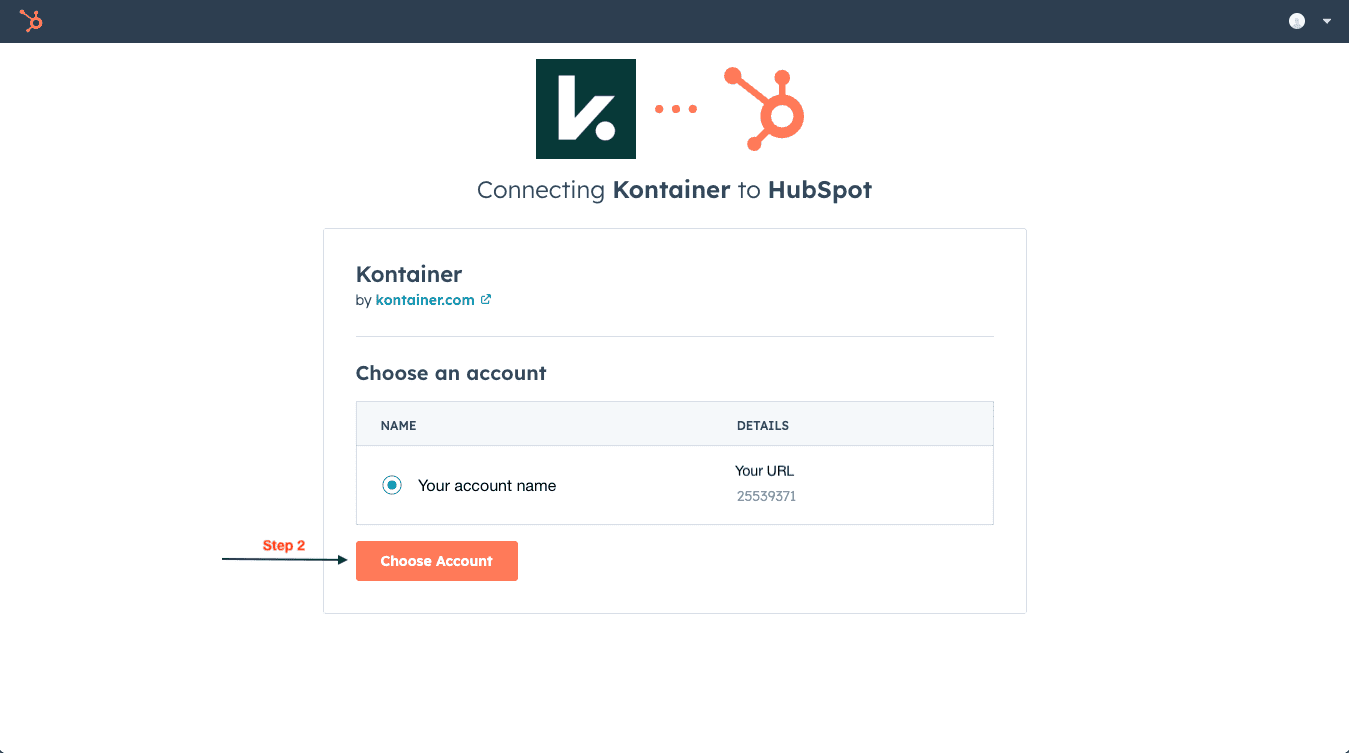
Once pasted, return to the HubSpot configuration page and click "Choose Account" (Step 2)
Please make sure to copy the HubSpot Account ID and paste it into Kontainer before clicking "Choose account."
Add HubSpot ID in Kontainer
Go to Kontainer DAM Settings/Configuration/HubSpot, then paste the ID copied from HubSpot (in Step 1).
NOTE: If your package includes the HubSpot plugin but the tab is not visible in Kontainer, please contact customer support to activate it.
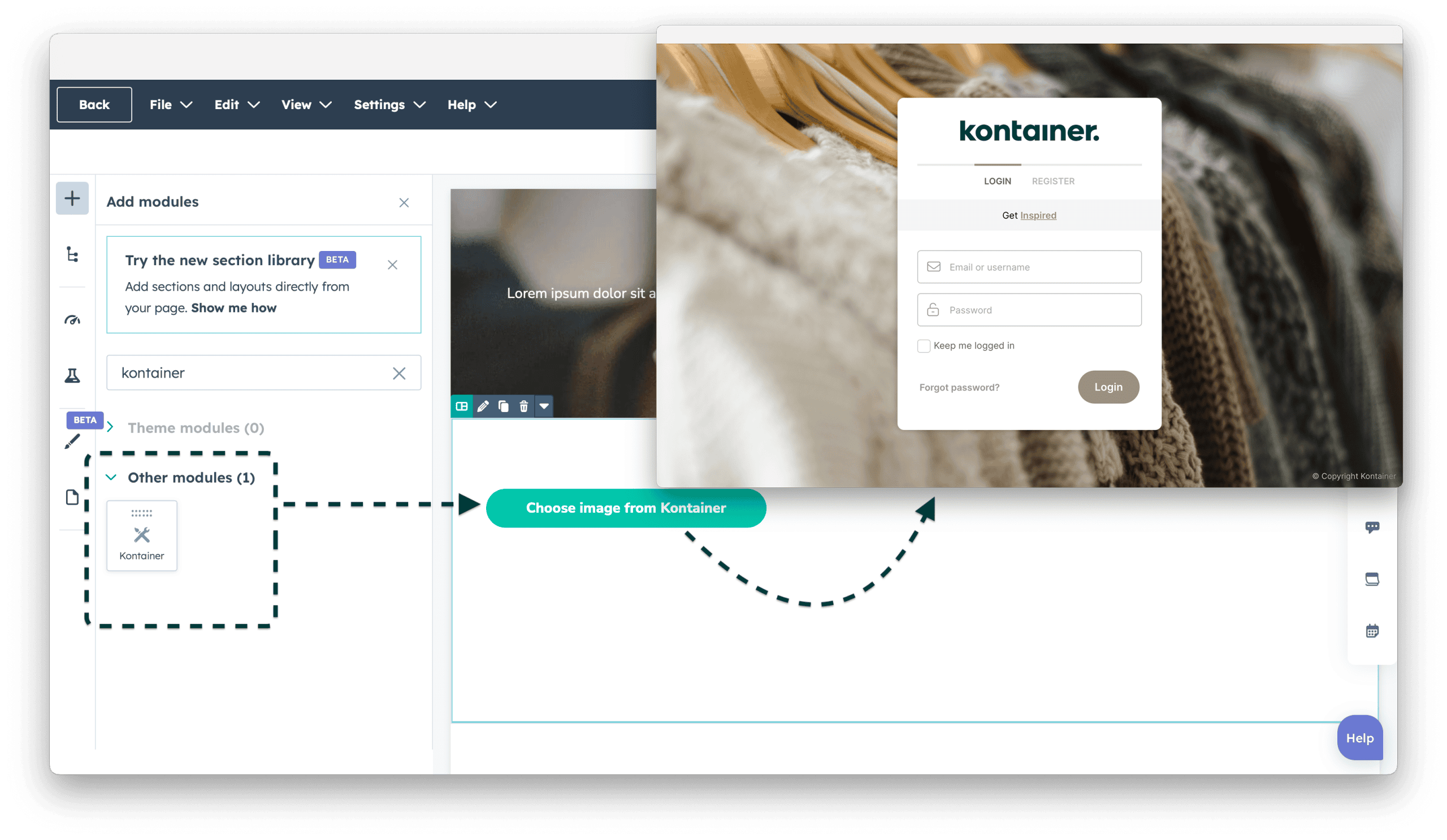
Step 4: Start adding images from Kontainer
You can now add images from Kontainer in the HubSpot Websites and Landing builders.
If you or other users are not already logged into Kontainer when working in HubSpot, you will be asked for login. This ensures that users from HubSpot can only work with images they have access to in Kontainer.
Visit our HubSpot integration page for more information about the plugin.
If you have any questions, please contact our customer support team via email.